Cara membuat absen di google form
Summary
TLDRIn this tutorial, Imam Rosadi demonstrates how to create a self-service attendance system for students using Google Forms. He guides viewers step-by-step, from opening Google Forms via Google Drive, setting up a structured form with fields for student name, roll number, and attendance status, to customizing the form's appearance and settings. The video also covers sharing the form link through platforms like Google Classroom or WhatsApp, and collecting responses in a spreadsheet for easy tracking and analysis. This practical guide empowers teachers to efficiently manage student attendance digitally, ensuring organized records and smooth classroom administration.
Takeaways
- 😀 The video tutorial demonstrates how to create a student attendance form using Google Forms.
- 😀 Start by accessing Google Drive and creating a new folder to keep your forms organized.
- 😀 Open Google Forms through Drive by clicking the '+' button or right-clicking in a folder and selecting 'Google Forms'.
- 😀 Set the form title to something like 'Class Attendance 4A' to clearly identify it.
- 😀 Include three main questions: full name, student number, and attendance status.
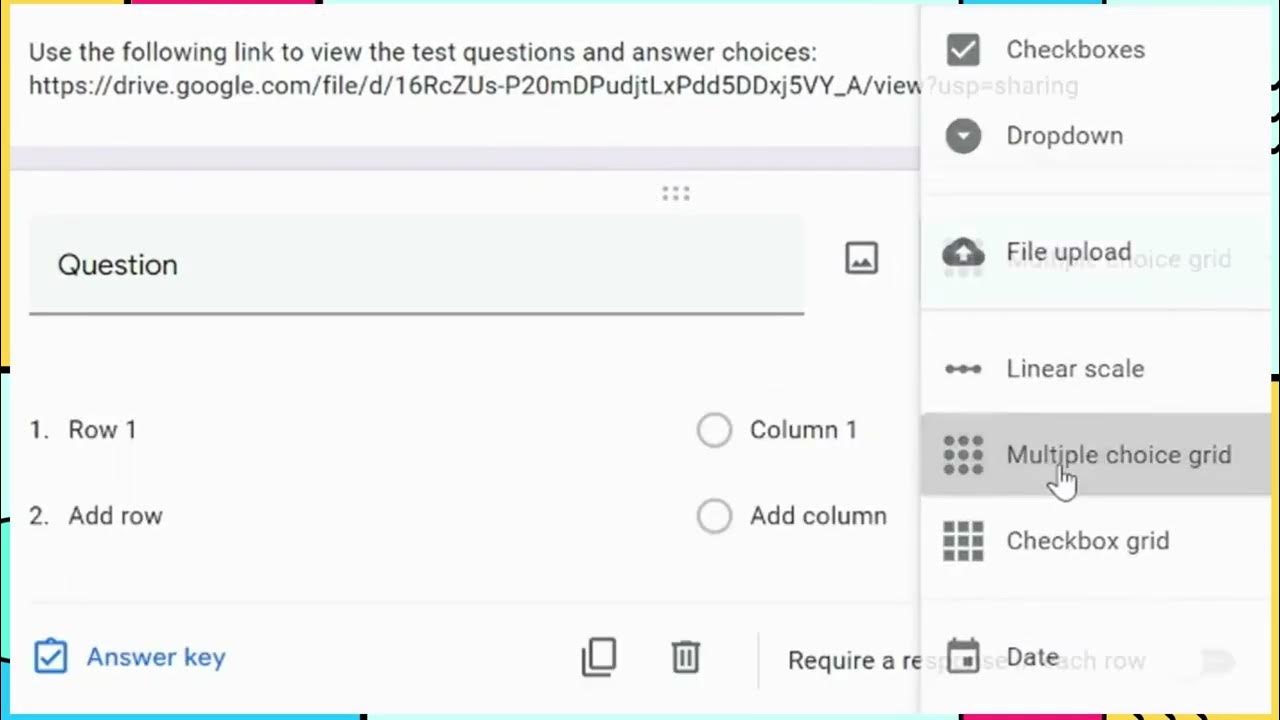
- 😀 Use 'Short Answer' for the name, 'Dropdown' for the student number, and 'Multiple Choice' for attendance options (Present, Sick, Permission).
- 😀 Make important questions mandatory to ensure students fill them correctly.
- 😀 Customize the form visually by adding images or adjusting the presentation settings.
- 😀 Share the form link with students via Google Classroom, WhatsApp, or other online platforms.
- 😀 Responses can be reviewed in Google Forms and exported to a spreadsheet for easy sorting and attendance tracking.
- 😀 The spreadsheet can be sorted by student number to efficiently monitor attendance and calculate attendance statistics.
- 😀 The tutorial emphasizes clarity in form creation to minimize errors and simplify record-keeping.
Q & A
What is the main purpose of the tutorial in the video?
-The tutorial explains how to create an online attendance form using Google Forms so students can fill in their own attendance records.
Which Google service is first accessed to create the attendance form?
-The tutorial starts by opening Google Drive from the Google apps menu.
How can a user create a new Google Form in Google Drive?
-A user can click the '+ New' button in Google Drive and select Google Forms, or right-click inside a folder and choose Google Forms.
Why does the presenter recommend creating a folder before making the form?
-The presenter recommends creating a folder to keep files organized and make attendance documents easier to manage.
What title example is used for the attendance form?
-The example title used is 'Class 4A Attendance'.
What is the first required field added to the form?
-The first required field is the student's full name.
Why is the attendance number field important?
-The attendance number helps organize and sort student attendance records more efficiently.
What input type does the presenter prefer for attendance numbers?
-The presenter prefers using a dropdown menu with numbers instead of a short-answer text field.
What attendance status options are included in the form?
-The attendance options are Present, Sick, and Permission/Excused.
Why are the form fields marked as required?
-The fields are marked as required to ensure students complete all necessary attendance information before submitting.
How does the presenter make the Google Form more visually appealing?
-The presenter adds a header image and customizes the form appearance settings.
What confirmation message is shown after students submit the form?
-The confirmation message thanks students for filling out the attendance form and informs them that their attendance has been recorded.
How can the attendance form link be shared with students?
-The form link can be shortened and shared through Google Classroom, WhatsApp, or other online learning platforms.
What examples of student attendance submissions are shown in the tutorial?
-The tutorial demonstrates submissions from students named Ali and Udin with different attendance statuses.
Where can teachers view all attendance responses?
-Teachers can view all attendance responses in the Responses tab of Google Forms.
How are attendance responses exported for easier management?
-The responses are exported to Google Sheets by clicking the spreadsheet icon in the Responses section.
Why does the presenter sort the spreadsheet by attendance number?
-Sorting by attendance number groups each student’s records together, making it easier to review attendance history.
How can teachers use the attendance data later?
-Teachers can use formulas in Google Sheets to calculate how many times each student was present, sick, or absent.
What advantage does Google Forms provide for attendance tracking?
-Google Forms automates attendance collection and organizes records digitally, reducing manual work for teachers.
What is the overall benefit of integrating Google Forms with Google Sheets for attendance?
-The integration allows automatic data collection, organized record keeping, and easy attendance analysis in a spreadsheet.
Outlines

Esta sección está disponible solo para usuarios con suscripción. Por favor, mejora tu plan para acceder a esta parte.
Mejorar ahoraMindmap

Esta sección está disponible solo para usuarios con suscripción. Por favor, mejora tu plan para acceder a esta parte.
Mejorar ahoraKeywords

Esta sección está disponible solo para usuarios con suscripción. Por favor, mejora tu plan para acceder a esta parte.
Mejorar ahoraHighlights

Esta sección está disponible solo para usuarios con suscripción. Por favor, mejora tu plan para acceder a esta parte.
Mejorar ahoraTranscripts

Esta sección está disponible solo para usuarios con suscripción. Por favor, mejora tu plan para acceder a esta parte.
Mejorar ahora



5.0 / 5 (0 votes)

