15 Rumus Dasar Excel Untuk Pemula
Summary
TLDRThis tutorial covers 15 essential Excel formulas for beginners, aimed at building a strong foundation in Microsoft Excel. The video explains basic functions such as SUM, MIN, MAX, AVERAGE, and lookup functions like VLOOKUP and HLOOKUP. It also covers text manipulation formulas like LEFT, RIGHT, MID, and how to work with date and time using TODAY and NOW. The presenter walks viewers through practical examples, making it easy for beginners to understand and apply these formulas, setting them up for success in more advanced Excel tasks in the future.
Takeaways
- 😀 Mastering basic Excel formulas is essential for beginners before advancing to more complex functions.
- 😀 The SUM function is fundamental for adding up numbers in a specified range (e.g., E3:E11).
- 😀 The MIN function helps find the smallest number in a range, such as identifying the lowest price from a list.
- 😀 The MAX function is used to find the highest number in a range, useful for determining the top score or value.
- 😀 AVERAGE calculates the mean of numbers in a range, which can be used for averaging grades or sales figures.
- 😀 LEFT function extracts a certain number of characters from the left side of a string, which is useful for parsing IDs or codes.
- 😀 RIGHT function works similarly to LEFT but extracts characters from the right side of a string, such as extracting email domains.
- 😀 MID function extracts a substring from the middle of a string, ideal for picking specific characters from a given position.
- 😀 VLOOKUP searches for a value in the first column of a table and returns a corresponding value from a specific column in the table.
- 😀 HLOOKUP works like VLOOKUP but searches horizontally across rows instead of columns, useful for different data structures.
- 😀 TODAY returns the current date, while NOW provides the current date and time, automatically updating as the workbook refreshes.
- 😀 LOWER function converts text to lowercase, while UPPER and PROPER functions allow text to be converted to uppercase and proper case (first letter of each word), respectively.
Q & A
What is the main focus of the video?
-The main focus of the video is to teach 15 basic Excel formulas for beginners. The tutorial emphasizes the importance of understanding these basic formulas before advancing to more complex ones.
Why is it important to learn basic Excel formulas first?
-Learning basic formulas is essential because they provide the foundation for understanding more advanced Excel functions. Mastering these basics allows users to combine formulas effectively to solve real-world problems.
What is the SUM function, and how is it used?
-The SUM function is used to add values in Excel. You can use it by typing `=SUM(range)` or by selecting the range and using the 'AutoSum' option in the menu.
How can I find the smallest value in a range of numbers in Excel?
-To find the smallest value, you can use the `MIN` function. For example, `=MIN(range)` will return the smallest number within the specified range.
How can I determine the largest value in a list of numbers?
-To find the largest value, use the `MAX` function. For example, `=MAX(range)` will return the highest number from the selected range.
What function can be used to calculate the average of a range of numbers?
-The `AVERAGE` function can be used to calculate the average of a range of numbers. For example, `=AVERAGE(range)` will return the mean of the numbers in the specified range.
What is the LEFT function used for in Excel?
-The `LEFT` function extracts a specified number of characters from the left side of a text string. For example, `=LEFT(text, number_of_characters)` will return the leftmost characters from the text string.
What is the RIGHT function, and how does it differ from the LEFT function?
-The `RIGHT` function extracts characters from the right side of a text string. Unlike the `LEFT` function, which takes characters from the start, `RIGHT` extracts from the end of the text string.
What is the `VLOOKUP` function, and when is it used?
-The `VLOOKUP` function is used to search for a value in the first column of a table and return a value in the same row from a specified column. It is often used for referencing data from a large dataset.
How does the `HLOOKUP` function differ from `VLOOKUP`?
-While `VLOOKUP` searches vertically in columns, `HLOOKUP` searches horizontally in rows. Both functions work similarly but are used in different orientations of data.
What is the `LOWER` function used for?
-The `LOWER` function is used to convert all letters in a text string to lowercase. For example, `=LOWER(text)` will convert the text to lowercase.
How do I change the case of text to uppercase in Excel?
-You can use the `UPPER` function to convert text to uppercase. For example, `=UPPER(text)` will return the text in all capital letters.
How can I calculate the current date and time in Excel?
-To calculate the current date and time, you can use the `NOW` function. For example, `=NOW()` will return the current date and time, which will update whenever the worksheet is recalculated.
How can I get just the current date without the time in Excel?
-To get only the current date without the time, use the `TODAY` function. For example, `=TODAY()` will return the current date without the time.
Outlines

Cette section est réservée aux utilisateurs payants. Améliorez votre compte pour accéder à cette section.
Améliorer maintenantMindmap

Cette section est réservée aux utilisateurs payants. Améliorez votre compte pour accéder à cette section.
Améliorer maintenantKeywords

Cette section est réservée aux utilisateurs payants. Améliorez votre compte pour accéder à cette section.
Améliorer maintenantHighlights

Cette section est réservée aux utilisateurs payants. Améliorez votre compte pour accéder à cette section.
Améliorer maintenantTranscripts

Cette section est réservée aux utilisateurs payants. Améliorez votre compte pour accéder à cette section.
Améliorer maintenantVoir Plus de Vidéos Connexes

23. Literasi Digital - Rumus dan Fungsi Dasar pada Excel - Informatika Kelas X
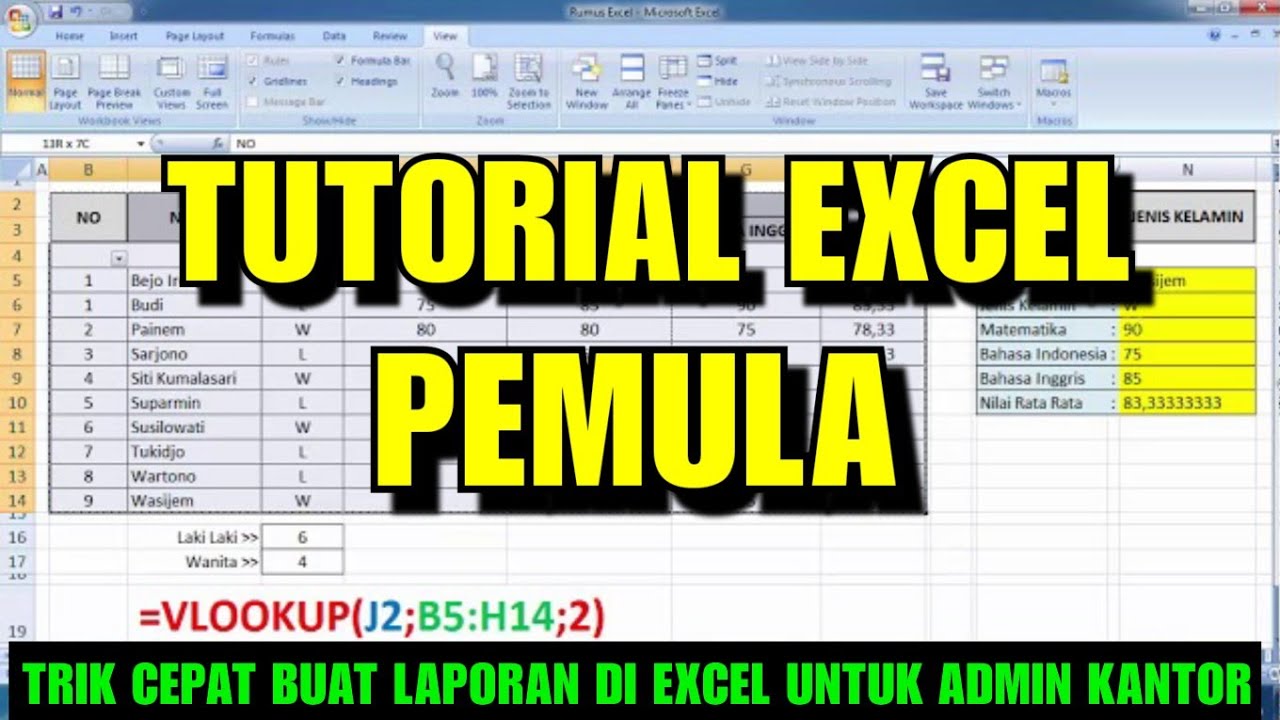
TUTORIAL EXCEL PEMULA LENGKAP
Excel Formulas and Functions You NEED to KNOW!
#1 - Belajar Excel Dari Nol | Mengenal Interface Excel
Belajar Google Sheets dari Nol Eps. 1 | Tutorial Google Spreadsheet Pemula - ignasiusryan

Belajar Excel dari Nol | Tutorial Excel Untuk Pemula Part 1
5.0 / 5 (0 votes)

