buat ulangan
Summary
TLDRThe video demonstrates a step-by-step tutorial on configuring a MikroTik router to connect to a wireless hotspot, set up network interfaces, and manage internet distribution. It explains how to enable wireless settings, create a security profile with WPA/WPA2 passwords, and connect the router to a hotspot through scanning and DHCP client configuration. The guide then covers assigning IP addresses to Ethernet ports, setting up a DHCP server, and creating routing to establish internet connectivity. After verifying the connection, the tutorial shows how to control bandwidth using Simple Queue and Queue Tree methods, including firewall mangle rules for traffic marking. Finally, it tests load balancing and failover to ensure internet access continues even if one connection source goes down.
Takeaways
- 😀 Make sure to enable the wireless menu by clicking on it and turning it on before proceeding.
- 😀 Create a security profile with WPA PSK and WPA2 enabled, ensuring the password matches the hotspot's password.
- 😀 When setting up the wireless connection, scan for your hotspot, connect to it, and apply the settings.
- 😀 If the wrong password is entered, the client status will stop and an error will be triggered. This can be checked later.
- 😀 Ensure correct configuration of IP addresses for interfaces like ether2 and ether3 without using spaces in the network range.
- 😀 Set up a DHCP server to assign dynamic IP addresses for your network configuration.
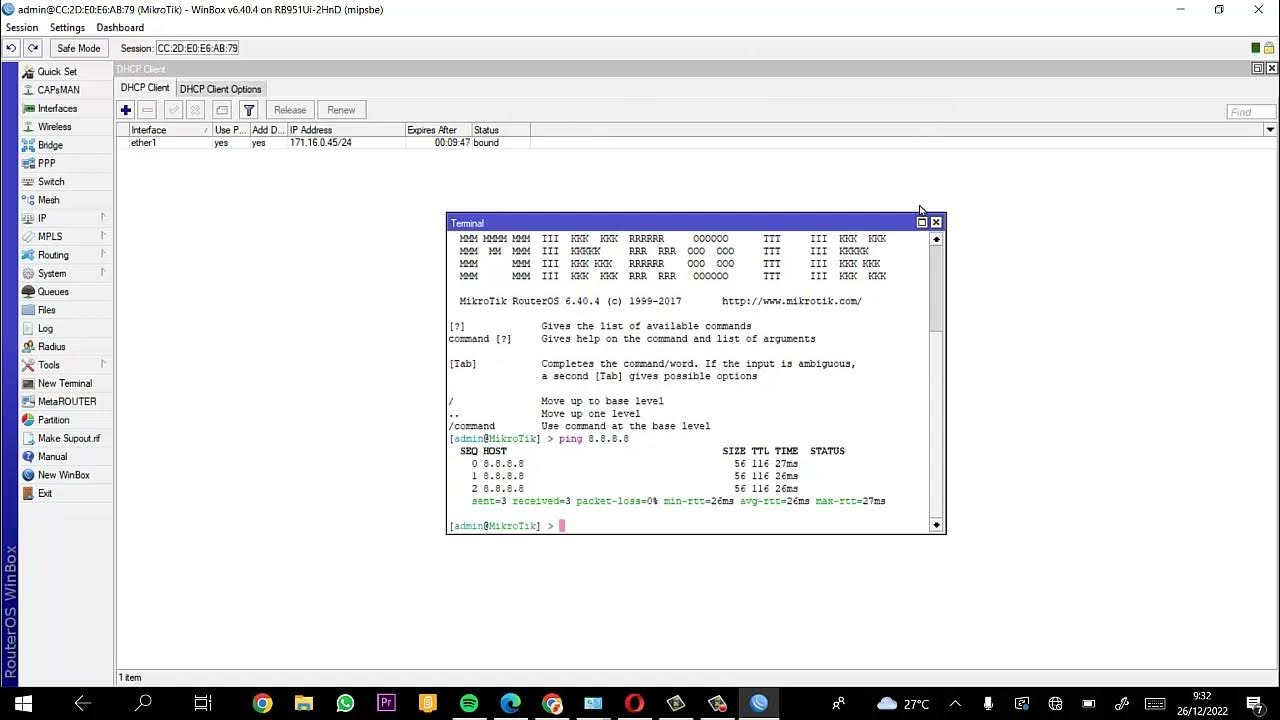
- 😀 Test internet connection by configuring firewalls and ensuring the routes are correctly set up between interfaces.
- 😀 Implement load balancing by setting up routes and gateways for multiple internet connections to ensure redundancy.
- 😀 Adjust bandwidth limits using Simple Queues (Simple Q) and ensure download and upload speeds are within specified limits.
- 😀 For advanced traffic management, configure Q3 queues to control more granular traffic rules, limiting bandwidth for different interfaces.
- 😀 Perform a failover test to check whether the internet connection remains functional when one internet source is disconnected.
Q & A
What is the first step in configuring the wireless interface on MikroTik according to the script?
-The first step is to activate the wireless interface by clicking it in the wireless menu, either once or twice, to turn it on.
How do you set up a security profile for the wireless connection?
-In the 'Security Profile' menu, create a new profile, select the highest mode, check both WPA-PSK and WPA2, and set a password that matches the hotspot.
What should be done if the DHCP client status shows 'stop'?
-A 'stop' status indicates that the password for the wireless network was entered incorrectly. You should verify the password and reconfigure the DHCP client.
How are IP addresses assigned to ether2 and ether3 in the configuration?
-Ether2 is assigned a static IP of 172.16.9.1/29, and ether3 is assigned 172.16.10.1/29. Ether2 receives IP automatically via DHCP server, while ether3 requires manual IP setup on the connected PC.
Why is a DHCP server configured only for ether2 and not for ether3?
-Ether2 is configured with a DHCP server to automatically assign IP addresses to connected devices, while ether3 requires manual IP assignment because it does not use a DHCP server in this setup.
How is load balancing set up using routes?
-In the IP → Routes menu, add gateways for each WAN connection, copy their IP addresses, and check the gateway status. If the gateway is reachable, it can be used for load balancing.
What is the purpose of Simple Queue (Q) and Queue Tree (Q3) in this configuration?
-Simple Queue (Q) and Queue Tree (Q3) are used to limit the bandwidth for ether2 and ether3. They define maximum and minimum upload/download speeds to ensure fair usage.
How do firewall mangle rules assist with bandwidth management?
-Firewall mangle rules mark packets as upload or download traffic, which are then referenced in Q or Q3 for bandwidth limitation, ensuring proper allocation of network resources.
How can you verify that the bandwidth limits are correctly applied?
-You can test internet speed for ether2 and ether3. The traffic should not exceed the maximum bandwidth set in Q/Q3 and should not fall below the minimum limit. Indicators in the queue will change color during the process.
What is the procedure to test failover in the network setup?
-To test failover, manually disable one of the internet sources. If the configuration is correct, the other source will continue providing internet access without interruption.
Why might ether3 require manual IP configuration on a PC?
-Because ether3 is not connected to a DHCP server, so devices connected to it will not automatically receive an IP. Manual IP configuration is needed to match the subnet of the MikroTik router.
What is the significance of setting both minimum and maximum bandwidth in Q3?
-Setting both minimum and maximum ensures that no user can exceed the allowed bandwidth, while guaranteeing a baseline speed. This prevents congestion and maintains fair bandwidth distribution.
How can one ensure that the internet is accessible after moving cables to different ether ports?
-After moving the cables, verify that IPs are correctly configured and that the DHCP client or manual IP matches the new port's interface. Then, test internet connectivity.
Outlines

此内容仅限付费用户访问。 请升级后访问。
立即升级Mindmap

此内容仅限付费用户访问。 请升级后访问。
立即升级Keywords

此内容仅限付费用户访问。 请升级后访问。
立即升级Highlights

此内容仅限付费用户访问。 请升级后访问。
立即升级Transcripts

此内容仅限付费用户访问。 请升级后访问。
立即升级


5.0 / 5 (0 votes)

