Cara Membuat Bootable USB dengan Rufus | Cara Install Windows dengan Flashdisk
Summary
TLDRIn this tutorial, viewers learn how to create a bootable USB drive for Windows installation using the easy-to-use tool, Rufus. The video covers key steps, including downloading and installing Rufus, preparing a USB flash drive, selecting the correct partition scheme (MBR or GPT), and making necessary privacy adjustments. The tutorial also emphasizes the importance of ensuring the correct USB drive is selected to avoid accidental formatting. Finally, the video walks through restarting the computer, accessing the BIOS, and booting from the USB drive, ensuring a successful installation. Perfect for users looking to create a bootable drive for Windows installation.
Takeaways
- 😀 Download and install Rufus, a lightweight tool (only 1.5 MB) for creating bootable USB drives.
- 😀 Use an original or high-quality USB flash drive for better transfer speeds and reliability.
- 😀 A 32 GB USB drive is ideal, though an 8 GB drive is sufficient for Windows 8 installations.
- 😀 Select your desired Windows ISO file in Rufus by clicking the 'Select' button.
- 😀 Choose the correct partition scheme: MBR for older systems (legacy BIOS) and GPT for newer systems (UEFI).
- 😀 Double-check that you have selected the correct USB device in Rufus to avoid accidentally formatting another drive.
- 😀 You can choose to create a local account and disable data collection (optional privacy settings).
- 😀 After setting up Rufus, click 'Start' to begin creating the bootable USB drive.
- 😀 Once the process is complete, safely eject the USB drive and restart the computer.
- 😀 Enter BIOS/Boot menu by pressing keys like Escape or F2 (varies by device), and select the USB as the boot device.
- 😀 Once the computer boots from the USB, the Windows installation process will begin successfully.
Q & A
What is the main purpose of the video?
-The video demonstrates how to create a bootable USB drive for installing Windows using the Rufus application.
Why is it recommended to use an original flash drive?
-Using an original flash drive ensures a higher transfer rate and more reliable performance during the bootable creation process.
What is the minimum recommended size of a flash drive for Windows installation?
-For Windows 8, a minimum of 8 GB is sufficient, but the example in the video uses a 32 GB flash drive.
What application is used in the video to create a bootable USB?
-The video uses Rufus, a small and easy-to-use application for creating bootable USB drives.
What are the two partition schemes mentioned and their purposes?
-MBR is used for older Windows versions and older computers, while GPT is recommended for newer Windows versions and larger capacity drives.
What should users be careful about when selecting the USB device in Rufus?
-Users must ensure they select the correct flash drive to avoid accidentally formatting other devices like external hard drives.
What optional settings can be configured during the bootable USB creation?
-Optional settings include creating a default user account, disabling data collection, and skipping privacy settings during installation.
What is the process to boot the computer from the USB drive?
-Restart the computer, enter BIOS using keys like ESC or F2, then select the USB drive as the boot device to start the Windows installation.
Why might someone choose MBR over GPT according to the video?
-MBR is chosen for compatibility with older computers that may not support the GPT partition scheme.
What steps should be taken after the Rufus process is complete?
-Once Rufus finishes creating the bootable USB, close the application, restart the computer, enter BIOS, and select the USB as the boot device to begin installation.
Outlines

This section is available to paid users only. Please upgrade to access this part.
Upgrade NowMindmap

This section is available to paid users only. Please upgrade to access this part.
Upgrade NowKeywords

This section is available to paid users only. Please upgrade to access this part.
Upgrade NowHighlights

This section is available to paid users only. Please upgrade to access this part.
Upgrade NowTranscripts

This section is available to paid users only. Please upgrade to access this part.
Upgrade NowBrowse More Related Video
CARA MEMASUKKAN SISTEM OPERASI KE FLASHDISK - BOOTABLE FLASHDISK
How to Create a Rufus Bootable USB for Windows 10 in 5 Minutes!

How to Make a Bootable Windows 10 on a 100% Work Flashdisk
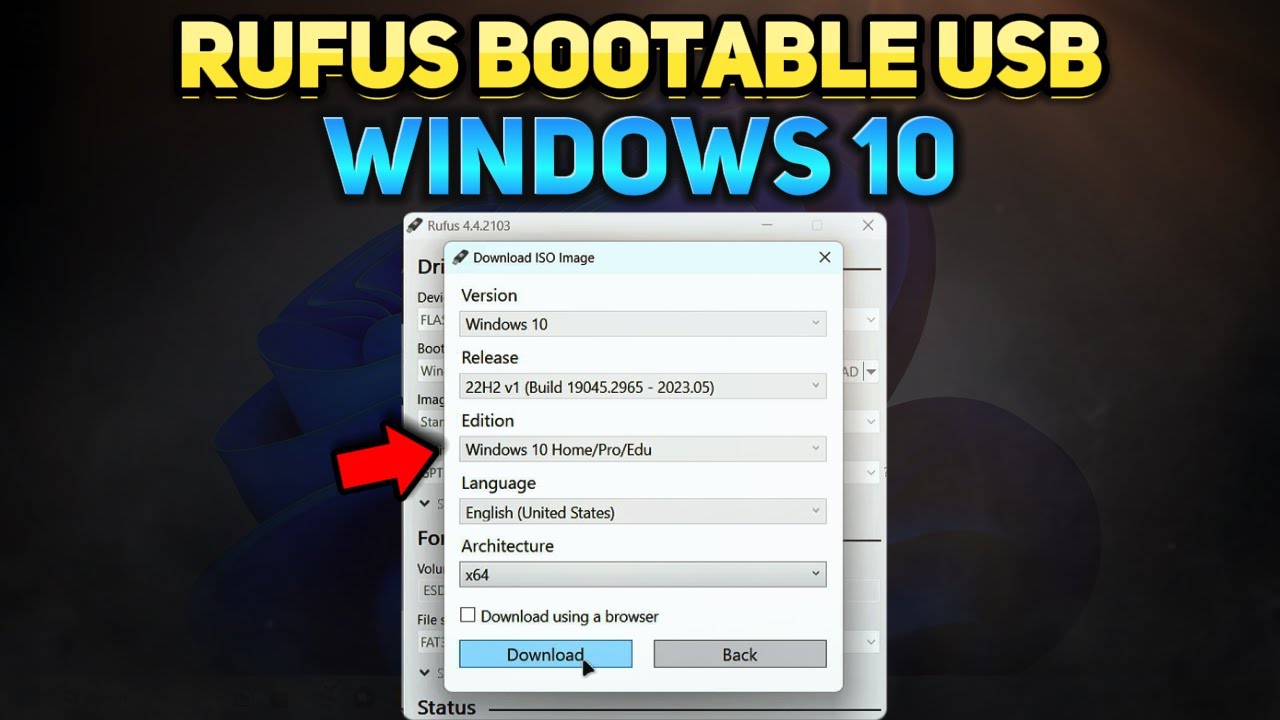
How to Create a Windows 10 Installation USB with Rufus (Tutorial)
How to Create a Bootable USB Drive Using Rufus - Step-by-Step Guide

How to Create a Windows 11 Bootable USB Flash Drive (Official Method)
5.0 / 5 (0 votes)
