Why Your Exported Colors DON'T MATCH (And How To Fix It)
Summary
TLDRStruggling with color export issues in DaVinci Resolve? This video explains the essential steps to fix dark, washed-out, or incorrect exports. It covers monitor calibration, key settings in DaVinci Resolve (such as color science and timeline settings), and the importance of using the correct output color space. Learn how to ensure accurate colors and avoid common issues caused by different screen profiles and software. With the right calibration and settings, your exports will look much closer to what you see in the timeline. A must-watch for video editors aiming for color consistency!
Takeaways
- 😀 If your DaVinci Resolve exports look dark, washed out, or wrong, it's likely due to improper settings.
- 😀 Calibrating your monitor is crucial for accurate color reproduction. If your monitor isn't calibrated, you can't trust the colors you're seeing.
- 😀 Using a colorimeter to regularly calibrate your monitor will ensure you're working with accurate colors. This helps prevent issues with your final export.
- 😀 A monitor with poor color accuracy can lead to worse results on client displays, so ensuring your monitor is calibrated minimizes the risk of errors.
- 😀 To calibrate your monitor properly, use the Rec.709 color space for online videos (Gamma 2.2) and Rec.709 Gamma 2.4 for broadcast content.
- 😀 In DaVinci Resolve, enable 'Use 10-bit precision in viewers' and 'Use Mac display color profile for viewers' to ensure color accuracy.
- 😀 In project settings, set the color science to 'DaVinci YRGB' and choose 'DaVinci Wide Gamma Intermediate' for timeline color space for a larger working color space.
- 😀 Always set the output color space to match your calibrated monitor's settings (Rec.709 Gamma 2.2 for online videos or Gamma 2.4 for broadcast).
- 😀 When exporting, choose the correct color space and gamma in the 'advanced settings' to avoid incorrect color tags in the export file.
- 😀 To avoid gamma discrepancies across programs, set the gamma output to Rec.709, which ensures consistent color representation across different devices.
Q & A
What could cause a DaVinci Resolve export to look dark or washed out compared to the timeline?
-This can happen due to incorrect monitor calibration, improper color management settings in DaVinci Resolve, or mismatched color space and gamma settings during export.
Why is monitor calibration important for accurate color grading in DaVinci Resolve?
-A calibrated monitor ensures that the colors you see on screen are accurate. Without proper calibration, you cannot trust your monitor's color reproduction, leading to inaccurate grading and potential problems when viewed on other devices.
What is the main tool recommended for calibrating your monitor?
-The recommended tool is a colorimeter, which connects to your computer and runs software to measure, calibrate, and profile the monitor to ensure accurate color reproduction.
What is the difference between Rec.709 Gamma 2.2 and Gamma 2.4?
-Rec.709 Gamma 2.2 is commonly used for online videos, while Gamma 2.4 is typically used for broadcast TV. Gamma 2.2 offers a brighter image suited for screens like computer monitors, while Gamma 2.4 is darker and designed for broadcast TVs in controlled lighting environments.
Why should you set up color management settings in DaVinci Resolve before starting your project?
-Setting up color management before starting ensures consistent color grading throughout the project. Making these changes mid-project can alter the appearance of the work you've already done.
What are the key settings in DaVinci Resolve to ensure proper color management?
-Key settings include enabling 10-bit precision in viewers, using the Mac display color profile (or similar for Windows), setting the color science to DaVinci YRGB, and selecting the correct timeline and output color spaces (e.g., Rec.709 Gamma 2.2 for online videos).
What is the effect of changing the LUT (lookup table) interpolation in DaVinci Resolve?
-Changing the LUT interpolation to 'tetrahedral' improves LUT processing quality, reduces color banding, and ensures smoother transitions in the graded footage.
What does the setting 'Set current settings as default preset' in DaVinci Resolve do?
-This option saves your current settings as the default for all future projects, ensuring consistency in color management across new files and preventing you from having to manually configure these settings each time.
Why should you adjust export settings, specifically the color space and gamma, in DaVinci Resolve?
-Adjusting the color space and gamma during export ensures the correct non-linear color (NLC) tags are applied, which helps prevent color discrepancies between DaVinci Resolve, QuickTime, and other software or devices.
What issue arises from mismatched gamma tags during export in DaVinci Resolve?
-Mismatched gamma tags, such as exporting with gamma 2.2 or 2.4 tags, can lead to inconsistencies in how colors are interpreted by different programs and devices, making the exported video look different than intended.
Outlines

このセクションは有料ユーザー限定です。 アクセスするには、アップグレードをお願いします。
今すぐアップグレードMindmap

このセクションは有料ユーザー限定です。 アクセスするには、アップグレードをお願いします。
今すぐアップグレードKeywords

このセクションは有料ユーザー限定です。 アクセスするには、アップグレードをお願いします。
今すぐアップグレードHighlights

このセクションは有料ユーザー限定です。 アクセスするには、アップグレードをお願いします。
今すぐアップグレードTranscripts

このセクションは有料ユーザー限定です。 アクセスするには、アップグレードをお願いします。
今すぐアップグレード関連動画をさらに表示

DaVinci Resolve para Iniciantes - Como Editar Vídeos - Completo 2024
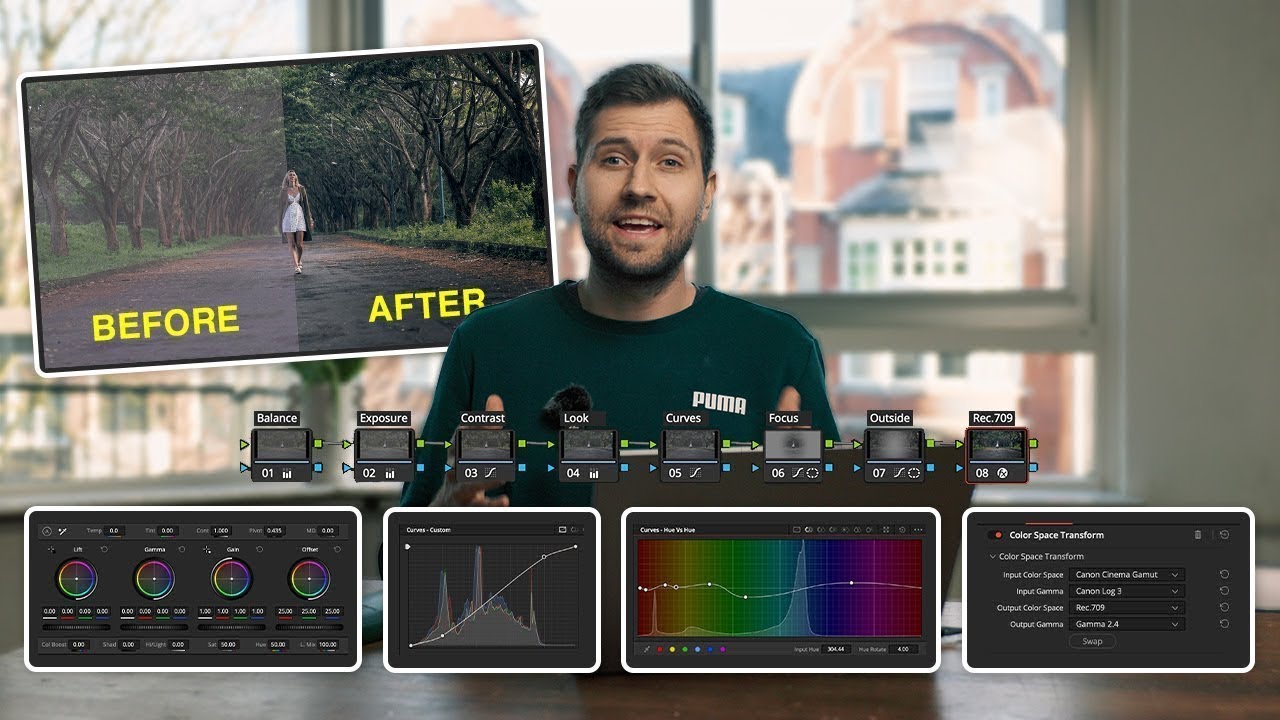
80% Of COLOUR GRADING BASICS In ONLY 20 Minutes
Can a professional editor use Kdenlive?
DO NOT BUY a VA monitor... You'll most likely REGRET IT!

Struggling with Apple Log? Watch This! (DaVinci Resolve Tutorial)
How To Fix Instagram Message Problem
5.0 / 5 (0 votes)

