1. INSTALL DEBIAN 12 - VIRTUALBOX
Summary
TLDRThis tutorial guides users through the installation of Debian 12 on a virtual machine using a command-line interface. It covers preparing the ISO DVD, configuring virtual machine settings including memory, CPU cores, and network adapters, and mounting the ISO for installation. The instructor walks through language and keyboard setup, network configuration, user creation, time zone selection, and default partitioning. Additional steps include handling package selection, bootloader setup, and finalizing the installation. By following this step-by-step process, users can successfully install Debian 12 and log in as root, ensuring a functional and properly configured system for further use.
Takeaways
- 😀 Ensure you have the correct DVD ISO for Debian 12, specifically DVD 1.
- 😀 Start by creating a new virtual machine and naming it 'Debian 12'.
- 😀 Set the machine to a command-line interface (CLI) setup during creation.
- 😀 Adjust memory settings based on your system's specifications; 1 GB is used in this example.
- 😀 Configure the CPU settings with two cores for better performance.
- 😀 Set up the network source by identifying the internet connection in your system's network settings.
- 😀 For the second network adapter, choose 'host-only' mode.
- 😀 After configuring hardware, mount the Debian 12 DVD ISO to begin installation.
- 😀 Follow the language and location settings, choosing 'English' and 'Indonesia (Asia)' for the setup.
- 😀 Create a user with a password and set the time zone for 'Jakarta, Java'.
- 😀 Proceed with the default disk partition settings, complete the installation, and restart the system.
Q & A
What is the first step when installing Debian 12 in VirtualBox?
-The first step is to create a new virtual machine in VirtualBox with the name 'Debian 12'. Then, choose 'Debian' as the operating system and '64-bit' as the version.
What memory configuration is suggested for the Debian 12 installation?
-It is recommended to assign 1 GB of memory (RAM) for the installation. However, the memory can be adjusted based on your system's available resources.
How many processor cores are allocated during the installation process?
-During the installation process, it is suggested to allocate 2 processor cores for the virtual machine.
What should you do if the network source in VirtualBox is different from the default settings?
-You should go to 'View Connection' in VirtualBox to check the active network connection and adjust the settings accordingly to ensure the correct source internet is selected.
What is the purpose of selecting 'Host-Only Adapter' in the network settings?
-'Host-Only Adapter' is selected to create a network that allows communication between the virtual machine and the host machine without external internet access, useful for the installation process.
How do you select the correct DVD ISO for installation in VirtualBox?
-During the installation setup, you need to browse and select the Debian 12 ISO from your system's storage. Choose the DVD 1 ISO and mount it before continuing with the installation.
What language and location settings are used during the installation?
-The language is set to English (United States), and the location is set to 'Asia, Indonesia.' The keyboard layout is set to 'American English'.
What username and password are recommended for the Debian 12 installation?
-The recommended username is 'admin' and the password should be set to 'admin' for both the 'root' and regular user accounts.
How should the time zone be configured during the installation process?
-The time zone should be set to 'Asia/Jakarta' to align with the local time zone in Indonesia.
What are the default partition settings used for the installation of Debian 12?
-The default partition settings are chosen automatically, with the installer selecting the default partition scheme. It is recommended to accept the default settings for simplicity.
Outlines

Cette section est réservée aux utilisateurs payants. Améliorez votre compte pour accéder à cette section.
Améliorer maintenantMindmap

Cette section est réservée aux utilisateurs payants. Améliorez votre compte pour accéder à cette section.
Améliorer maintenantKeywords

Cette section est réservée aux utilisateurs payants. Améliorez votre compte pour accéder à cette section.
Améliorer maintenantHighlights

Cette section est réservée aux utilisateurs payants. Améliorez votre compte pour accéder à cette section.
Améliorer maintenantTranscripts

Cette section est réservée aux utilisateurs payants. Améliorez votre compte pour accéder à cette section.
Améliorer maintenantVoir Plus de Vidéos Connexes

Media Ajarku: Instalasi Debian 12 CLI
Langkah Install Debian Server Berbasis CLI (Text) - VirtualBox
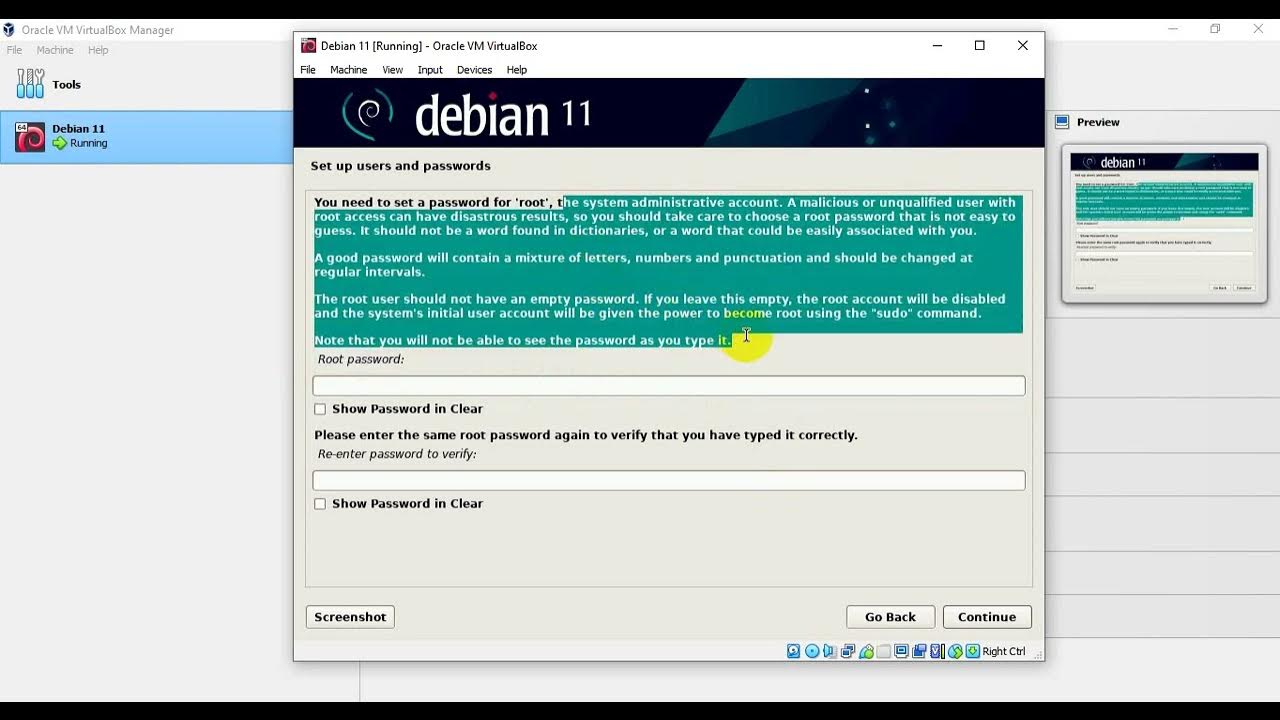
1. Install Debian - Guided Partition

Proxmox auf einem Hetzner Server installieren
Install Debian 12.9 on VirtualBox in 10 MINUTES! | Step-by-Step Guide | 2025
Configure Proxmox GPU Passthrough (Step-by-Step Tutorial)
5.0 / 5 (0 votes)

