COC3 DHCP and DNS
Summary
TLDRIn this tutorial, the instructor demonstrates how to configure DHCP and DNS servers on a Windows machine. The process starts with adding roles and features, followed by setting up a new DHCP scope with a specified IP range. Static IP configuration for client PCs is also covered, ensuring proper connection to the server. The DNS setup involves configuring forward and reverse lookup zones, including adding pointer records and handling loopback zones. By the end of the video, viewers will understand how to properly configure both DHCP and DNS for seamless network management.
Takeaways
- 😀 Ensure that all prerequisites are met before starting the configuration, including selecting the right roles and features for DHCP and DNS.
- 😀 To start the configuration, go to 'Add Roles and Features' and select 'DHCP Server' to begin the installation process.
- 😀 Installation of the DHCP server requires clicking through several prompts, including 'Next' and 'Install' before finishing.
- 😀 After installation, verify that it succeeded and click 'Close' to exit the installation window.
- 😀 To complete DHCP configuration, navigate to the DHCP Manager, right-click on the server, and select 'DHCP Manager'.
- 😀 Define the IP range for the DHCP server by specifying the start and end IP addresses for dynamic allocation.
- 😀 Skip the default gateway and DNS setup if you're using a virtual machine without a physical router or access point.
- 😀 For static IP configuration, update the preferred DNS server to the server’s IP address (e.g., 192.168.100.1) from the client’s machine.
- 😀 For testing, use the 'ipconfig' command on the client machine to ensure that the IP address is within the correct range assigned by the DHCP server.
- 😀 The DNS configuration involves setting up a forward lookup zone, associating records with domain names, and enabling reverse lookup zones for correct DNS resolution.
Q & A
What is the first step in configuring a DHCP server in the script?
-The first step is to click on 'Add roles and features' and then proceed by clicking 'Next' multiple times until you select the 'DHCP Server' role.
What is the significance of the IP address range 192.168.100.3 to 192.168.100.7 in the DHCP configuration?
-The IP address range 192.168.100.3 to 192.168.100.7 is allocated for devices that will be assigned IP addresses by the DHCP server, ensuring that devices can be dynamically assigned IPs within this specified range.
Why does the script mention skipping router IP or default gateway configuration?
-The script mentions skipping the router IP or default gateway configuration because the setup is being done in a virtual machine environment without physical routers or access points.
How is the DNS server configured on the client PC in the script?
-The DNS server on the client PC is configured by changing the preferred DNS server from the loopback IP (127.0.0.1) to the DHCP server's IP address (192.168.100.1).
What is the purpose of the command 'ipconfig' in the script?
-'ipconfig' is used to check the current IP configuration of the client PC, ensuring that the DHCP configuration has correctly assigned an IP address within the specified range.
What is the process for configuring DNS in the server?
-To configure DNS on the server, the user opens the DNS Manager, expands the server node, selects 'Forward Lookup Zones', and configures the domain. The script also mentions setting up a reverse lookup zone and adding appropriate pointer records for DNS resolution.
What is a reverse lookup zone, and how is it set up in this script?
-A reverse lookup zone allows for the resolution of IP addresses to domain names. In the script, it is set up by creating a new zone with the network ID and specifying the pointer record that maps the IP address to the domain name.
What is the significance of the 'Start of Authority' (SOA) record in DNS configuration?
-The 'Start of Authority' (SOA) record indicates the authoritative DNS server for the domain and contains important information about the zone, such as the primary server and contact details. The script includes configuring this record to complete the DNS setup.
Why does the script involve configuring both forward and reverse lookup zones for DNS?
-Configuring both forward and reverse lookup zones ensures that DNS can resolve domain names to IP addresses and vice versa. This is essential for both name resolution and reverse resolution (IP to name).
What happens after the DNS configuration is completed in the script?
-Once the DNS configuration is completed, the setup ensures that both forward and reverse DNS lookups function properly, allowing the server to resolve domain names and IP addresses as required for the network.
Outlines

Esta sección está disponible solo para usuarios con suscripción. Por favor, mejora tu plan para acceder a esta parte.
Mejorar ahoraMindmap

Esta sección está disponible solo para usuarios con suscripción. Por favor, mejora tu plan para acceder a esta parte.
Mejorar ahoraKeywords

Esta sección está disponible solo para usuarios con suscripción. Por favor, mejora tu plan para acceder a esta parte.
Mejorar ahoraHighlights

Esta sección está disponible solo para usuarios con suscripción. Por favor, mejora tu plan para acceder a esta parte.
Mejorar ahoraTranscripts

Esta sección está disponible solo para usuarios con suscripción. Por favor, mejora tu plan para acceder a esta parte.
Mejorar ahoraVer Más Videos Relacionados
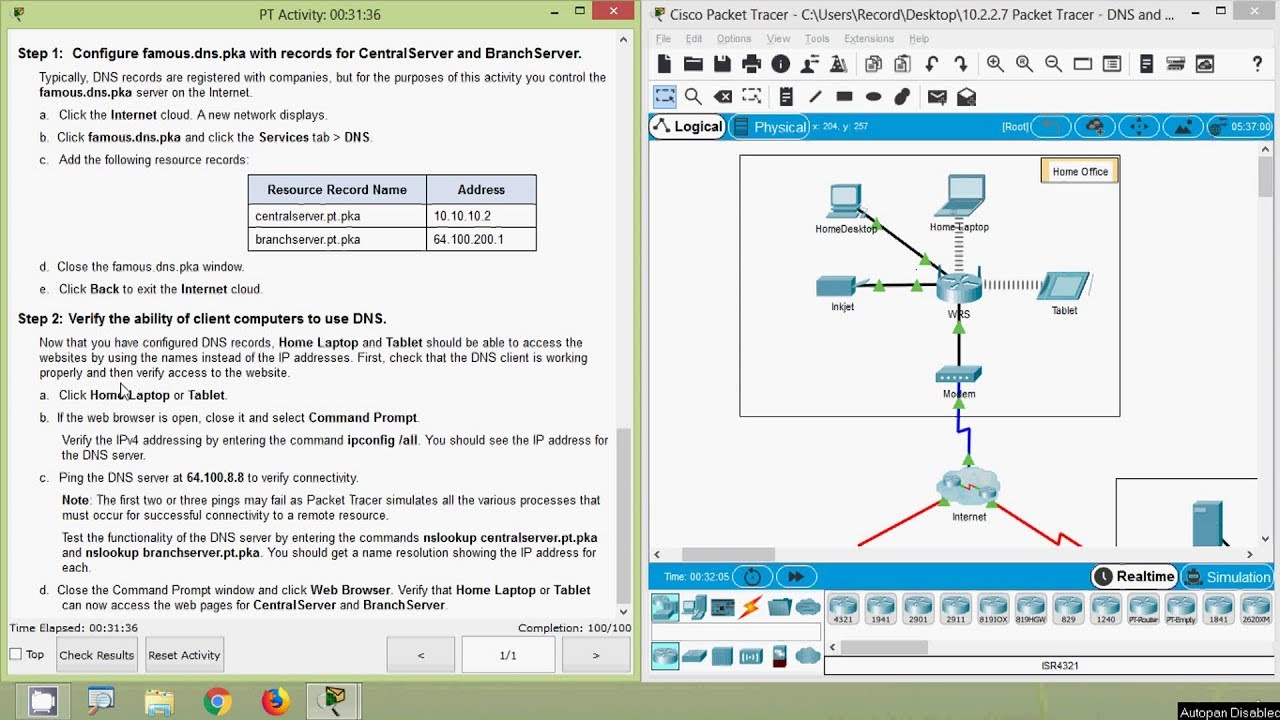
Packet Tracer - DNS and DHCP

INSTALASI DAN KONFIGURASI DHCP SERVER PADA DEBIAN 8
Configuring DHCP - CompTIA Network+ N10-009 - 3.4
CARA MENGHUBUNGKAN KOMPUTER/PC KE JARINGAN LAN DAN INTERNET (UNTUK PEMULA) 2022
Install and Configure DHCP Server in Windows Server 2019 Step By Step Guide

BASIC LINUX SERVER: WEB SERVER AND DNS SERVER
5.0 / 5 (0 votes)

