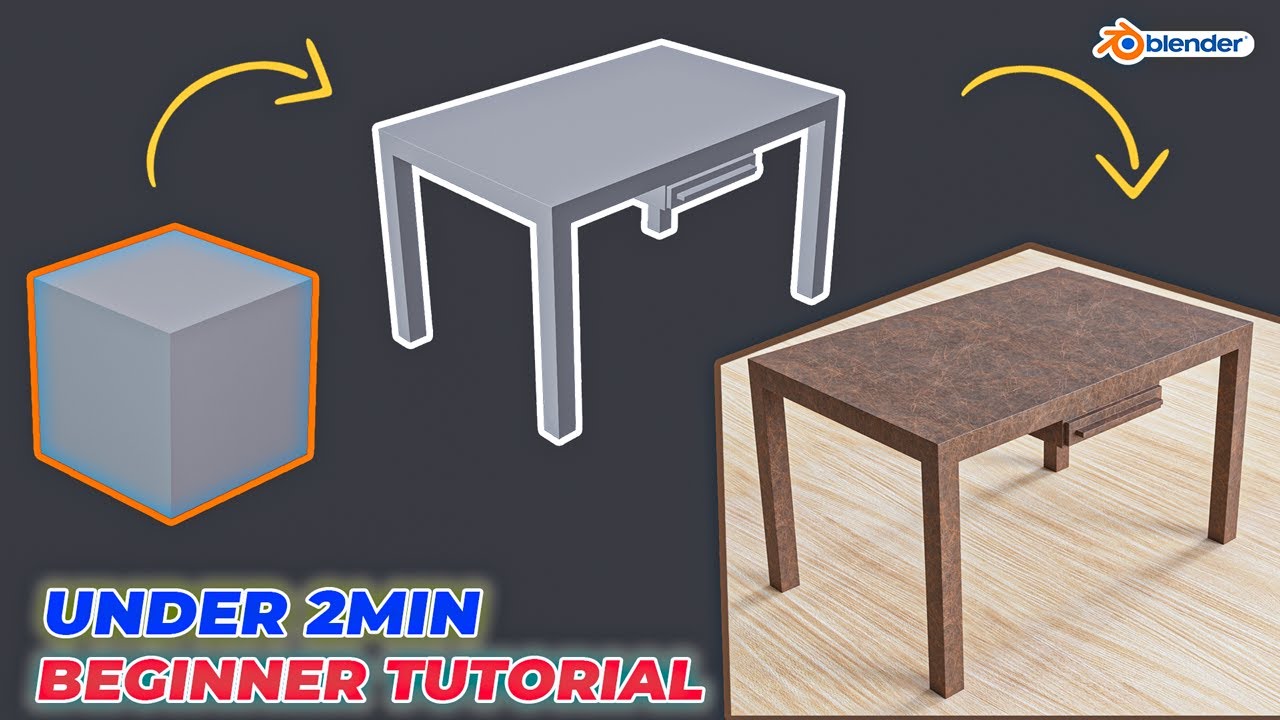
CARA MEMBUAT MEJA DI APLIKASI BLENDER KURANG DARI 2 MENIT
Summary
TLDRIn this video tutorial, Murchat demonstrates how to quickly create a simple table in Blender in just 2 minutes. The tutorial covers the essential steps, from scaling and adjusting the axes to manipulating the shape using tools like 'Ctrl + R' for adding loops and the 'E' key for extruding faces. Murchat explains the process in a clear, step-by-step manner, guiding viewers through the modeling techniques to create a basic table, offering helpful shortcuts and tips along the way.
Takeaways
- 😀 The video is a short Blender tutorial on creating a table in about 2 minutes.
- 😀 Start by opening Blender and selecting the default workspace.
- 😀 Use the Scale tool to adjust the cube: stretch along the X-axis, shrink along the Z-axis, and widen along the Y-axis.
- 😀 Enter Edit Mode to make more detailed adjustments to the table shape.
- 😀 Use the Loop Cut tool (Ctrl + R) to add multiple cuts for better structure.
- 😀 Place the loop cuts carefully at the middle and edges of the cube to prepare for shaping.
- 😀 Select multiple faces using Shift + Click for simultaneous edits.
- 😀 Use the Extrude tool (E) to pull out selected faces to form parts of the table.
- -
- 😀 Adjust the extrusion height and shape to finalize the table design.
- 😀 The tutorial emphasizes a quick, step-by-step method for beginners to create a simple table.
- 😀 Proper use of Blender shortcuts like Ctrl + R, E, and Shift improves workflow efficiency.
Q & A
What is the main goal of the tutorial?
-The main goal of the tutorial is to teach how to create a table using the Blender application in just two minutes.
Which tool is used to scale the object in Blender?
-The 'Scale' tool is used to adjust the dimensions of the object in Blender.
How do you scale the object along the X-axis in Blender?
-To scale the object along the X-axis, click on the scale tool and then drag the red-colored axis (X-axis).
What should you do after scaling the object along the X-axis?
-After scaling the object along the X-axis, you need to scale it along the Z-axis by dragging the blue-colored axis downwards.
How do you scale the object along the Y-axis?
-To scale the object along the Y-axis, you need to drag the green-colored Y-axis to make it wider.
What mode should you enter to start rotating the object?
-You need to enter 'Edit Mode' in Blender before you can perform further manipulations like rotation.
What is the purpose of pressing 'Ctrl + R' in Blender?
-'Ctrl + R' is used to add edge loops to the object. The tutorial shows how to use this command to create multiple loops for shaping the table.
How can you make precise adjustments when adding edge loops?
-After pressing 'Ctrl + R', position the cursor to the middle of the object, click, and then place the edge loop where needed by clicking again.
What should you do after adding multiple edge loops?
-After adding the edge loops, you should use the 'Face Select' tool to select specific faces of the object for further manipulation.
How do you extrude a face in Blender?
-To extrude a face, hold 'Shift' and click on the desired faces, then press 'E' to extrude and move the face downward.
Outlines

Dieser Bereich ist nur für Premium-Benutzer verfügbar. Bitte führen Sie ein Upgrade durch, um auf diesen Abschnitt zuzugreifen.
Upgrade durchführenMindmap

Dieser Bereich ist nur für Premium-Benutzer verfügbar. Bitte führen Sie ein Upgrade durch, um auf diesen Abschnitt zuzugreifen.
Upgrade durchführenKeywords

Dieser Bereich ist nur für Premium-Benutzer verfügbar. Bitte führen Sie ein Upgrade durch, um auf diesen Abschnitt zuzugreifen.
Upgrade durchführenHighlights

Dieser Bereich ist nur für Premium-Benutzer verfügbar. Bitte führen Sie ein Upgrade durch, um auf diesen Abschnitt zuzugreifen.
Upgrade durchführenTranscripts

Dieser Bereich ist nur für Premium-Benutzer verfügbar. Bitte führen Sie ein Upgrade durch, um auf diesen Abschnitt zuzugreifen.
Upgrade durchführenWeitere ähnliche Videos ansehen
Modeling Table Under 2Min || Blender Beginners Tutorial

One Simple Rule That Changed My Life Forever.
Semi PATIALA Salwar Cutting and Stitching | Patiala Salwar | Punjabi Salwar

200 Social Media Posts In 10 Minutes Using ChatGPT & Canva
cara membuat daftar isi otomatis word 2010

How to Make a Website in 10 mins - Simple & Easy
5.0 / 5 (0 votes)

