7. Konfigurasi Printer – Soal UKK SMK TKJ 2026 Paket 4
Summary
TLDRThis tutorial guides users through the process of configuring a wireless printer with a MikroTik router. It covers steps including connecting the printer's Wi-Fi, checking wireless settings, using Wi-Fi Direct, and obtaining the correct password for connection. The script also explains how to use a laptop to establish the connection, retrieve the printer's IP address, and adjust network settings via the printer's web interface. Additionally, it details how to switch the printer's connection to a designated MikroTik Wi-Fi network and ensures the printer is properly connected for use.
Takeaways
- 🖨️ Ensure your printer supports wireless connectivity by checking the Wi-Fi symbol and button on the device.
- 💻 You can connect to the printer either via the same Wi-Fi network or through the printer's Wi-Fi Direct feature.
- 📄 To obtain the Wi-Fi Direct password, use the printer's information button to print configuration pages if the manual is unavailable.
- 🔢 Each printer's Wi-Fi Direct name and password are unique, even for the same model, so use the printed configuration for accurate details.
- 🔑 When connecting via Wi-Fi Direct on a laptop, select 'Connect using a security key' instead of PIN to enter the password.
- 🌐 The printer’s IP address can be found in the laptop's network connection details under the gateway tab when connected directly to the printer.
- 🌍 Remote access to the printer is done via a web browser using the printer's IP address, even if the connection is flagged as 'not secure'.
- -
- 🔒 Default administrator login credentials are provided in the manual or on a sticker behind the printer's cover. Use exact characters, including case sensitivity.
- ⚙️ To connect the printer to a specific Wi-Fi network, access 'Advanced Settings' on the printer’s web interface and configure the network under 'Wi-Fi' settings.
- 🔄 After updating Wi-Fi settings, the printer will restart, and you should verify the connection through the router or Mikrotik DHCP server.
- 📑 The script emphasizes careful step-by-step configuration to ensure smooth setup for practical exams (UKK) and testing purposes.
Q & A
What is the first step before connecting the printer to the Mikrotik Wi-Fi?
-The first step is to ensure the printer is powered on and has wireless capability. Check that the wireless indicator is present and that the printer is ready to connect.
How can you determine if a printer supports Wi-Fi connectivity?
-A printer supports Wi-Fi if it has a wireless symbol and a Wi-Fi or wireless button on the printer panel.
Why is Wi-Fi Direct used initially to connect the printer?
-Wi-Fi Direct is used initially because the printer is not yet connected to any Wi-Fi network. It allows direct communication between the laptop and the printer for initial configuration.
How can you find the password for Wi-Fi Direct if the manual is not available?
-You can press the information (i) button on the printer for 5–7 seconds to print out a configuration page that includes the Wi-Fi Direct SSID and password.
What should be done if the laptop prompts for a PIN instead of a password when connecting to Wi-Fi Direct?
-Switch from PIN authentication to 'Connect using a security key' and enter the Wi-Fi Direct password from the printer configuration printout.
How do you determine the IP address of the printer from the laptop?
-On the laptop, go to Control Panel → Network and Internet → Network and Sharing Center → Wi-Fi Status → Details. The Gateway IP listed is the printer's IP when connected via Wi-Fi Direct.
How can the printer be accessed for configuration through a web browser?
-Open a web browser, type the printer’s IP address in the search bar, bypass the 'not secure' warning, and log in using the administrator credentials to access settings.
Where can the default administrator password of the printer be found?
-The default administrator password is printed on a sticker located behind the printer cover or in the printer's manual.
Which menu should be used to connect the printer to the Mikrotik Wi-Fi?
-Use Advanced Settings → Network Settings → Wi-Fi → Setup. Then select the Mikrotik Wi-Fi network and enter the Wi-Fi password to connect.
What happens after the printer is configured to connect to the Mikrotik Wi-Fi?
-The printer will restart automatically to apply the new network settings. You should then verify that it is connected to the Mikrotik network using the DHCP server or device list.
Why might the Wi-Fi indicator on the printer remain off initially?
-The Wi-Fi indicator stays off because the printer is only broadcasting Wi-Fi Direct and has not yet connected to a local Wi-Fi network.
What precautions should be taken when entering the administrator password?
-Ensure that the password is entered exactly as shown on the sticker, including case sensitivity, and do not include any asterisks that may appear on the sticker.
Outlines

هذا القسم متوفر فقط للمشتركين. يرجى الترقية للوصول إلى هذه الميزة.
قم بالترقية الآنMindmap

هذا القسم متوفر فقط للمشتركين. يرجى الترقية للوصول إلى هذه الميزة.
قم بالترقية الآنKeywords

هذا القسم متوفر فقط للمشتركين. يرجى الترقية للوصول إلى هذه الميزة.
قم بالترقية الآنHighlights

هذا القسم متوفر فقط للمشتركين. يرجى الترقية للوصول إلى هذه الميزة.
قم بالترقية الآنTranscripts

هذا القسم متوفر فقط للمشتركين. يرجى الترقية للوصول إلى هذه الميزة.
قم بالترقية الآنتصفح المزيد من مقاطع الفيديو ذات الصلة
Rancang Bangun Jaringan Berbasis Kabel dan Nirkabel dengan VLAN dan Routing (UKK 2023 Paket 2) TKJ
Cara Membuat Koneksi Printer Wireless Untuk Semua Device - Cisco Packet Tracer
KONFIGURASI DASAR MIKROTIK (UNTUK PEMULA)
CARA SETTING MIKROTIK RB941 UNTUK PEMULA | KELAS MIKROTIK #6

Belajar Mikrotik untuk pemula - Part 11/26
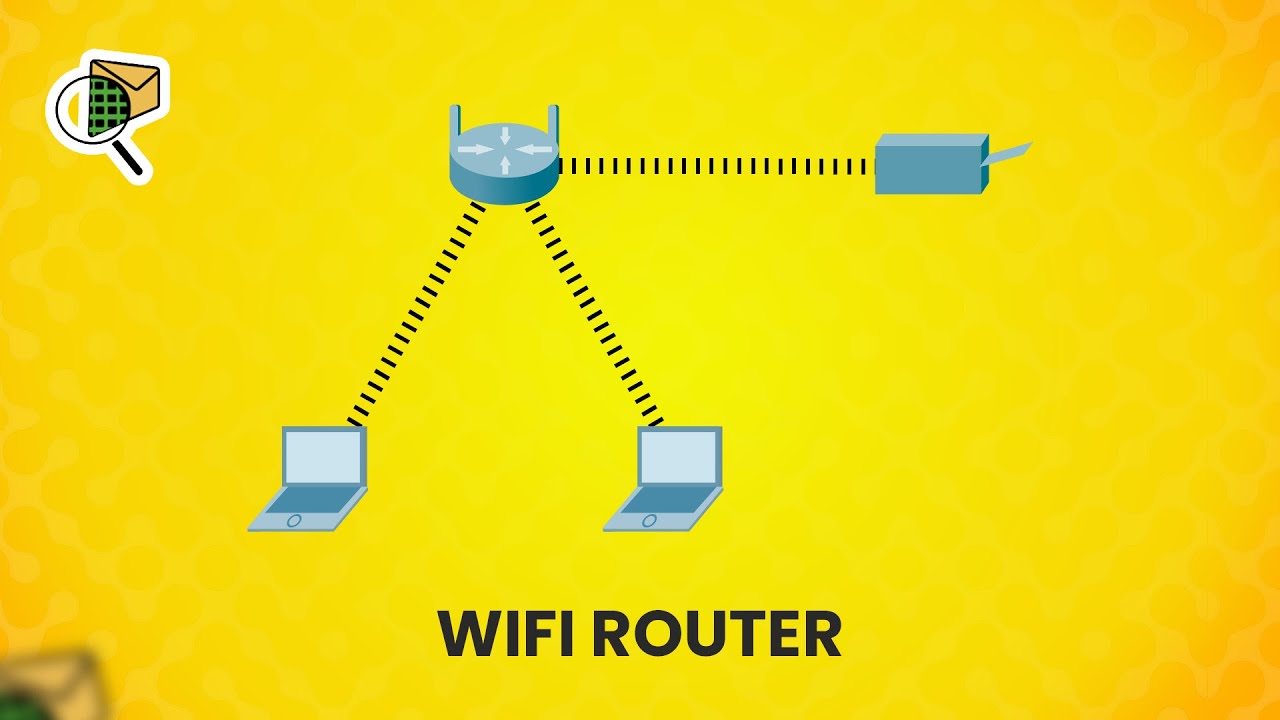
How to set up a WiFi router (wireless router) - Cisco Packet Tracer
5.0 / 5 (0 votes)

