Fl Studio ANFÄNGER Tutorial (Für Produzenten) 2025 | Fl Studio Tutorial Deutsch
Summary
TLDRThis tutorial introduces beginners to FL Studio, guiding them through the basics of beat-making. It covers essential features like setting BPM, understanding the Playlist, Channel Rack, Piano Roll, and Mixer. The video explains how to create melodies using VST instruments, build chords, and modify sounds. It also covers how to add drums, adjust effects, and arrange beats effectively. Key tips are shared for bass management, exporting audio, and saving projects. The tutorial emphasizes creativity and experimentation, with practical advice on where to find quality drum kits and how to structure beats in various genres.
Takeaways
- 😀 Set the **BPM** (Beats Per Minute) based on your genre: 90-110 for German rap, 130-140 for UK Garage, 130-150 for American rap, and 140-150 for UK Drill.
- 😀 The four main areas you'll use in FL Studio are: **Playlist**, **Channel Rack**, **Piano Roll**, and **Mixer**.
- 😀 To create melodies, use the **Piano Roll** and make sure your notes are in key to sound harmonic.
- 😀 **FL Keys** is a great default VST for creating simple melodies with piano sounds.
- 😀 In the **Piano Roll**, use the light-colored notes to keep your melody in key, and choose a **key signature** like C# for a harmonious sound.
- 😀 Add **drums** (like Snare) in the Channel Rack and adjust them in the **Piano Roll**. Make sure to place them in key, e.g., C5.
- 😀 Use the **Fruity Limiter** in the **Mixer** to control the volume and dynamics of your track, adding effects and boosting sound.
- 😀 When arranging your beat, the **Playlist** allows you to place and edit individual patterns like drums and melody.
- 😀 **Magnet Tool** in the Piano Roll helps you adjust the spacing of notes for tighter beats.
- 😀 Export your track by selecting **File > Export > Wave File** with settings like **24-bit Depth** and **Stereo** for high-quality sound.
Q & A
What is the first thing a beginner should understand when opening FL Studio for the first time?
-The first thing a beginner should understand is that FL Studio can appear complicated at first, but it’s important to trust the process. It is essential to know how to set the BPM (Beats Per Minute), which is crucial for making beats and understanding the tempo of the track.
What does BPM stand for, and why is it important in FL Studio?
-BPM stands for Beats Per Minute, and it defines the tempo of your track. It’s crucial because it dictates the speed of the beat, and different genres often have specific BPM ranges (e.g., 90-110 BPM for Deutschrap or 130-150 BPM for Trap).
How can you set the BPM in FL Studio?
-You can set the BPM in FL Studio by right-clicking on the BPM value in the top-left corner and selecting a specific value. If you don’t have a particular BPM in mind, you can choose based on genre preferences or feel.
What are the four main areas in FL Studio where you will spend most of your time?
-The four main areas in FL Studio are the Playlist, the Channel Rack, the Piano Roll, and the Mixer. These sections allow you to arrange beats, add instruments and effects, create melodies, and control audio levels.
What is the purpose of the Piano Roll in FL Studio?
-The Piano Roll is used to place notes for your instruments, allowing you to create melodies. You can open the Piano Roll by right-clicking on an instrument in the Channel Rack and selecting 'Piano Roll.'
What is the function of the Mixer in FL Studio?
-The Mixer allows you to adjust the volume of each sound in your project, apply effects, and control how individual sounds blend together. It’s crucial for balancing your track and adding polish.
What is a VST, and how do you use it in FL Studio?
-A VST (Virtual Studio Technology) is a digital instrument or effect used in music production. To use a VST in FL Studio, click the plus sign in the Channel Rack, and you can choose from the available VSTs. For beginners, FL Studio comes with built-in VSTs like FL Keys for piano sounds.
What should you do if your notes in the Piano Roll aren’t harmonically correct?
-If your notes aren’t harmonically correct, you should delete them and select a key for your melody. The 'Natural Minor' and 'Major' scales are helpful for creating either darker or brighter melodies. You can also use the guide in the Piano Roll to ensure your notes are in a harmonic key.
What are the key steps for adding drums to your beat in FL Studio?
-To add drums, go to the Channel Rack, choose your drum sounds (like a snare or kick), and place them in the Piano Roll. Make sure to adjust the placement of your drum hits according to the genre you’re working in (e.g., placing snares or kicks at specific points based on BPM).
How can you make sure your sounds are in the right key when adding bass or other instruments?
-When adding bass or other instruments, make sure to select the same key as your melody and place the notes within the harmonic range (the 'light' notes on the Piano Roll). This ensures the bass complements the melody and remains in key.
How do you export a completed track in FL Studio?
-To export a completed track, go to 'File,' then 'Export,' and select 'WAV File.' Choose your desired settings, including sample rate, bit depth, and stereo options, and specify the file location. For the best quality, select 24-bit depth and 512 points for interpolation.
What should you do before saving your FL Studio project to avoid losing your work?
-Before saving your project, ensure that all samples and sounds you used are copied into the project folder. This way, the project can be opened on another computer without missing any files. To do this, use 'Save As' and check the 'Copy Samples' box before saving.
Outlines

This section is available to paid users only. Please upgrade to access this part.
Upgrade NowMindmap

This section is available to paid users only. Please upgrade to access this part.
Upgrade NowKeywords

This section is available to paid users only. Please upgrade to access this part.
Upgrade NowHighlights

This section is available to paid users only. Please upgrade to access this part.
Upgrade NowTranscripts

This section is available to paid users only. Please upgrade to access this part.
Upgrade NowBrowse More Related Video
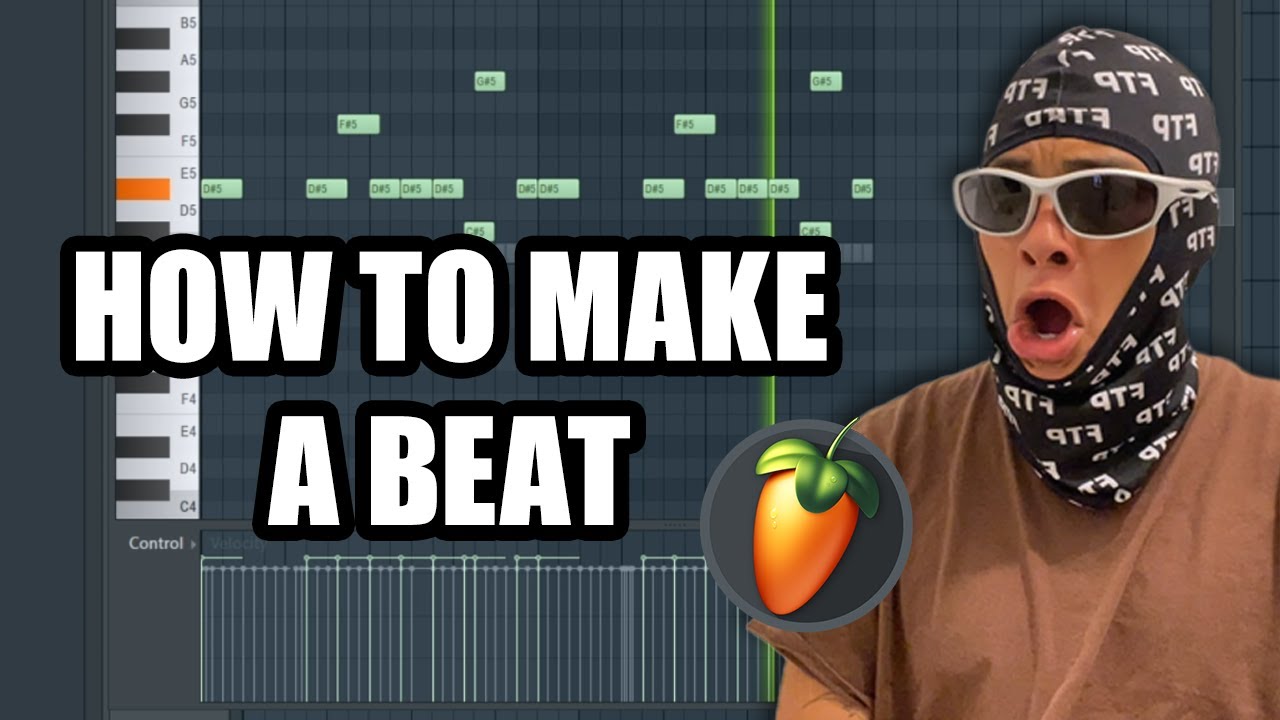
how to make a beat on FL STUDIO (Beginner)

Belajar Web Dasar [HTML] - Episode 04 - Heading dan Paragraph
Intro to GUI - Roblox GUI Tutorial #1
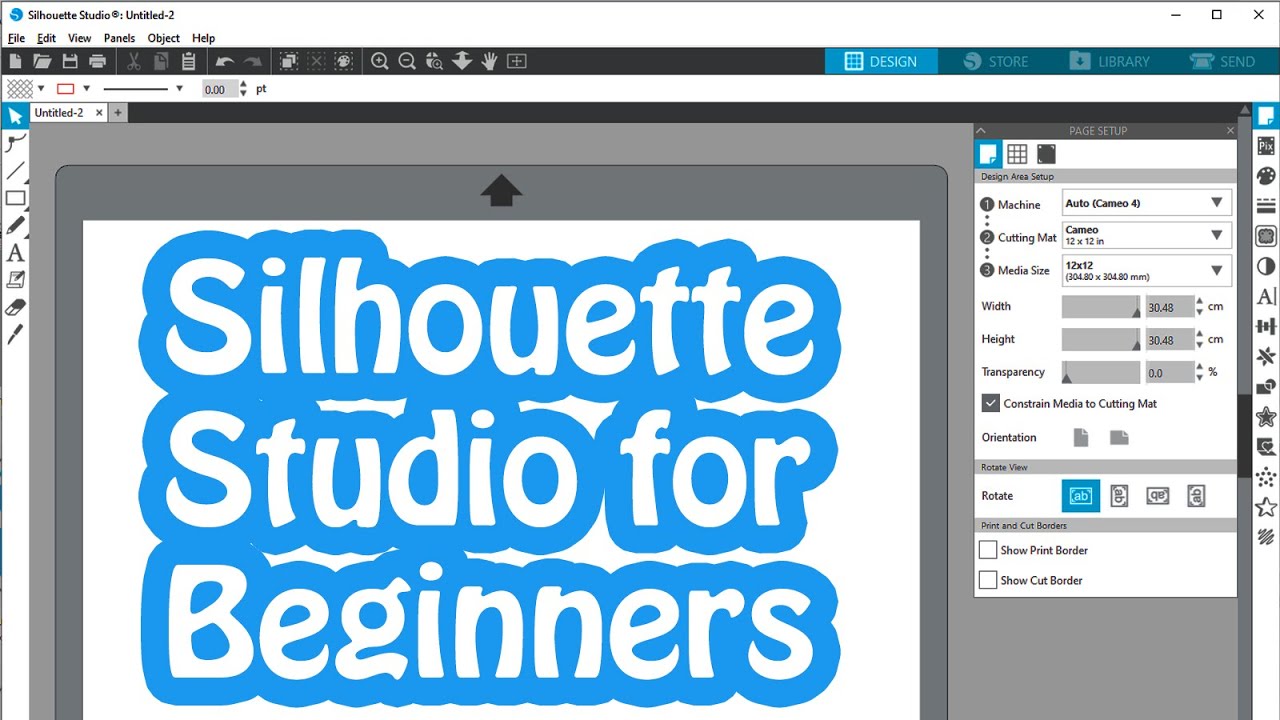
Silhouette Studio Tutorial for Beginners - Complete Walk through
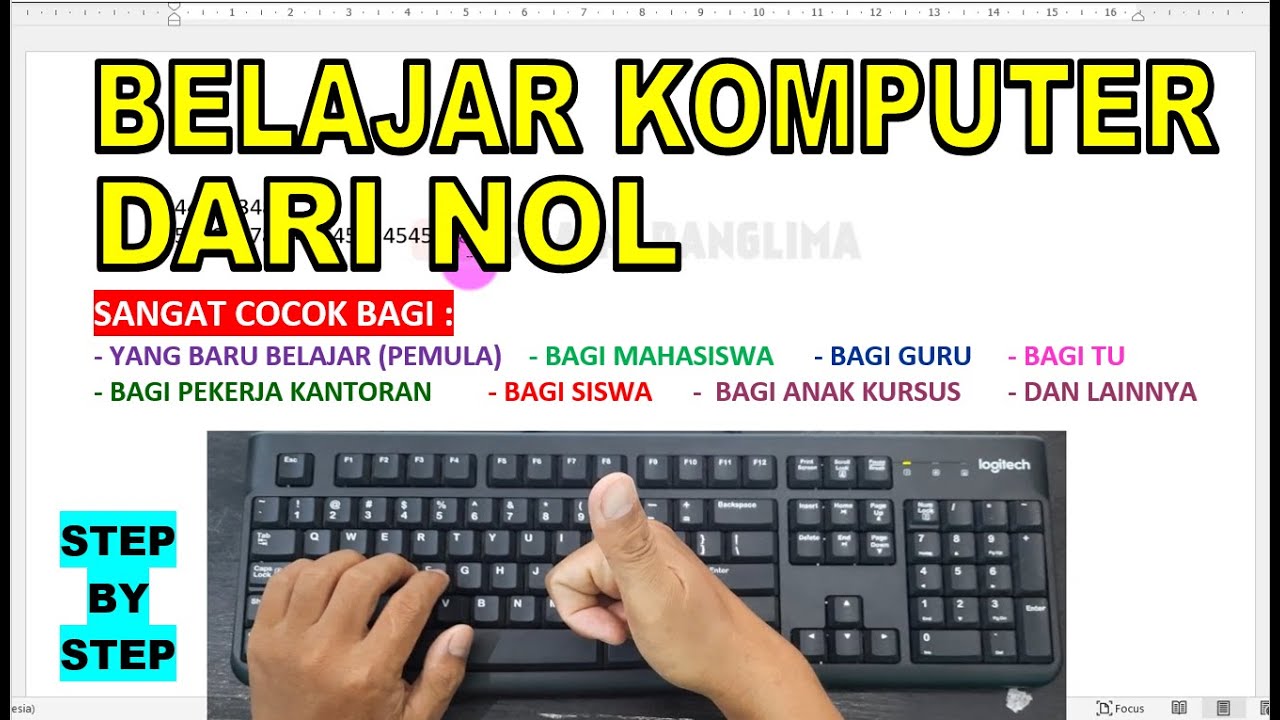
Tutorial Belajar Komputer dari Nol, Fungsi Tombol Keyboard Komputer yang jarang diketahui
Learn Framer in 20 Minutes (Crash Course)
5.0 / 5 (0 votes)
