CARA INSTAL WINDOWS 10 DENGAN FLASHDISK DAN RUFUS DI LAPTOP DAN PC
Summary
TLDRThis video tutorial demonstrates how to create a bootable Windows 10 USB using the Rufus application and install it on a computer. It covers downloading Rufus Portable and the Windows 10 ISO, preparing a minimum 8 GB flash drive, and configuring Rufus settings such as partition scheme and target system. The guide walks through the installation process step-by-step, including BIOS setup, selecting Windows versions, partitioning the hard drive, and completing initial system setup. The video emphasizes careful attention to prompts during installation and provides tips for avoiding errors, ensuring viewers can successfully create a bootable USB and install Windows 10 smoothly.
Takeaways
- 💻 To create a bootable Windows 10 USB, you need Rufus (preferably the portable version) and a Windows 10 ISO file.
- 🖥️ Make sure your flash drive is at least 8 GB in size for a Windows 10 ISO of 4.1 GB.
- 📂 Open Rufus, select your flash drive, choose the Windows 10 ISO, and configure options like partition scheme (MBR or GPT) and target system (BIOS/UEFI).
- ⚙️ Leave default settings for cluster size and file system, and label the volume as desired before starting the bootable creation.
- ⏳ The bootable creation process depends on your computer's hardware, and it may take some time to reach 100%.
- ✅ After completion, eject and reinsert the flash drive to ensure the icon changes, indicating the bootable USB is ready.
- 🔧 To install Windows 10, set the USB drive as the first boot device in BIOS, save changes, and restart the computer.
- 🖱️ Press 'Enter' when prompted to boot from USB, then follow on-screen instructions for language, time, and keyboard settings.
- -
- 📄 Choose Windows version (Home or Pro), select Custom installation for a clean install, and configure partitions according to your needs.
- -
- 🔐 During installation, set up PC name, password, and account preferences, then optionally configure Cortana and wait until Windows Explorer loads.
Q & A
What is the main purpose of the video transcript?
-The main purpose of the video is to demonstrate how to create a bootable Windows 10 USB using the Rufus application and then guide the installation process on a computer.
Which version of Rufus does the presenter use for creating the bootable USB?
-The presenter uses the portable version of Rufus, specifically version 4.8, because earlier versions like 4.0 or 4.1 are not fully compatible with Windows 10 version 1607.
What Windows 10 versions are mentioned in the tutorial?
-The tutorial mentions both Windows 10 Home and Professional versions, particularly version 1607.
What are the minimum requirements for the USB flash drive used to create the bootable media?
-A USB flash drive with a minimum capacity of 8 GB is required, as the Windows 10 installer file size is approximately 4.1 GB.
Which partition scheme does the presenter recommend for creating the bootable USB?
-The presenter recommends using the MBR (Master Boot Record) partition scheme for compatibility, although GPT can be used if certain requirements are met.
What steps are involved after inserting the USB to ensure it is bootable?
-After inserting the USB, you must open Rufus, select the Windows 10 ISO file, set image options to standard, choose the partition scheme (MBR), configure the target system, and then start the process to create the bootable USB.
How does the installation process proceed after booting from the USB?
-After booting from the USB, you follow on-screen prompts such as setting the time and region, selecting the Windows version (Home or Pro), choosing installation type (custom or upgrade), creating partitions, and entering PC name and password.
Why is it important not to press any keys during the restart after installation begins?
-Pressing keys during the restart may cause the installation to restart from the USB, requiring the process to be repeated from the beginning.
What customization options are mentioned during the Windows setup?
-During setup, users can change the PC name, set a password, skip Cortana training, adjust time and region settings, and choose between single or multiple partitions.
What factors affect the speed of creating a bootable USB using Rufus?
-The speed depends on the computer's hardware specifications, including the CPU, RAM, and USB drive performance, which influence how quickly the bootable media is created.
Outlines

このセクションは有料ユーザー限定です。 アクセスするには、アップグレードをお願いします。
今すぐアップグレードMindmap

このセクションは有料ユーザー限定です。 アクセスするには、アップグレードをお願いします。
今すぐアップグレードKeywords

このセクションは有料ユーザー限定です。 アクセスするには、アップグレードをお願いします。
今すぐアップグレードHighlights

このセクションは有料ユーザー限定です。 アクセスするには、アップグレードをお願いします。
今すぐアップグレードTranscripts

このセクションは有料ユーザー限定です。 アクセスするには、アップグレードをお願いします。
今すぐアップグレード関連動画をさらに表示
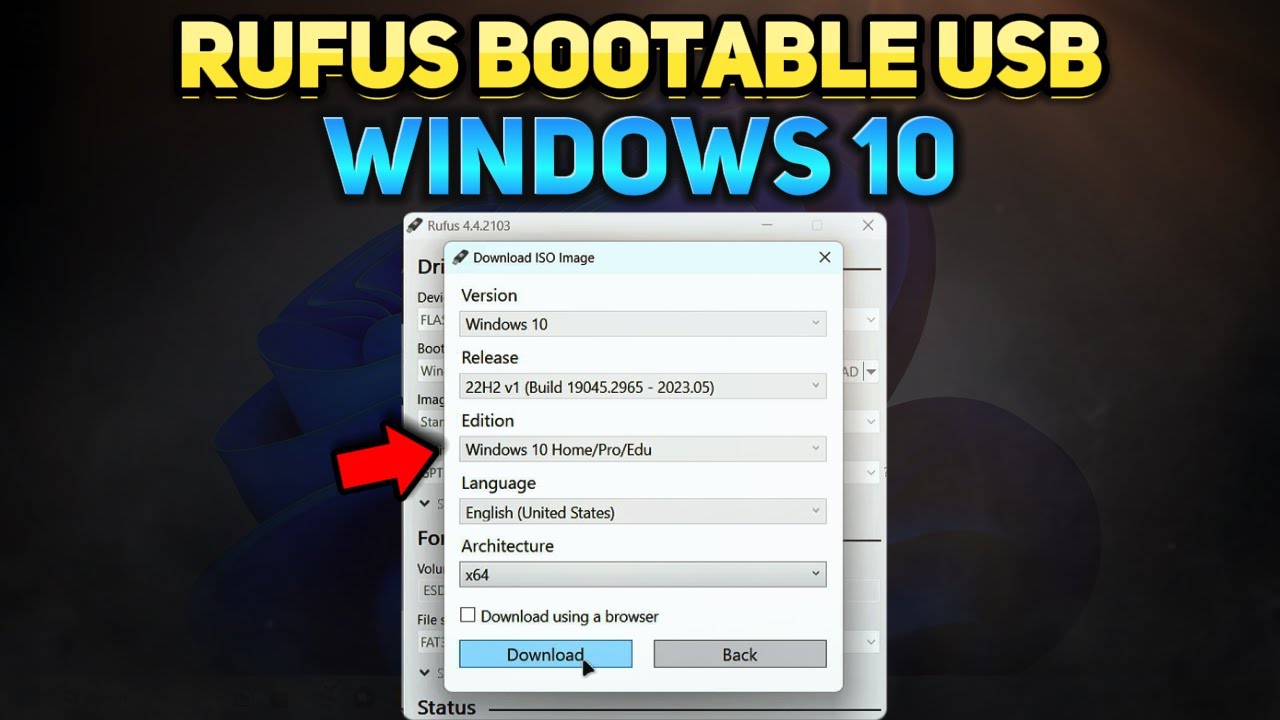
How to Create a Windows 10 Installation USB with Rufus (Tutorial)
CARA MEMASUKKAN SISTEM OPERASI KE FLASHDISK - BOOTABLE FLASHDISK
Cara Install Windows 10 Dengan Flashdisk Step by Step 2022 LENGKAP!
Cara Membuat Bootable USB dengan Rufus | Cara Install Windows dengan Flashdisk
How to Create a Rufus Bootable USB for Windows 10 in 5 Minutes!
Cara Install Windows 10 Dengan Flashdisk Menggunakan Rufus Penjelasan Lengkap 2023
5.0 / 5 (0 votes)

