Konfigurasi Wireless (WLAN) Internal MikroTik untuk WiFi Rumah & Hotspot Voucher
Summary
TLDRThis video tutorial demonstrates how to configure a Mikrotik RB941-2nD router with its built-in wireless interface to create two separate Wi-Fi networks: a secure home Wi-Fi with a password and a voucher-based hotspot for guests. The instructor walks through enabling the wireless interface, setting SSIDs, configuring security profiles, assigning IP addresses, and setting up DHCP. Additionally, bandwidth limits are applied using simple queues, and a hotspot system with voucher codes is implemented. The guide is beginner-friendly, showing step-by-step settings via Winbox, and highlights best practices for security and network management, making it ideal for home and small office use.
Takeaways
- 😀 The video demonstrates how to configure the internal wireless (WLAN) on a Mikrotik RB941-2nD router for home Wi-Fi and hotspot voucher use.
- 😀 Users can log in to the Mikrotik router using Winbox to access and manage the router settings.
- 😀 The internal wireless interface (WLAN) must be enabled and renamed for clarity, e.g., 'WiFi_Rumah' for home Wi-Fi.
- 😀 For home Wi-Fi, the wireless mode should be set to 'AP Bridge' and the band to '2GHz-B/G/N' to ensure compatibility with most devices.
- 😀 Security settings are important: WPA2 PSK should be applied with a strong password, and WPS should be disabled to improve security.
- 😀 DHCP configuration is necessary to assign IP addresses to connected devices, with a defined IP pool and lease time.
- 😀 Simple Queue can be used to limit bandwidth per user, ensuring upload and download speeds are shared fairly among users.
- 😀 A virtual wireless interface can be created for hotspot/voucher purposes, allowing a second SSID with different access rules.
- 😀 Hotspot setup involves creating a server on the virtual interface, setting an address pool, DNS, and login page template, and generating voucher codes for access.
- 😀 The system allows testing and monitoring of both home Wi-Fi and hotspot voucher connections, including verifying speeds and connectivity.
Q & A
What MikroTik model is used in this tutorial and why is it suitable for home Wi-Fi?
-The tutorial uses the MikroTik RB941-2nD routerboard, which has a built-in wireless interface (WLAN). This makes it suitable for home Wi-Fi without needing an additional access point.
How do you enable and rename the wireless interface in MikroTik?
-In Winbox, go to Interfaces → Wireless, enable the interface by double-clicking or right-clicking and checking 'Enabled', and rename it for clarity, e.g., 'Wi-Fi Rumah'.
What wireless settings are recommended for home Wi-Fi in this tutorial?
-Recommended settings are Mode: AP Bridge, Band: 2GHz-B/G/N, Channel Width: 20 MHz, and setting a specific channel (like 6). The SSID should be set to your preferred Wi-Fi name.
How can you secure your home Wi-Fi using MikroTik?
-Go to Wireless → Security Profiles, create a new profile with WPA Pre-shared Key, set a strong password, and apply this profile to the wireless interface. It’s also suggested to disable WPS and file forwarding for better security.
How do you assign IP addresses and configure DHCP for the Wi-Fi network?
-Assign an IP to the wireless interface (e.g., 192.168.1.1/24). Then, go to IP → DHCP Server → DHCP Setup, select the interface, define the IP pool range for users, set DNS servers (e.g., Google DNS 8.8.8.8 and 8.8.4.4), and set the lease time.
What method is used to limit bandwidth for Wi-Fi users?
-Bandwidth is limited using Simple Queues. Set the target as the IP range of the Wi-Fi network, define max upload and download speeds (e.g., 3 Mbps upload and 5 Mbps download), and use PCQ queue type to ensure fair sharing among users.
How can you set up a guest Wi-Fi network with voucher access?
-Create a virtual wireless interface via Wireless → Add → Virtual AP, assign an SSID (e.g., 'Tamu Rumah'), set security to open, then configure Hotspot via IP → Hotspot → Hotspot Setup, assign a unique IP range and address pool, and enable voucher login.
Why is it important to check IP ranges when setting up multiple networks?
-Checking IP ranges prevents conflicts with existing networks. Each network, like home Wi-Fi and guest hotspot, should have separate, unused IP ranges to ensure smooth connectivity and avoid errors.
Can one MikroTik router broadcast multiple SSIDs simultaneously, and what is the use case?
-Yes, one MikroTik router can broadcast two SSIDs at the same time. One can be a secure home Wi-Fi with a password, and the other can be an open guest Wi-Fi with a voucher system for temporary access.
How can you verify that both the home Wi-Fi and hotspot networks are working correctly?
-Connect devices to each SSID. For home Wi-Fi, check password authentication and internet access. For the hotspot, login using voucher codes. Additionally, verify DHCP assignment, IP addresses, and bandwidth limits in Winbox or Simple Queue monitoring.
What is the purpose of disabling WPS and file forwarding in the wireless settings?
-Disabling WPS and file forwarding enhances Wi-Fi security by reducing vulnerabilities, making it harder for unauthorized users to access or exploit the network.
How is bandwidth sharing managed in the MikroTik setup described in the tutorial?
-Bandwidth sharing is managed using PCQ (Per Connection Queue) in Simple Queues, which ensures that the available upload and download speeds are fairly distributed among all connected users.
Outlines

Cette section est réservée aux utilisateurs payants. Améliorez votre compte pour accéder à cette section.
Améliorer maintenantMindmap

Cette section est réservée aux utilisateurs payants. Améliorez votre compte pour accéder à cette section.
Améliorer maintenantKeywords

Cette section est réservée aux utilisateurs payants. Améliorez votre compte pour accéder à cette section.
Améliorer maintenantHighlights

Cette section est réservée aux utilisateurs payants. Améliorez votre compte pour accéder à cette section.
Améliorer maintenantTranscripts

Cette section est réservée aux utilisateurs payants. Améliorez votre compte pour accéder à cette section.
Améliorer maintenantVoir Plus de Vidéos Connexes

Cara Cepat Seting Internet dan Wireless Mikrotik hAP Lite RB941-2nd

7. Konfigurasi Printer – Soal UKK SMK TKJ 2026 Paket 4
Cara Setting TP Link WR840N Pakai Mode Range Extender ( Memperluas Wifi ) - Tutorial Pemula
Tutorial konfigurasi dasar mikrotik beserta sharing file & sharing printer
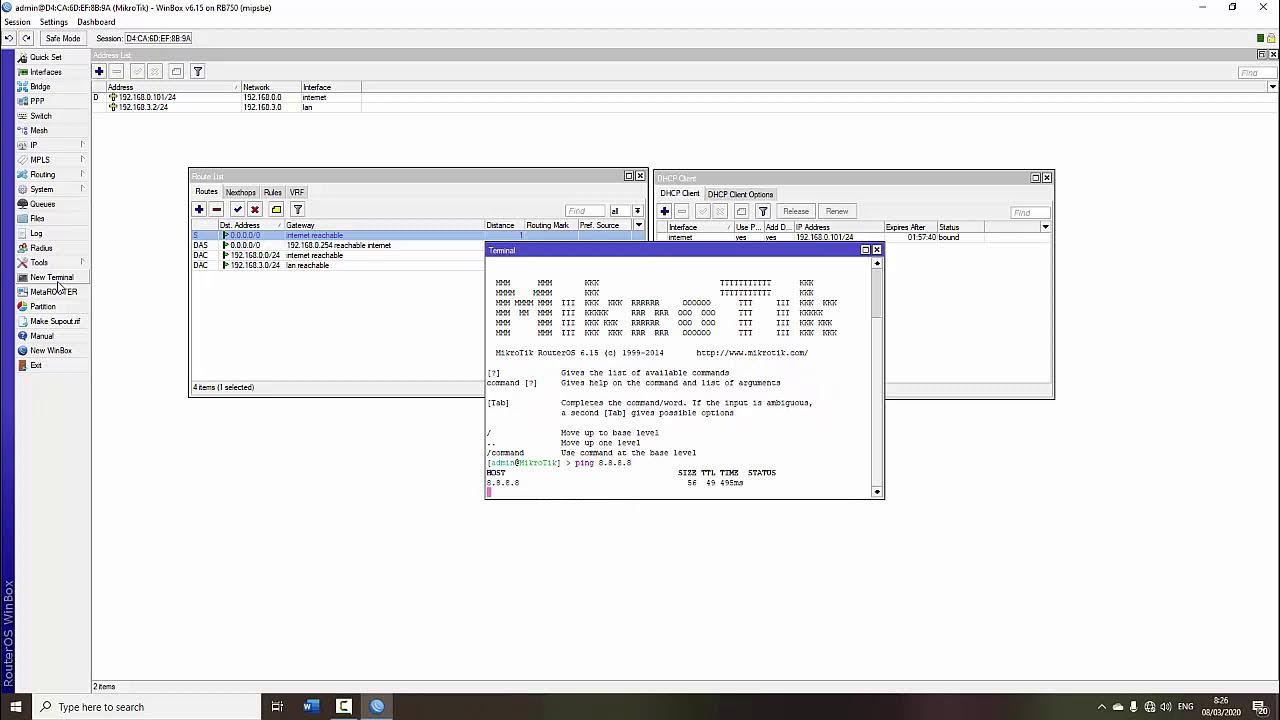
TUTORIAL DASAR MIKROTIK (KONEKSI INTERNET)
Cara koneksi terbaru 2025 cctv Ezviz || tanpa WiFi dan pakai WiFi
5.0 / 5 (0 votes)

