PALERA1N JAILBREAK TUTORIAL iOS and iPadOS 18, 17, 16 and 15 ✅ FOR ALL CHECKM8 (Palen1x Windows)
Summary
TLDRThis tutorial walks viewers through how to jailbreak iOS devices using Palera1n on a Windows computer by creating a bootable USB drive. It explains compatibility requirements, recommends using the newer rootless method, and highlights important preparation steps like disabling security features and backing up data. The guide then demonstrates how to flash the ISO to a USB, boot into a custom environment, and perform the jailbreak in two stages. After completion, users learn how to install tweaks via Sileo and manage their device post-jailbreak. The video also covers troubleshooting tips and how to restore the USB drive for normal use.
Takeaways
- 😀 Ensure your iOS device is compatible with the Jailbreak process before proceeding.
- 😀 You no longer need 16 GB of space to perform the Jailbreak with the latest version of Palet Rain.
- 😀 For a higher success rate, it is recommended to use a USB Type-A cable rather than a Type-C.
- 😀 If using a device with an A11 processor (iPhone 8, 8 Plus, iPhone X), disable the lock code, Touch ID, and Face ID in iOS settings before beginning.
- 😀 Devices running iOS 15 or later may need a device reset and lock code deactivation before the Jailbreak process.
- 😀 Always back up your personal data before performing any Jailbreak on your device.
- 😀 Visit the official Palet Rain website to download the necessary software and tools for the process.
- 😀 Use tools like Balena Etcher or Rufus to write the Palet Rain ISO to a USB drive.
- 😀 When booting from USB, enter the BIOS settings of your computer to disable Secure Boot and select the correct boot device.
- 😀 Follow the on-screen instructions to put your device into DFU mode during the Jailbreak process, especially if it's an iPhone 8 or similar.
- 😀 After successful Jailbreaking, you can install Cydia and other tweaks like Cylinder, but you will need to reconnect your USB drive if the device restarts.
Q & A
What is the main purpose of this tutorial?
-The main purpose of the tutorial is to guide users through the process of jailbreaking an iOS device using Palen1x (PalenRain), including how to create a bootable USB drive and install tweaks on Windows, macOS, and Linux systems.
Do I need a specific USB drive to perform the jailbreak?
-Yes, you need a USB drive to create a bootable device for the jailbreak. The tutorial recommends using a USB Type-A for better success rates.
Is it necessary to have 16GB of free space on my device for this jailbreak?
-No, with the latest version of Palen1x, you no longer need 16GB of free space on your device, which was a requirement in previous versions.
What is the difference between the 'Rootless' and 'Rootfull' jailbreak options?
-The 'Rootless' jailbreak is recommended for most users as it is the newer method, offering more stability and compatibility with recent tweaks. The 'Rootfull' jailbreak is a more traditional method, but 'Rootless' is generally favored for better security and performance.
What should I do if my iPhone has an A11 processor or lower (e.g., iPhone 8, iPhone X)?
-If your device has an A11 processor or lower and is running iOS 15 or lower, you need to disable the passcode, Touch ID, and Face ID before proceeding with the jailbreak.
What actions should I take if I'm using an iOS version higher than 15?
-For iOS versions higher than 15, you must either reset the settings or restore the device to its factory state before proceeding with the jailbreak. Also, make sure the passcode is disabled.
Why is it important to disable Secure Boot in the BIOS?
-Disabling Secure Boot is crucial because it allows the system to boot from the USB drive that contains the Palen1x jailbreak tool. If Secure Boot is enabled, it will prevent the computer from running unauthorized software.
What should I do if my device gets stuck on the checkra1n screen during the jailbreak process?
-If your device gets stuck on the checkra1n screen (with white text on a black screen), press 'Ctrl + C' on your keyboard, type 'exit', and the process will restart from the Palen1x menu.
What happens after the jailbreak is completed and my device reboots?
-Once the jailbreak is complete and the device reboots, you should see the Palen1x icon on your home screen. This indicates that the jailbreak has been successfully applied, and you can begin installing tweaks like Cylinder for custom transitions.
What should I do if I want to format the USB drive after the jailbreak?
-To format the USB drive, open the Command Prompt (CMD), use the 'diskpart' tool to clean and create a primary partition, and then format the drive. This will restore it to a usable state for other purposes.
Outlines

Cette section est réservée aux utilisateurs payants. Améliorez votre compte pour accéder à cette section.
Améliorer maintenantMindmap

Cette section est réservée aux utilisateurs payants. Améliorez votre compte pour accéder à cette section.
Améliorer maintenantKeywords

Cette section est réservée aux utilisateurs payants. Améliorez votre compte pour accéder à cette section.
Améliorer maintenantHighlights

Cette section est réservée aux utilisateurs payants. Améliorez votre compte pour accéder à cette section.
Améliorer maintenantTranscripts

Cette section est réservée aux utilisateurs payants. Améliorez votre compte pour accéder à cette section.
Améliorer maintenantVoir Plus de Vidéos Connexes
Cara Membuat Bootable USB dengan Rufus | Cara Install Windows dengan Flashdisk
How to Create a Windows 10 Bootable USB Drive using DiskPart | Computer Systems Servicing Guide
Cara Install Windows 11 LENGKAP (Cara Download, Buat Bootable,Cara Install, Cara Partisi)
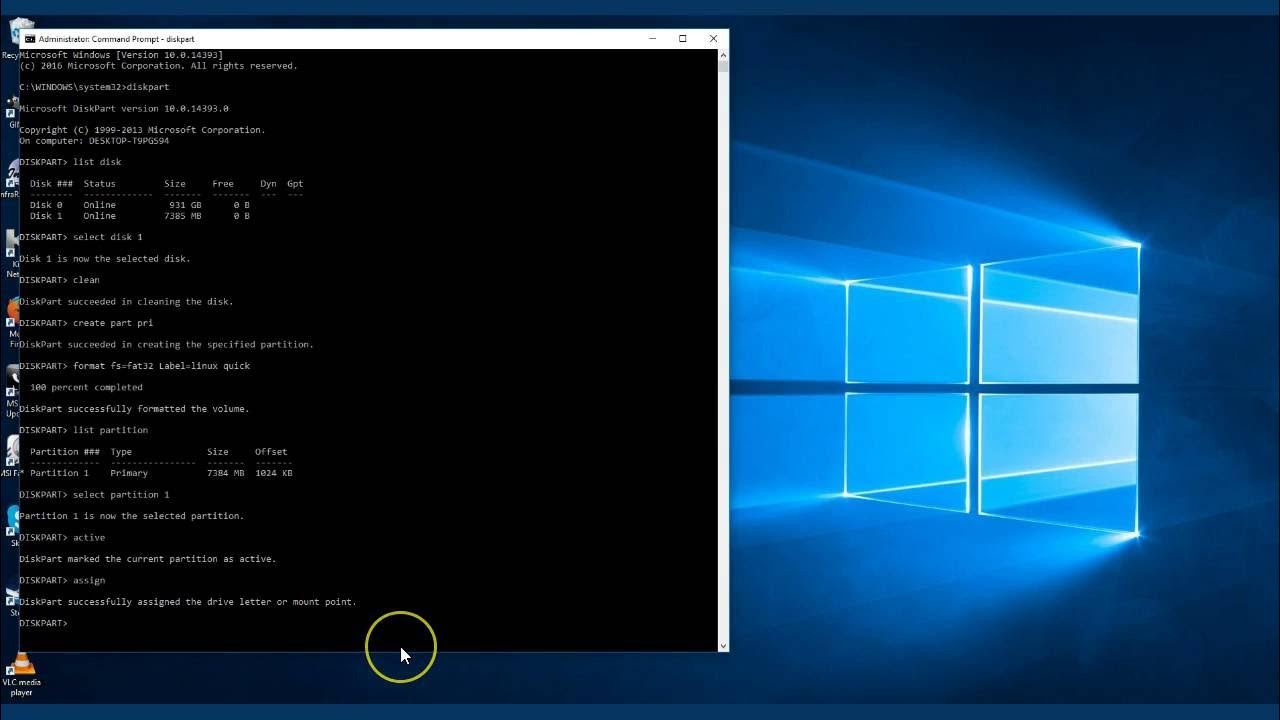
How To Create A Bootable USB in Windows 10 Using CMD

How to Make a Bootable Windows 10 on a 100% Work Flashdisk
How to create a bootable USB Flash Drive for Windows using PowerISO application?
5.0 / 5 (0 votes)

