Create Emotion Recognition Mobile App || MIT App Inventor || Personal Image Classifier Extension[AI]
Summary
TLDRIn this tutorial, Krishna Raghavendran guides viewers through creating a motion recognition app using MIT App Inventor and the Personal Image Classifier extension. The app classifies emotions (happy, sad, scared) based on user-uploaded photos. Krishna covers the design process, including adding buttons, labels, and a camera, followed by importing and using the extension. The tutorial also walks through training the AI model with sample images and uploading it to MIT App Inventor. Finally, viewers learn how to test the app by capturing emotions and displaying the results. Subscribe for more MIT App Inventor tutorials.
Takeaways
- 😀 Create a motion recognition app using MIT App Inventor with artificial intelligence and machine learning.
- 😀 Set a gradient background image to customize the app's appearance.
- 😀 Add a 'Classify' button to trigger the emotion recognition process when clicked.
- 😀 Use a label to display the result of the emotion classification (e.g., happy, sad, etc.).
- 😀 Integrate the 'Personal Image Classifier' extension to classify emotions from images.
- 😀 Import the extension by downloading the .aix file and uploading it to MIT App Inventor.
- 😀 Use a camera component to capture images for emotion recognition based on facial expressions.
- 😀 Create and train a model with labeled examples (e.g., happy, sad, scared) to help the AI recognize emotions.
- 😀 After training, test the model with additional examples to ensure accurate emotion classification.
- 😀 Once the model is tested, download it and upload it to MIT App Inventor to be used with the extension.
- 😀 Use the block section to program the app's behavior: classify images, show results in a label, and display emotion predictions.
Q & A
What is the main purpose of the tutorial by Krishna Raghavendran?
-The tutorial aims to teach viewers how to create a motion or emotion recognition app using MIT App Inventor and the Personal Image Classifier extension.
What UI components are added first when designing the app in MIT App Inventor?
-The tutorial starts by adding a gradient background, a centered 'Classify' button with custom font and color, and an empty label to display AI results.
What role does the Personal Image Classifier extension play in this app?
-The extension enables the app to use AI and machine learning to classify images, specifically detecting the emotion displayed in a user's face.
How is the camera used in the app?
-The Camera component captures a photo of the user, which is then analyzed by the Personal Image Classifier to determine their emotion.
How do you create and train a model for emotion recognition?
-You visit classifier.appinventor.mit.edu, create labels for emotions (like happy, sad, scared), upload multiple example images for each label, and click 'Train Model' to train the AI.
What is the purpose of adding multiple images for each emotion label?
-Adding more images helps the AI better understand the variations in facial expressions for each emotion, improving the model's accuracy.
How can you test the AI model before using it in the app?
-You add test images for each emotion and click 'Predict' on the model training site to check if the AI correctly classifies the emotions and displays confidence percentages.
After training the model, how is it integrated into MIT App Inventor?
-The trained model file (model.mdl) is uploaded into the Personal Image Classifier extension within MIT App Inventor, ready for use in the app.
What happens when the 'Classify' button is clicked in the app?
-Clicking 'Classify' triggers the camera to take a photo, sends the image to the Personal Image Classifier, and displays the detected emotion and confidence in Label1.
How can the accuracy of the app's emotion detection be improved?
-Accuracy can be improved by adding more training images for each emotion, ensuring good lighting, and capturing clear and distinct facial expressions.
Can this app detect emotions beyond happy, sad, and scared?
-Yes, you can create additional labels for other emotions and provide training images for each, expanding the app's recognition capabilities.
Why is it important to understand the percentages shown in AI predictions?
-The percentages indicate the confidence level of the AI for each emotion. The highest percentage usually represents the AI's predicted emotion.
Outlines

此内容仅限付费用户访问。 请升级后访问。
立即升级Mindmap

此内容仅限付费用户访问。 请升级后访问。
立即升级Keywords

此内容仅限付费用户访问。 请升级后访问。
立即升级Highlights

此内容仅限付费用户访问。 请升级后访问。
立即升级Transcripts

此内容仅限付费用户访问。 请升级后访问。
立即升级浏览更多相关视频
Create a Math Quiz App in MIT App Inventor 2 || Quiz Mobile App || MIT App Inventor Educational App
Create Tic Tac Toe Game in MIT App Inventor in Just 10 Minutes! || Free Extension || App Inventor 2

Noise Pollution App | Sound Meter App MIT App Inventor | Sound Level | Noise Sensor MIT App Inventor

Tutorial Cepat Membuat Aplikasi Translator, menggunakan MIT App Inventor.
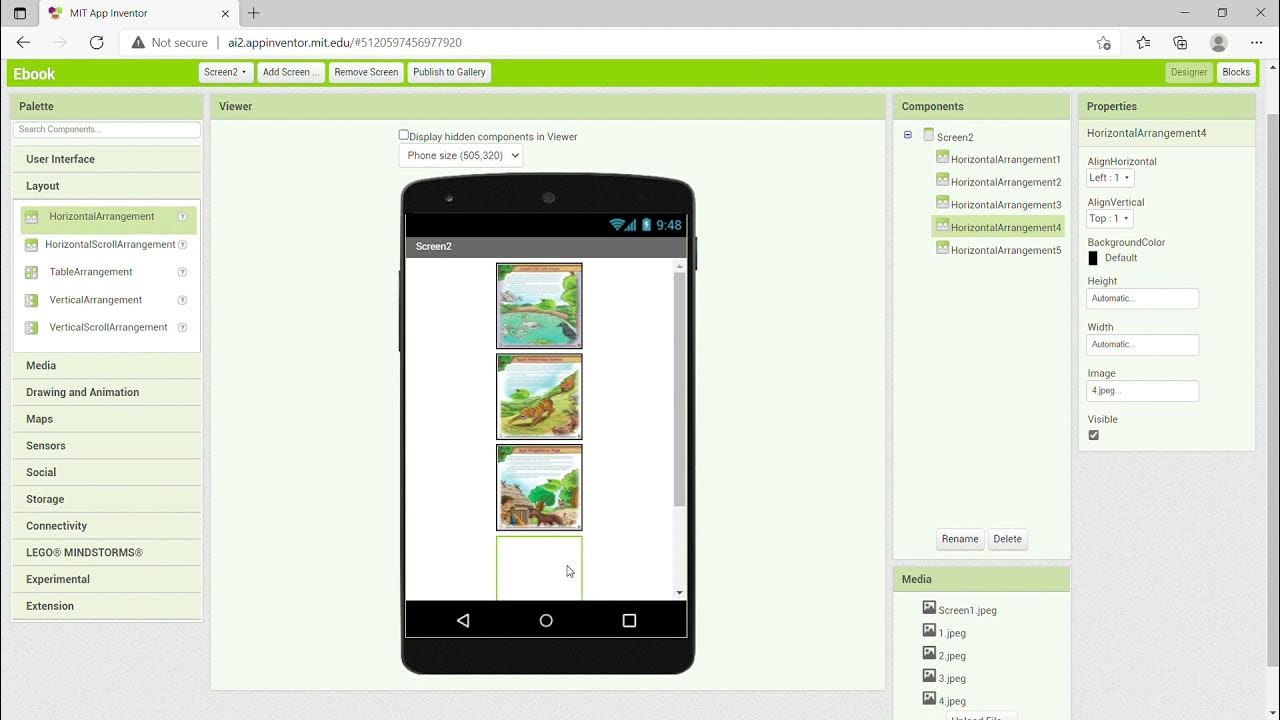
KKN UNY 2021 - Tutorial Membuat Aplikasi Ebook Menggunakan MIT App Inventor

Membuat Robot SUMO IOT ESP8266 dan Aplikasi Android
5.0 / 5 (0 votes)

