How To Get Transcript From YouTube Video?
Summary
TLDRThis video guides users on how to access a transcript for a YouTube video. The process involves opening the YouTube app, selecting the desired video, and tapping on 'More' in the description. From there, users can click on 'Show Transcript' to view the transcript of the video. It's a simple and quick method to follow for those who need a written version of the video content.
Takeaways
- 😀 Open the YouTube app on your device to start the process.
- 😀 Select the video for which you want to get the transcript.
- 😀 Go to the video description section to find more options.
- 😀 Tap on 'More' in the video description to access additional features.
- 😀 Look for the 'Show transcript' option in the dropdown menu.
- 😀 Click on 'Show transcript' to reveal the full transcript of the video.
- 😀 The transcript will display as text beneath the video.
- 😀 You can read the entire transcript for the video in this section.
- 😀 The transcript allows you to follow along with the video in written form.
- 😀 The steps are simple and easy to follow for accessing YouTube video transcripts.
Q & A
How can I access the transcript of a YouTube video on the app?
-To access the transcript, open the YouTube app, tap on the video you want, and then go to the video description. Tap on 'More,' and select 'Show Transcript' to view the transcript.
What is the first step in getting a transcript from a YouTube video?
-The first step is to open the YouTube app on your device.
Where can I find the option to show the transcript?
-You can find the 'Show Transcript' option in the video description, after expanding it by tapping 'More.'
Do I need to tap anything other than 'Show Transcript' to view the transcript?
-No, once you tap 'Show Transcript,' the transcript will appear without needing any further action.
Is there any other way to access the transcript besides using the YouTube app?
-The instructions provided specifically relate to the YouTube app. However, similar options may exist on the YouTube website for desktop users.
Does this method work for all YouTube videos?
-The 'Show Transcript' option may not be available for all videos, as it depends on whether the video creator has enabled captions or the video has automatic captions generated by YouTube.
What happens if I don't see the 'Show Transcript' option?
-If the 'Show Transcript' option is not visible, the video may not have captions available, or the creator may have disabled the feature.
Is there any other setting or tool needed to view the transcript?
-No, no additional settings or tools are required—just follow the steps outlined in the instructions to access the transcript.
Can I use this feature on both Android and iOS devices?
-Yes, this method works on both Android and iOS versions of the YouTube app, as long as the video supports transcripts.
What is the role of the 'More' button in this process?
-The 'More' button is used to expand the video description, allowing access to the 'Show Transcript' option.
Outlines

This section is available to paid users only. Please upgrade to access this part.
Upgrade NowMindmap

This section is available to paid users only. Please upgrade to access this part.
Upgrade NowKeywords

This section is available to paid users only. Please upgrade to access this part.
Upgrade NowHighlights

This section is available to paid users only. Please upgrade to access this part.
Upgrade NowTranscripts

This section is available to paid users only. Please upgrade to access this part.
Upgrade NowBrowse More Related Video
How To Get Transcript From YouTube Video - Full Guide
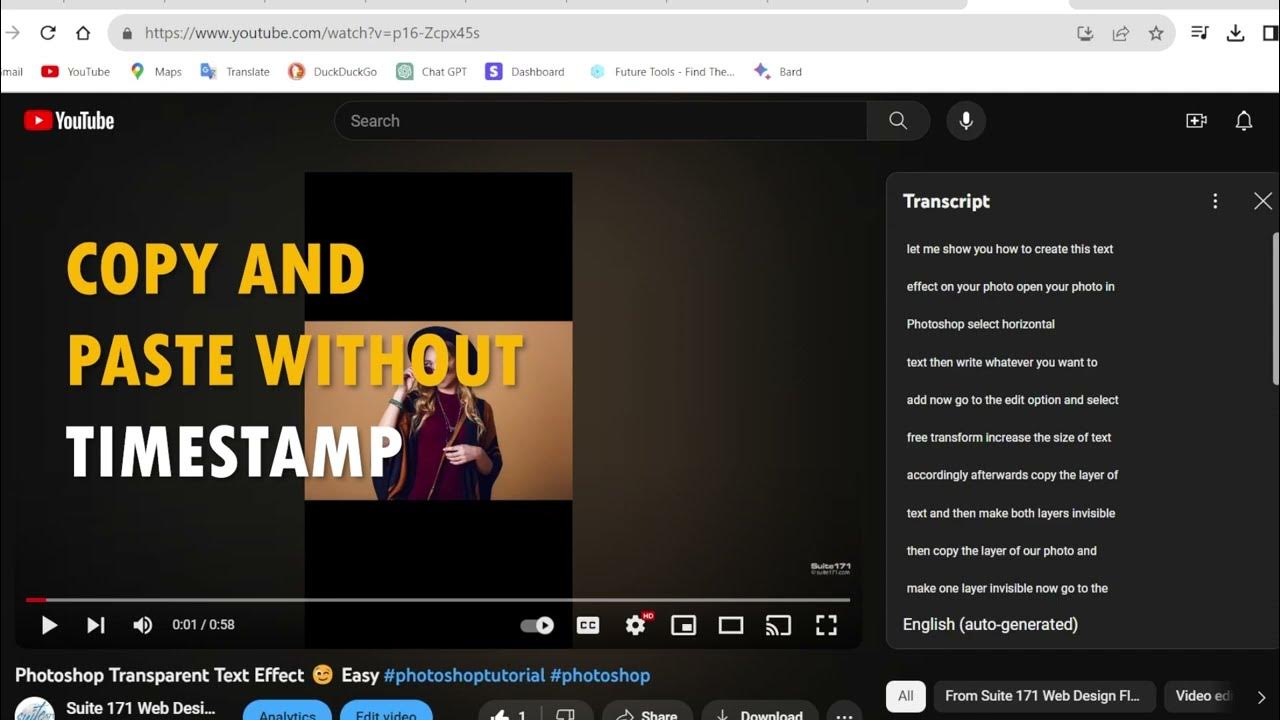
Get Any YouTube Shorts Transcripts
End To End Youtube Video Transcribe Summarizer LLM App With Google Gemini Pro
How to Summarize a Long YouTube Video in Seconds for Free
How To Summarize Any Youtube Video In Seconds (With Transcript) Using AI - ONE CLICK!
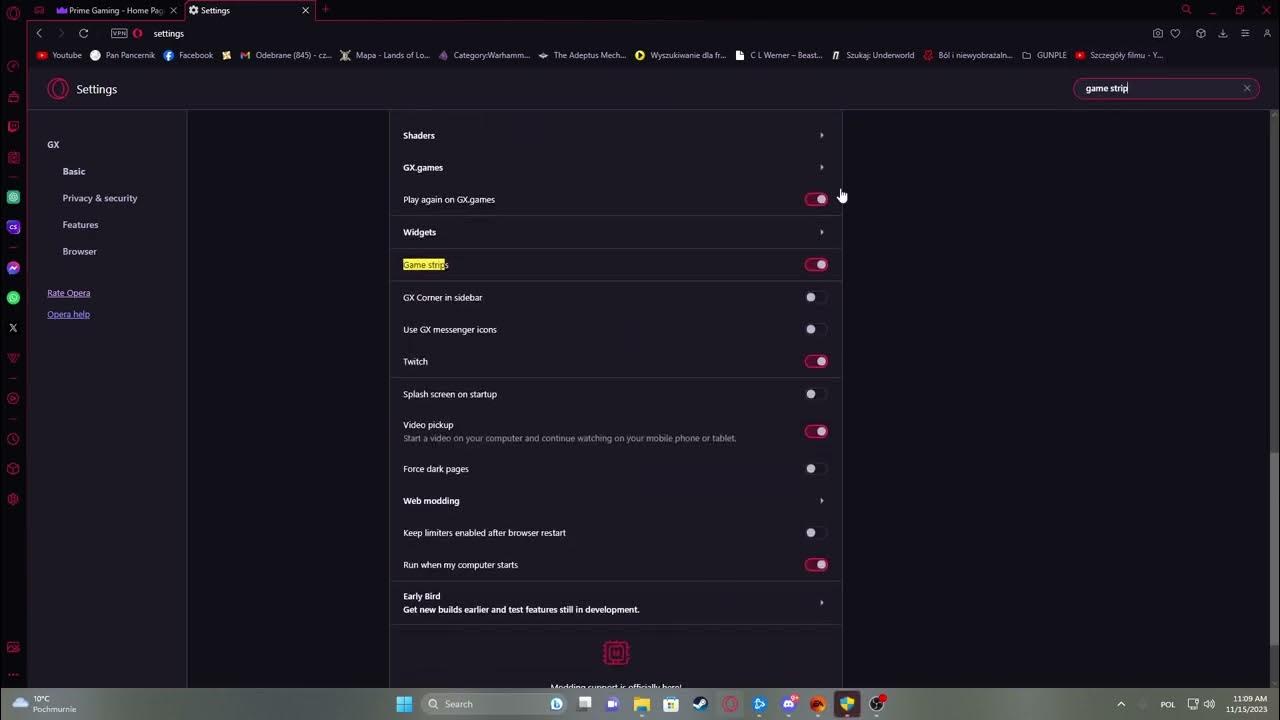
How To Enable & Disable Game Strips In Opera GX
5.0 / 5 (0 votes)
