Belajar Word dari Nol | Tutorial Word Pemula paling Mudah
Summary
TLDRThis tutorial video provides a comprehensive guide to Microsoft Word for beginners, covering everything from opening a new document and saving files to using essential features like the Home menu, ribbon, font formatting, paragraph alignment, and styles. It also explains how to insert tables, pictures, shapes, and SmartArt, as well as using Design, Layout, References, Mailings, Review, and View menus for advanced document customization. The video emphasizes practical, step-by-step instructions, including tips for formatting, creating organized tables, and automating tasks like mail merge and table of contents, making it an ideal resource for anyone starting with Word.
Takeaways
- 😀 Microsoft Word interface includes the Title Bar, Menu Bar, Ribbon, Ruler, Status Bar, and the main working area for typing documents.
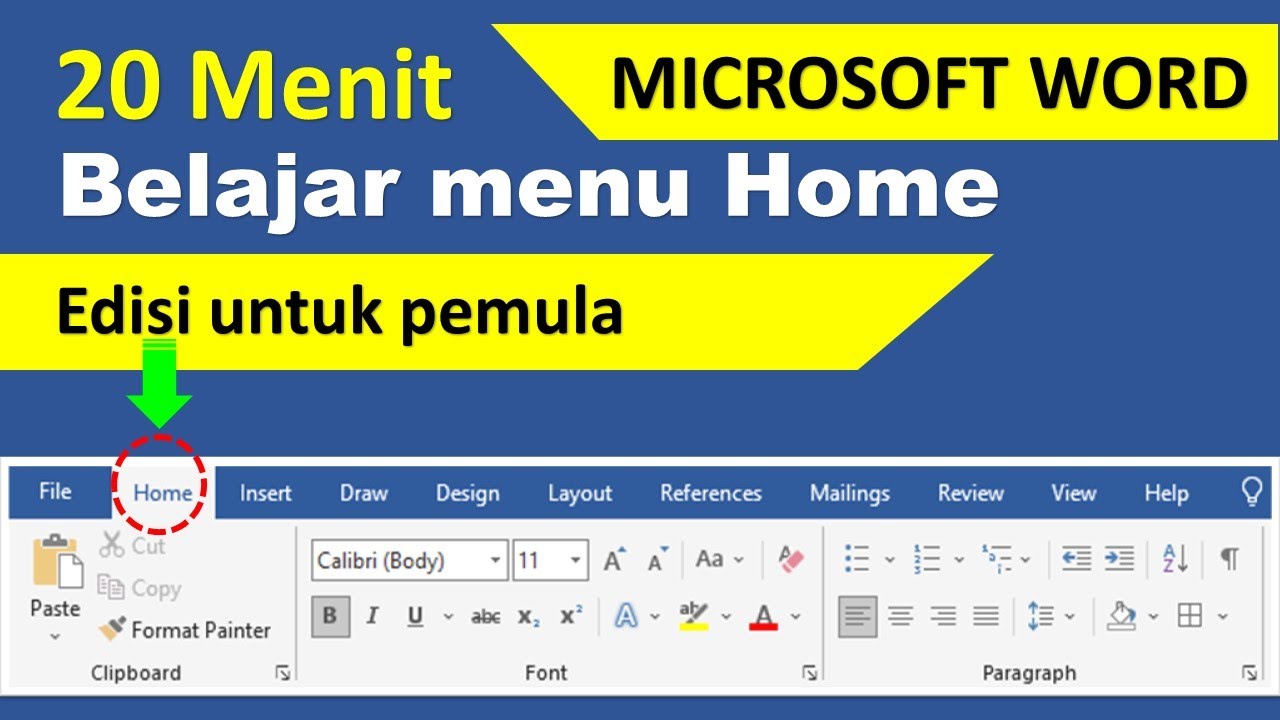
- 😀 The Home menu is the most frequently used, allowing users to change fonts, font sizes, styles (Bold, Italic, Underline), and apply paragraph formatting.
- 😀 Users can copy, cut, paste, and use Format Painter to replicate text formatting quickly; Clear Formatting resets text to default settings.
- 😀 Paragraph options include alignment (left, center, right, justify), line spacing, borders, and shading for visual organization of content.
- 😀 The Insert menu allows adding Pages, Tables, Pictures, Shapes, SmartArt, Header & Footer, Text boxes, and Symbols to documents.
- 😀 Tables in Word can be created manually or automatically, formatted with colors and borders, and can include basic formulas, though Excel is recommended for complex calculations.
- 😀 SmartArt is useful for creating organizational charts, diagrams, and flowcharts, with customizable colors and 3D effects.
- 😀 The Design menu includes Watermark features, which allow adding text in the background of each page for branding or notes.
- 😀 The Layout menu enables adjusting page setup, margins, orientation, paper size, and columns for professional document formatting.
- 😀 References and Mailing menus support creating automatic Table of Contents, citations, bibliographies, and Mail Merge for mass mailing.
- 😀 The Review menu is used for tracking changes, adding comments, and reviewing documents, while the View menu allows adjusting document view modes and zoom levels.
- 😀 Proper use of these features allows beginners to create well-structured, visually appealing, and professional documents efficiently in Microsoft Word.
Q & A
What version of Microsoft Word is being used in the tutorial?
-The tutorial is using Microsoft Word 2021, but the instructions are applicable to earlier versions as well.
How do you save a document in Microsoft Word?
-To save a document, click 'File' and then 'Save As'. Choose the location where you want to save it, and enter the file name. After saving, the title bar will reflect the saved document name.
What is the purpose of the 'Ruler' in Microsoft Word?
-The 'Ruler' in Microsoft Word is used to adjust margins and to position text or objects precisely on the page.
What are the key features of the 'Home' menu in Microsoft Word?
-The 'Home' menu in Microsoft Word includes basic formatting tools like font selection, size adjustments, bold, italic, underline, and alignment options, as well as the clipboard options for cutting, copying, and pasting.
How do you change the font style and size in a document?
-You can change the font style and size by selecting the text, then going to the 'Home' tab. From there, choose a font style and adjust the size using the font dropdown menu or by clicking the increase/decrease font size buttons.
What does the 'Format Painter' feature do in Microsoft Word?
-The 'Format Painter' allows you to copy the formatting of selected text and apply it to another portion of text, ensuring consistent formatting across your document.
How can you adjust paragraph alignment in Microsoft Word?
-You can adjust paragraph alignment by selecting the text and then using the alignment buttons on the 'Home' tab. The options include left, center, right, and justify alignment.
What is 'Line Spacing' in Microsoft Word, and how is it adjusted?
-Line spacing controls the amount of space between lines of text in a paragraph. You can adjust it by selecting the paragraph and choosing the desired spacing (1, 1.15, 1.5, 2, etc.) from the 'Paragraph' menu in the 'Home' tab.
How can you insert a table into a Microsoft Word document?
-To insert a table, go to the 'Insert' tab and click on 'Table'. You can then choose the number of rows and columns, or manually specify the size of the table.
What is the purpose of the 'Insert' menu in Microsoft Word?
-The 'Insert' menu is used to add various elements to a document, such as tables, pictures, charts, text boxes, page breaks, headers, footers, and more.
How do you add a watermark to your document in Microsoft Word?
-To add a watermark, go to the 'Design' tab and click on 'Watermark'. You can choose from a preset watermark or create a custom one with text or an image.
What is the 'Layout' tab used for in Microsoft Word?
-The 'Layout' tab is used for adjusting page setup options such as margins, orientation (portrait or landscape), size, and columns. It's commonly used for preparing documents like reports and dissertations.
Outlines

Этот раздел доступен только подписчикам платных тарифов. Пожалуйста, перейдите на платный тариф для доступа.
Перейти на платный тарифMindmap

Этот раздел доступен только подписчикам платных тарифов. Пожалуйста, перейдите на платный тариф для доступа.
Перейти на платный тарифKeywords

Этот раздел доступен только подписчикам платных тарифов. Пожалуйста, перейдите на платный тариф для доступа.
Перейти на платный тарифHighlights

Этот раздел доступен только подписчикам платных тарифов. Пожалуйста, перейдите на платный тариф для доступа.
Перейти на платный тарифTranscripts

Этот раздел доступен только подписчикам платных тарифов. Пожалуйста, перейдите на платный тариф для доступа.
Перейти на платный тарифПосмотреть больше похожих видео
20 menit belajar menu home di microsoft word (edisi pemula)

Mengenal Fungsi Menu di Microsoft Word
Cara Cepat Belajar Microsoft Word | Tutorial Ms Word Untuk Pemula

Tutorial Microsoft Word dari Dasar Nol untuk Pemula Sampai Cepat Paham
Microsoft Word 2016 - Full Tutorial for Beginners [+General Overview]* - 13 MINS!
Cómo damos formato al parrafo
5.0 / 5 (0 votes)

