Tutorial Login dan Edit Profil Aplikasi RHA
Summary
TLDRThis tutorial guides users through the process of logging into and editing their profile on the FH application. It covers entering your username and password, completing a captcha, and accessing the dashboard. Users can then update their profile information and save changes. The video also includes instructions for changing your password by entering the old and new passwords. Clear and concise steps ensure a seamless experience for managing your health service profile on the Erha Clinic platform.
Takeaways
- 😀 Enter your username and password in the designated fields to log in.
- 😀 Complete the captcha that appears to verify your identity before clicking login.
- 😀 Once logged in, you will see the initial dashboard of the Erha Clinic application.
- 😀 The name of your health service is displayed in the upper left corner of the dashboard.
- 😀 To edit your profile, click the 'My Profile' option in the menu.
- 😀 Enter your updated profile information in the provided fields and click 'Save' to save the changes.
- 😀 To change your password, click the option for password change in your account settings.
- 😀 You must enter your old password and then create a new one.
- 😀 After entering the new password, click the 'Change Password' button to confirm the update.
- 😀 Ensure all required fields are filled before saving any changes to your profile or password.
Q & A
How do I log in to the Erha Clinic application?
-To log in to the Erha Clinic application, enter your username and password in the respective fields. After that, complete the captcha and click the 'login' button.
What happens after logging into the Erha Clinic application?
-After logging in, you will be directed to the initial dashboard where you can view your health service details. The name of your health service will be displayed in the upper left corner.
Where can I find the 'My Profile' section?
-To access 'My Profile', click on the 'My Profile' button, which is located on the main dashboard after logging in.
How can I update my profile information in the application?
-To update your profile information, enter the required data in the provided columns on the 'My Profile' section. After making the changes, click the 'Save' button to save your new information.
How can I change my password in the Erha Clinic application?
-To change your password, first enter your old password, then provide a new password. Once both fields are filled in, click on the 'Change Password' button to update it.
Is there a guide or tutorial available for changing my password?
-Yes, a tutorial is available for changing your password. It will guide you step-by-step through the process of entering your old password, your new password, and updating your credentials.
What is the role of the captcha during login?
-The captcha ensures that the login attempt is being made by a human user and not an automated bot. You need to complete the captcha to proceed with the login process.
What does the initial dashboard display?
-The initial dashboard displays the name of your health service at the top left corner, and it provides access to different sections such as 'My Profile' for managing your account.
Can I edit my profile details at any time after logging in?
-Yes, you can edit your profile details anytime by clicking the 'My Profile' button and updating the information in the provided fields.
Are the changes I make to my profile saved automatically?
-No, after making changes to your profile, you must click the 'Save' button to save the updates to your account information.
Outlines

Этот раздел доступен только подписчикам платных тарифов. Пожалуйста, перейдите на платный тариф для доступа.
Перейти на платный тарифMindmap

Этот раздел доступен только подписчикам платных тарифов. Пожалуйста, перейдите на платный тариф для доступа.
Перейти на платный тарифKeywords

Этот раздел доступен только подписчикам платных тарифов. Пожалуйста, перейдите на платный тариф для доступа.
Перейти на платный тарифHighlights

Этот раздел доступен только подписчикам платных тарифов. Пожалуйста, перейдите на платный тариф для доступа.
Перейти на платный тарифTranscripts

Этот раздел доступен только подписчикам платных тарифов. Пожалуйста, перейдите на платный тариф для доступа.
Перейти на платный тарифПосмотреть больше похожих видео
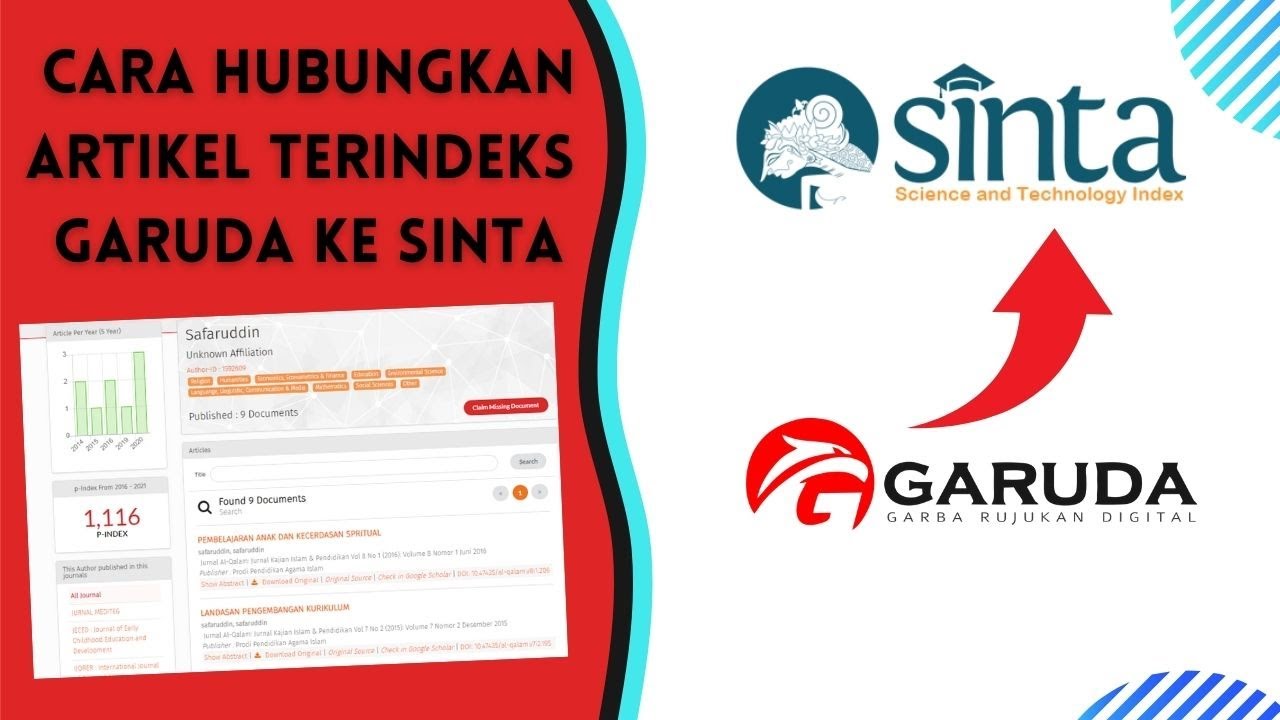
Cara Menghubungkan Artikel Terindeks Garuda ke Akun Sinta

Tutorial Cara Lapor SPT Masa PPN di Coretax di 2025 Status Nihil, Kurang Bayar/LB & Blling PPN

Cara Membuat Perpustakaan Digital Gratis dengan SLIMS
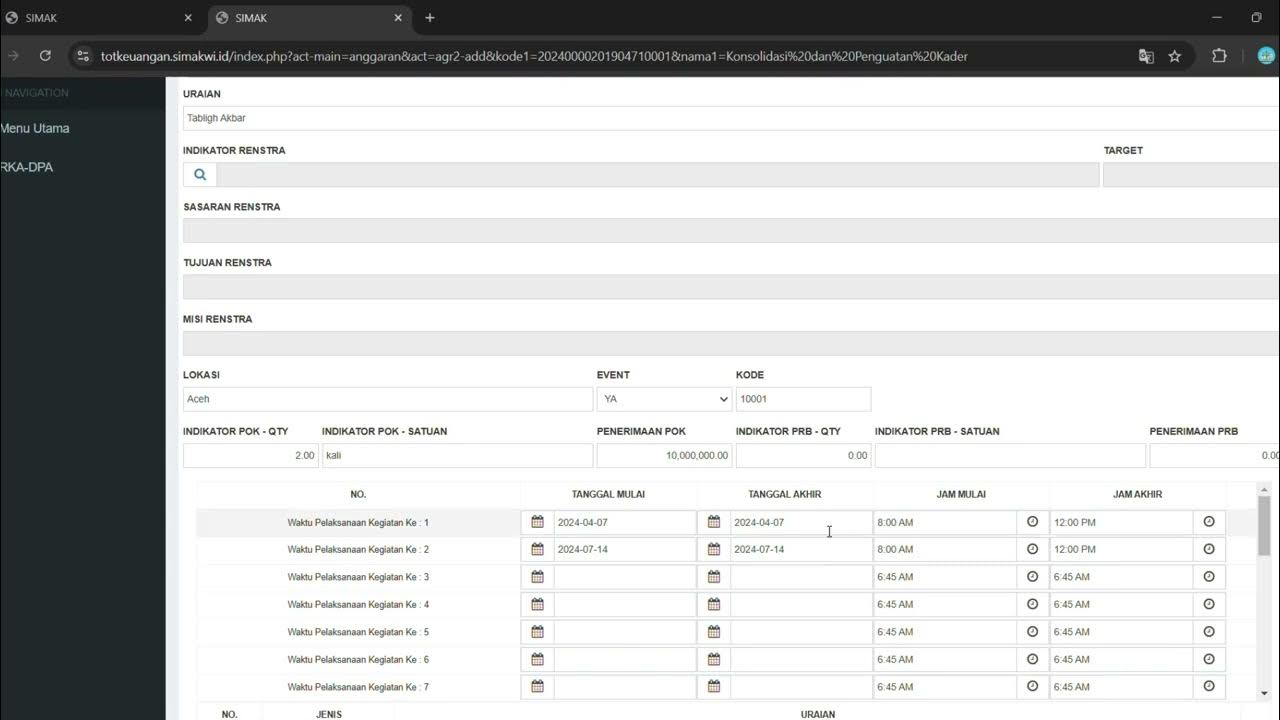
LOGIN SIMAK DAN PENGINPUTAN RKA DAERAH
Cara Pelaporan (SPT) Pajak Tahunan PNS diatas 60 juta tahun 2023

🔴 Updated TODO LIST App with Add, Delete, Edit, LocalStorage using React and Hooks in 2021
5.0 / 5 (0 votes)

