15 Menit Menguasai Microsoft Word - dengan fitur fitur yang peling sering digunakan
Summary
TLDRThis tutorial offers a comprehensive guide on using essential Microsoft Word features. It covers topics like adjusting fonts and font sizes, paragraph formatting, numbering lists, creating tables, inserting images, and adding symbols. Additionally, the video demonstrates how to work with headers, footers, and page numbers. Aimed at both beginners and those looking to enhance their Word skills, this tutorial simplifies common tasks to improve efficiency and productivity. The video is packed with easy-to-follow instructions and tips for everyday users of Microsoft Word.
Takeaways
- 😀 Mastering the use of **font settings** in Microsoft Word is essential, including choosing fonts, adjusting size, and formatting styles like bold, italics, and underline.
- 😀 **Paragraph alignment** is crucial for a professional document. Use the *Justify* tool to align text both left and right.
- 😀 You can create **indentation** for the first line of paragraphs using the *First Line Indent* option to give a polished look to your document.
- 😀 Adjust **line spacing** with simple shortcuts: `Ctrl + 1` for single spacing, `Ctrl + 5` for 1.5, and `Ctrl + 2` for double spacing.
- 😀 **Borders** can be easily added using *Shapes* in Word, where you can customize line styles and thickness to fit your document's needs.
- 😀 **Numbering lists** can be done with a simple click, allowing you to choose between numeric, alphabetic, or custom numbering formats.
- 😀 **Creating tables** in Word is straightforward via the *Insert* tab, where you can define the number of rows and columns you need.
- 😀 **Inserting images** is simple using the *Insert Picture* function, and images can be resized, cropped, and adjusted for a better layout.
- 😀 **Symbols** like ©, ®, or currency symbols can be inserted through the *Insert* menu, allowing you to enhance the content with special characters.
- 😀 Adding **headers and footers** helps to organize your document, and you can also insert page numbers automatically for multi-page documents.
Q & A
What is the purpose of using fonts in Microsoft Word?
-Fonts determine the style and size of the text in a document. It allows users to choose from various types (like Calibri or Times New Roman) to make the document visually appealing and suitable for its intended purpose, such as formal or creative documents.
How do you change the font size in Microsoft Word?
-To change the font size in Microsoft Word, you can either select the desired text and choose a size from the font size dropdown in the toolbar or use the keyboard shortcut Ctrl + Shift + > to increase the font size.
What is the 'Justify' option in paragraph formatting?
-'Justify' aligns text evenly between the left and right margins, creating a clean and professional look by stretching the lines of text to fill the entire width of the page.
How do you adjust the spacing between lines in a paragraph?
-You can adjust line spacing by selecting the text and choosing the desired spacing option under the 'Layout' tab. Alternatively, use the keyboard shortcuts: Ctrl + 1 for single spacing, Ctrl + 2 for double spacing, and Ctrl + 5 for 1.5 line spacing.
What are the steps to insert a table in Microsoft Word?
-To insert a table, go to the 'Insert' tab, click on 'Table', and choose the number of rows and columns you need. Then, you can adjust the table's dimensions and content as required.
How can I insert a picture into a Word document?
-To insert a picture, go to the 'Insert' tab, click on 'Pictures', and select the image file you want to add. You can resize or crop the image once it’s inserted to fit your layout.
What are 'Borders' in Microsoft Word, and how are they used?
-Borders in Word refer to lines or frames that can be added to the document, table, or paragraph to separate or highlight content. You can select from various line styles and adjust thickness, color, or pattern under the 'Shapes' menu.
How do you create numbered lists in Microsoft Word?
-To create a numbered list, select the text or items you want to list and click the 'Numbering' button in the toolbar. You can choose from different numbering styles, such as numbers, letters, or bullet points.
What is the difference between the 'Header' and 'Footer' in a document?
-The 'Header' is the section at the top of a page, while the 'Footer' is the section at the bottom. Both can contain repetitive information, such as page numbers, document titles, or author names, and can be customized to appear on every page.
How do you add page numbers in Microsoft Word?
-To add page numbers, click on the 'Insert' tab, select 'Page Number', and choose the desired location (top or bottom of the page). You can also customize the format, such as displaying 'Page X of Y'.
Outlines

このセクションは有料ユーザー限定です。 アクセスするには、アップグレードをお願いします。
今すぐアップグレードMindmap

このセクションは有料ユーザー限定です。 アクセスするには、アップグレードをお願いします。
今すぐアップグレードKeywords

このセクションは有料ユーザー限定です。 アクセスするには、アップグレードをお願いします。
今すぐアップグレードHighlights

このセクションは有料ユーザー限定です。 アクセスするには、アップグレードをお願いします。
今すぐアップグレードTranscripts

このセクションは有料ユーザー限定です。 アクセスするには、アップグレードをお願いします。
今すぐアップグレード関連動画をさらに表示
Cara Cepat Belajar Microsoft Word | Tutorial Ms Word Untuk Pemula

Mengenal Fungsi Menu di Microsoft Word
Microsoft Word 2016 - Full Tutorial for Beginners [+General Overview]* - 13 MINS!
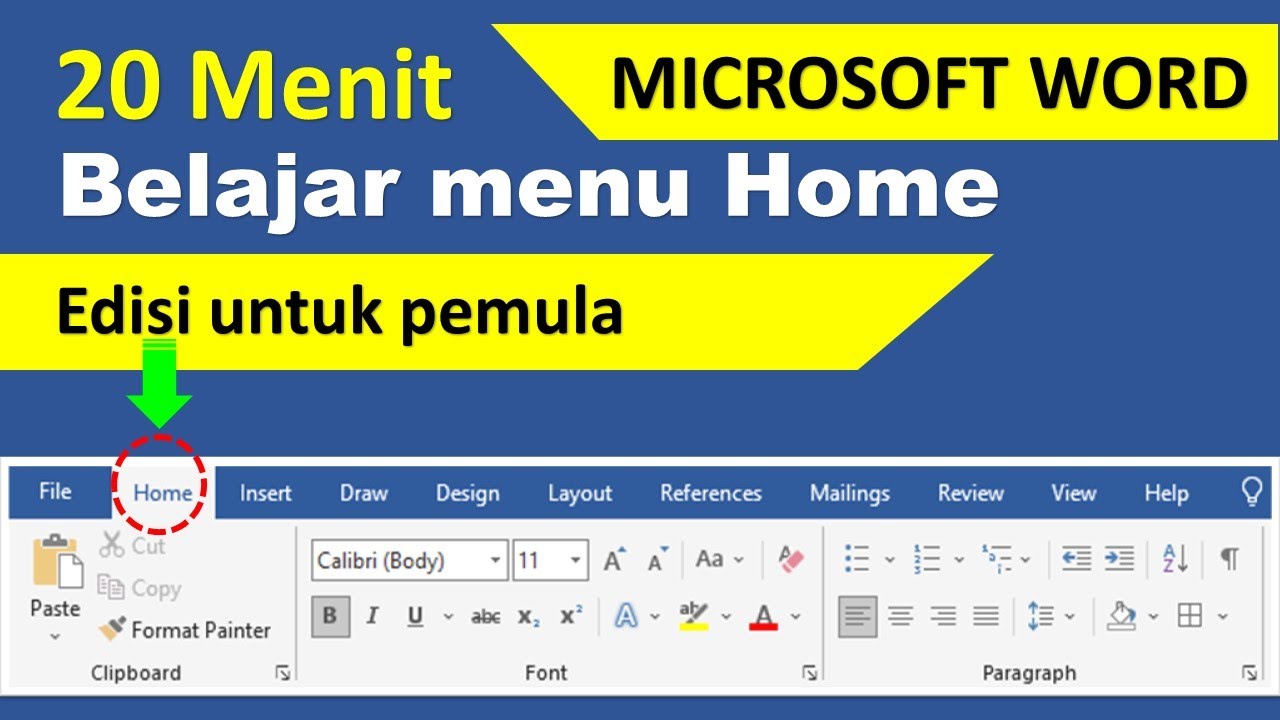
20 menit belajar menu home di microsoft word (edisi pemula)

Microsoft Word - Tutorial for Beginners in 13 MINUTES! [ COMPLETE ]
Aula 01 - Word Avançado - Informática Avançada - Prof. Thiago Bianeck
5.0 / 5 (0 votes)

