Cara Membuat CV Lamaran Kerja di Canva
Summary
TLDRIn this tutorial, Ari Samsudin from Warung Belajar demonstrates how to create a professional CV using Canva. The video walks viewers through logging into Canva, selecting a template, uploading a photo, and customizing text such as name, job title, and skills. It also shows how to adjust sections and delete unnecessary information. Finally, viewers are guided on exporting the completed CV as a PDF. This step-by-step guide makes it easy for beginners to design an impressive CV with Canva's simple, intuitive tools.
Takeaways
- 😀 Start by opening a web browser (e.g., Google Chrome) and visit canva.com.
- 😀 Log in to Canva using your Google account or email.
- 😀 Once logged in, click on the 'Template' menu and search for 'CV template' in the search bar.
- 😀 Choose from free and paid templates. Paid templates have a price tag, while free ones are without the price icon.
- 😀 Select a template that suits your preferences, and click 'Customize this template'.
- 😀 Prepare necessary materials such as a photo and text content before starting the CV creation process.
- 😀 Upload your photo to Canva by clicking 'Uploads' and then 'Upload file', then drag the photo into the template.
- 😀 Customize the text fields, such as name, job title, and personal information by copying and pasting from prepared documents.
- 😀 Adjust the layout and content as needed, such as resizing or deleting sections that are unnecessary.
- 😀 Once the CV is ready, export it as a PDF by clicking 'Share', then 'Download', and choosing 'PDF Standard'.
- 😀 Review the final CV and save it to your computer for future use or printing.
Q & A
What is the first step in creating a resume using Canva?
-The first step is to open a web browser (e.g., Google Chrome) and go to the Canva website (canva.com). Then, log in using your Google account.
How do you find a CV template on Canva?
-Once logged in, click on the 'Templates' section and use the search bar to type 'CV template.' You can then browse various free and paid options.
Are there both free and paid templates available in Canva for creating a CV?
-Yes, Canva offers both free templates (without a crown icon) and paid templates (with a crown icon). You can choose based on your preference and budget.
How do you upload a profile picture to your CV in Canva?
-To upload a profile picture, go to the 'Uploads' tab, click 'Upload file,' choose your photo, and drag it into the profile photo section of the template.
Can you edit the name and job title in the template?
-Yes, you can easily edit the name and job title by clicking on the text boxes, deleting the default text, and pasting or typing your own information.
How can you zoom in or out while editing the CV in Canva?
-You can zoom in or out by pressing 'Ctrl' on your keyboard and scrolling your mouse wheel. Alternatively, you can use the zoom controls in the Canva editor.
Is it possible to change the contact details such as phone number and email in the template?
-Yes, you can edit the contact section by double-clicking the text boxes and entering your own phone number, email address, and location.
How do you edit or remove skills listed in the CV template?
-To edit the skills, click on the skill section and replace the existing text. If there are unnecessary skills, you can simply delete them by pressing the 'Delete' key.
What should you do if there is excess space in the 'Language' section of the CV?
-If there is too much space in the 'Language' section, you can select the entire section, press 'Shift' to select multiple elements, and then drag the section upwards to adjust the layout.
How can you download the finished CV from Canva?
-To download your completed CV, click on the 'Share' button, then select 'Download.' Choose the 'PDF Standard' format for the best quality, or select other formats like PNG or JPEG if needed.
What is the format used to download the CV in the tutorial, and why is it recommended?
-The tutorial recommends downloading the CV in 'PDF Standard' format because it preserves the quality of the design and is commonly used for job applications.
Outlines

このセクションは有料ユーザー限定です。 アクセスするには、アップグレードをお願いします。
今すぐアップグレードMindmap

このセクションは有料ユーザー限定です。 アクセスするには、アップグレードをお願いします。
今すぐアップグレードKeywords

このセクションは有料ユーザー限定です。 アクセスするには、アップグレードをお願いします。
今すぐアップグレードHighlights

このセクションは有料ユーザー限定です。 アクセスするには、アップグレードをお願いします。
今すぐアップグレードTranscripts

このセクションは有料ユーザー限定です。 アクセスするには、アップグレードをお願いします。
今すぐアップグレード関連動画をさらに表示

PANDUAN UNTUK FRESH GRADUATE! Cara Membuat CV di Canva Gratis | Cara Membuat CV ATS Friendly
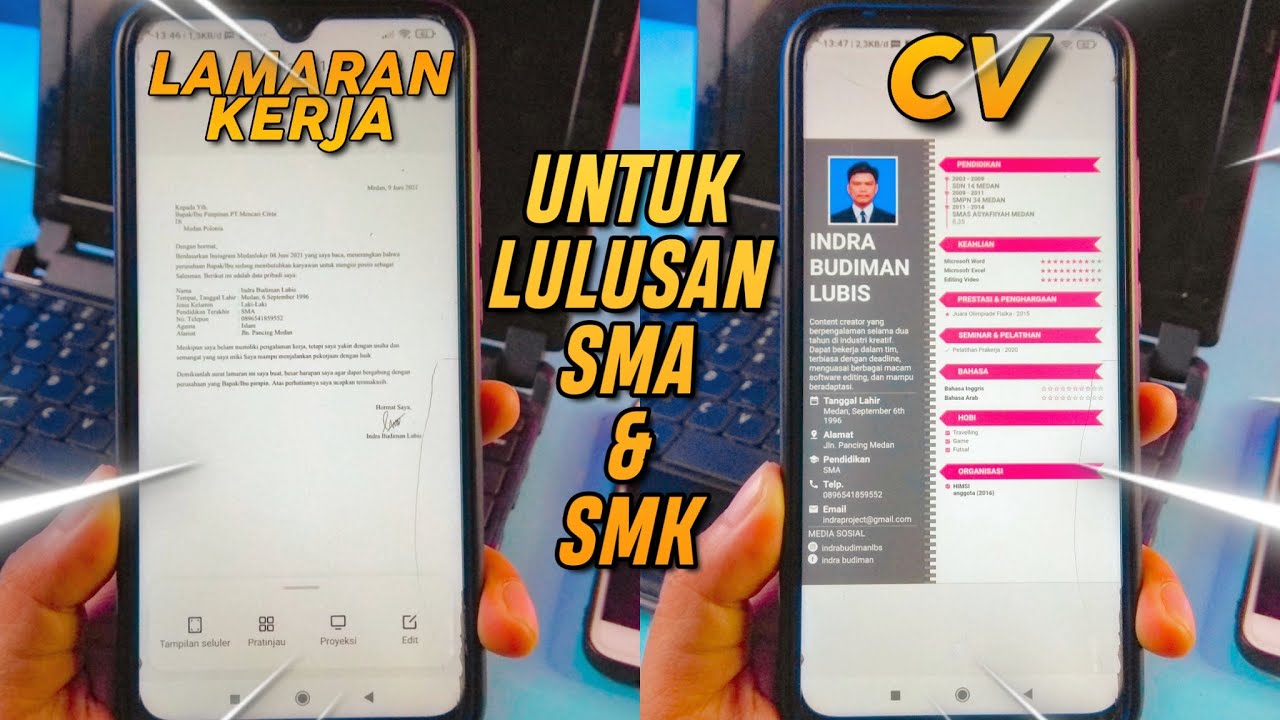
Cara Membuat CV dan Surat Lamaran Kerja Untuk Lulusan SMA & SMK di Hp Android
Tutorial desain packaging pake canva + pacdora! SUPER GAMPANG!!
Create a Hollywood-level Thriller Movie Poster for FREE with AI!
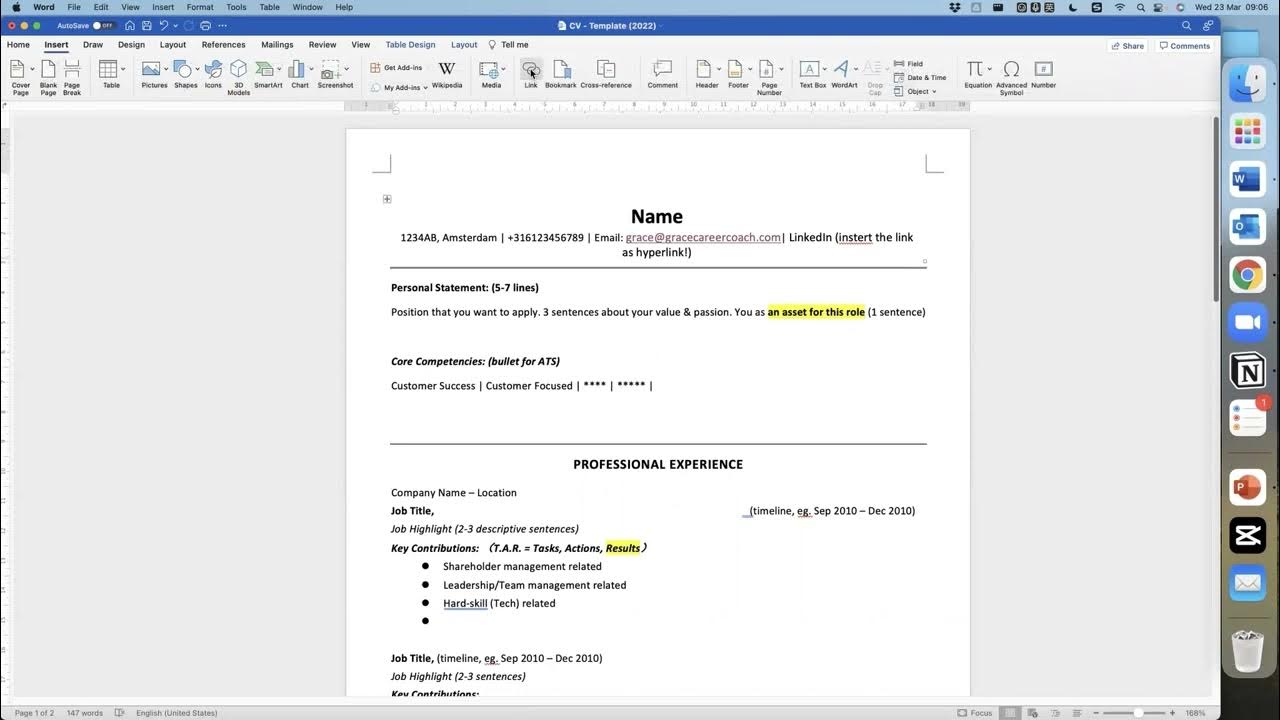
CV -- Before you start for your
I tried using Canva to make a Product Commercial
5.0 / 5 (0 votes)

