Networking tutorial pengenalan winbox | Tutorial winbox mikrotik,cara menggunakan winbox mikrotik
Summary
TLDRThis video provides an in-depth introduction to Winbox, a tool for managing MikroTik network devices. It covers the installation process, explains the tool's interface, and highlights essential features like IP address management, interface configuration, and network monitoring. Viewers will learn how to use Winbox for both graphical and command-line configurations, as well as how to modify device settings and manage network security. The tutorial is designed for beginners and network engineers looking to get a solid understanding of Winbox's functionality and configuration.
Takeaways
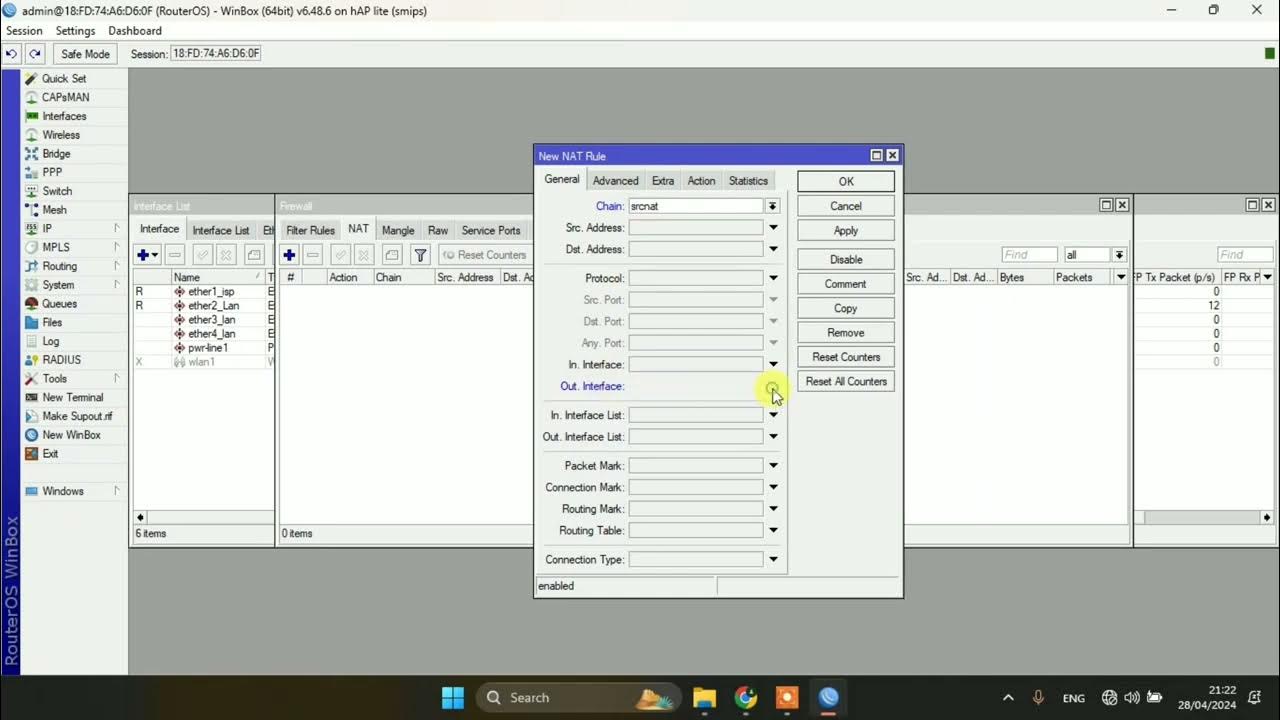
- 😀 Winbox is a tool for managing MikroTik network devices, from powering on to configuring and shutting down devices.
- 😀 Winbox allows users to configure devices through a graphical interface, but also supports command-line text configuration for those who prefer it.
- 😀 Ensure you download the appropriate version of Winbox (32-bit or 64-bit) based on the device's requirements.
- 😀 To use Winbox, first power on the device, connect to the LAN port, and use the default username (admin) with an empty password to log in.
- 😀 The Winbox interface provides access to common configuration tools such as Quickset, which allows basic device setup, though it is not recommended for network engineers.
- 😀 You can manage device interfaces, enable/disable ports, and assign comments to ethernet ports to avoid confusion during configurations.
- 😀 If your MikroTik device supports wireless functionality, Winbox will include wireless configuration options, but these are absent in virtual devices.
- 😀 You can add static or dynamic IP addresses in Winbox, as well as configure DNS settings manually.
- 😀 Winbox allows you to manage various network services such as Winbox access, SSH, Telnet, and HTTP access, with options to disable unused services for security.
- 😀 Routing tables (dynamic and static routes) are accessible through Winbox, allowing you to add and manage routes effectively.
- 😀 You can customize your device's identity, change passwords, view system logs, and use tools like Bandwidth Test, IP Scan, and Torch for network monitoring and troubleshooting.
Q & A
What is Winbox, and what is its primary function?
-Winbox is a tool or application used for managing MikroTik network devices. It allows users to configure, manage files, and control devices through a graphical interface, though it also supports command-line text input for more advanced users.
Can Winbox be used with both graphical and text interfaces?
-Yes, Winbox allows users to manage MikroTik devices both through a graphical interface and by using text commands. This provides flexibility for users who prefer either method.
How do you download Winbox and select the correct version?
-To download Winbox, you must choose the appropriate version for your device. If your device is 64-bit, download the 64-bit version of Winbox, and for 32-bit devices, use the 32-bit version. It’s important to match the version with your MikroTik device.
How do you connect to a MikroTik device using Winbox?
-You can connect to a MikroTik device by entering its MAC address, or if an IP address is configured, you can use the IP address to log into Winbox. After selecting the device from the 'Neighbors' tab, simply click 'Connect' to establish a connection.
What is the QuickSet option in Winbox?
-QuickSet is a feature in Winbox that allows users to easily configure basic network settings like IP addresses and LAN settings. However, it is not recommended for network engineers, as it oversimplifies the configuration process.
What does the 'Running' status in Winbox's interface mean?
-The 'Running' status indicates that the interface or port is active and functioning. It shows that the Ethernet interface is operating and able to transmit data.
How can you manage interfaces in Winbox?
-In Winbox, you can manage interfaces by enabling or disabling them, modifying settings such as half or full duplex, and adding comments to track the purpose of each interface. These options can be accessed through the 'Interfaces' menu.
What is the difference between static and dynamic IP addresses in Winbox?
-Static IP addresses are manually assigned and do not change, while dynamic IP addresses are automatically assigned by a DHCP server. In Winbox, static IPs are denoted by an 'S', while dynamic ones are marked with a 'C'.
What can you configure in the IP Services menu in Winbox?
-The IP Services menu in Winbox allows you to configure services such as Winbox access, HTTP, SSH, FTP, and more. You can also disable services to prevent unauthorized access to your device.
How can you monitor network performance in Winbox?
-Winbox offers tools like Bandwidth Test, IP Scan, and Ping to monitor network performance. The 'Torch' feature can also be used to analyze packet transmission, while 'New Terminal' allows for text-based configuration and diagnostics.
Outlines

Cette section est réservée aux utilisateurs payants. Améliorez votre compte pour accéder à cette section.
Améliorer maintenantMindmap

Cette section est réservée aux utilisateurs payants. Améliorez votre compte pour accéder à cette section.
Améliorer maintenantKeywords

Cette section est réservée aux utilisateurs payants. Améliorez votre compte pour accéder à cette section.
Améliorer maintenantHighlights

Cette section est réservée aux utilisateurs payants. Améliorez votre compte pour accéder à cette section.
Améliorer maintenantTranscripts

Cette section est réservée aux utilisateurs payants. Améliorez votre compte pour accéder à cette section.
Améliorer maintenantVoir Plus de Vidéos Connexes




5.0 / 5 (0 votes)

