Mengenal Fungsi Menu di Microsoft Word
Summary
TLDRIn this tutorial, Pakzam introduces Microsoft Word's basic functions and menu options, providing a comprehensive guide to essential tools like font styles, sizes, and alignment. He demonstrates the use of various formatting features such as bold, italic, underline, and text highlights. The video also covers advanced functions like inserting tables, page numbers, and adjusting document layout. Pakzam emphasizes the importance of practice for improving typing speed and offers helpful tips on copy-pasting, saving documents, and efficient formatting techniques. This tutorial is perfect for beginners looking to master Microsoft Word.
Takeaways
- 😀 Microsoft Word is a word processing application developed by Microsoft, with multiple tools and features for document creation and formatting.
- 😀 The Quick Access Toolbar provides easy access to frequently used commands like Save, Undo, and Redo.
- 😀 The main menu in Word includes options like File, Home, Insert, Design, Layout, References, Mailings, Review, and View, each with its own set of submenus.
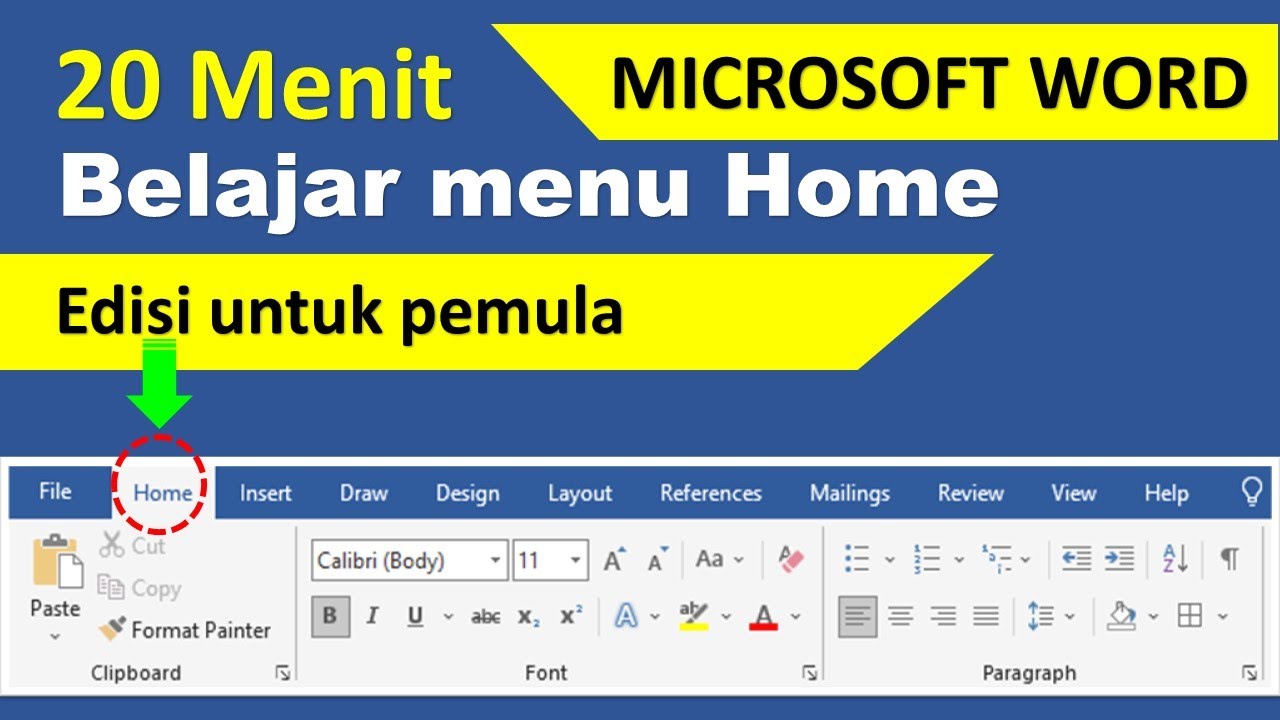
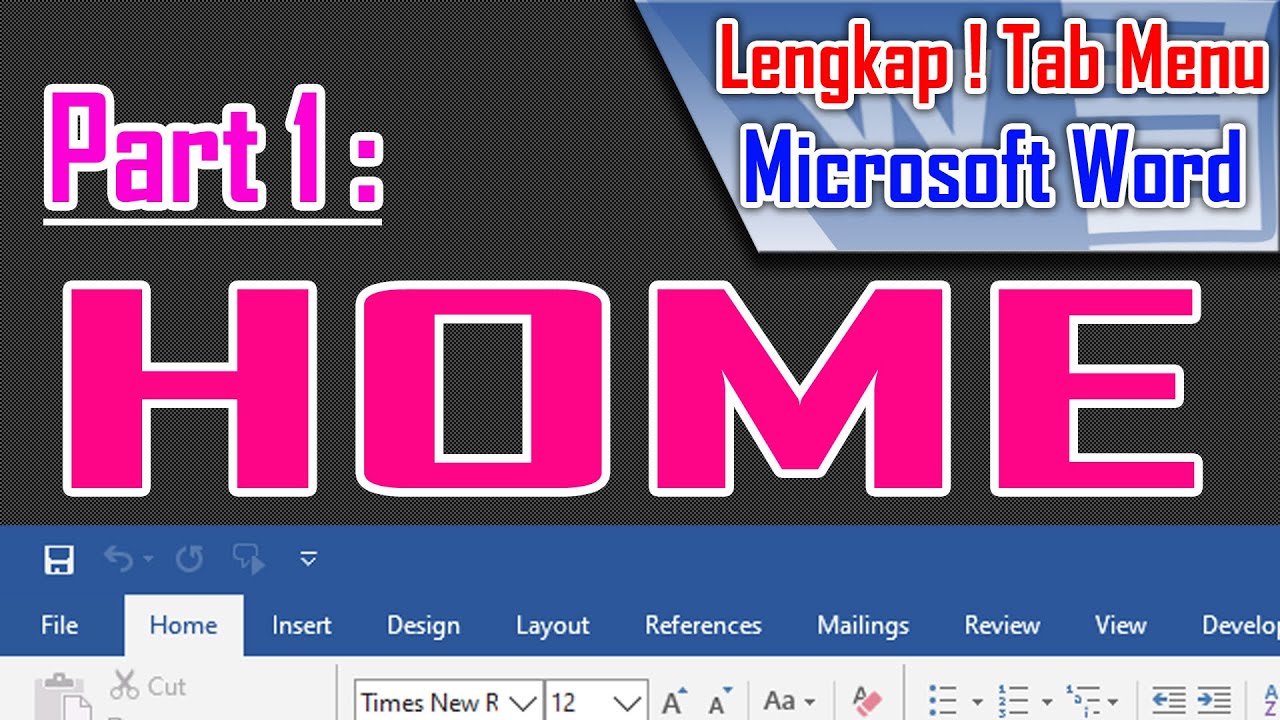
- 😀 The Home menu contains essential tools for formatting text, such as changing font styles, sizes, and applying bold, italic, underline, strikethrough, subscript, and superscript.
- 😀 Alignment tools (left, center, right, justify) help adjust the position of text in a document.
- 😀 You can insert numbered or bulleted lists, and choose from different numbering styles, including symbols and Roman numerals.
- 😀 The Insert menu allows for adding tables, images, symbols, and page numbers to your document.
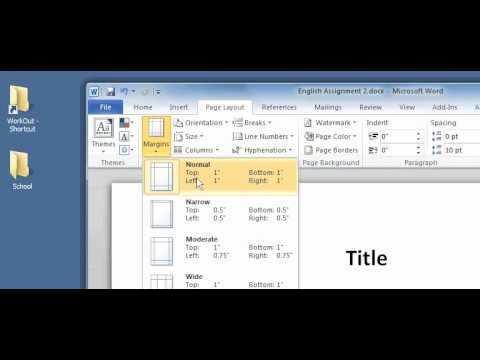
- 😀 The Layout menu helps adjust page settings, including margins, orientation (portrait or landscape), and paper size.
- 😀 You can adjust paragraph spacing to make your document easier to read or fit your specific layout requirements.
- 😀 Regular practice is key to improving typing speed and becoming more familiar with Word's functions. It's also essential to save your work frequently using *Ctrl + S*.
- 😀 To format documents efficiently, type the entire text first and apply formatting later, saving time and effort in the process.
Q & A
What is Microsoft Word and what is its primary function?
-Microsoft Word is a word processing application developed by Microsoft. Its primary function is to create, edit, and format text documents such as letters, reports, and assignments.
What is the purpose of the Quick Access Toolbar in Microsoft Word?
-The Quick Access Toolbar provides fast access to commonly used commands such as Save, Undo, and Redo, allowing users to quickly perform frequent actions without navigating through multiple menus.
What is the difference between Undo and Redo?
-Undo reverses the last action performed, allowing users to go back to a previous step. Redo restores an action that was undone, moving forward again in the editing process.
What is the function of the Font menu in the Home tab?
-The Font menu allows users to change the typeface, size, and style of text. Users can modify the font family, adjust the font size, and apply formatting such as bold, italic, underline, strikethrough, subscript, and superscript.
How can users change text capitalization in Microsoft Word?
-Users can use the Change Case feature to modify capitalization. Options include sentence case, lowercase, UPPERCASE, Capitalize Each Word, and Toggle Case.
What is the difference between subscript and superscript?
-Subscript places text slightly below the normal text line and is commonly used in chemical formulas. Superscript places text slightly above the normal text line and is often used for exponents in mathematics.
What is the purpose of the Text Highlight Color and Font Color tools?
-Text Highlight Color is used to apply a background color behind selected text for emphasis, while Font Color changes the actual color of the text characters.
How do Bullets and Numbering improve document organization?
-Bullets and Numbering help organize information into structured lists. Bullets are typically used for unordered lists, while numbering is used for ordered sequences such as steps or rankings.
What are the different alignment options available in Microsoft Word?
-The alignment options include Align Left, Center, Align Right, and Justify. Align Left aligns text to the left margin, Center aligns it in the middle, Align Right aligns it to the right margin, and Justify aligns text evenly on both left and right margins.
What is the function of Line and Paragraph Spacing?
-Line and Paragraph Spacing adjusts the vertical space between lines of text. For example, users can set spacing to 1.5 lines to make the document easier to read.
How can users insert a table in Microsoft Word?
-Users can insert a table by going to the Insert tab, selecting Table, and choosing the desired number of columns and rows according to their needs.
What is the purpose of Page Numbering?
-Page Numbering automatically adds page numbers to a document. Users can choose whether to place them at the top or bottom of the page and align them left, center, or right.
What are Margins and Orientation in the Layout menu?
-Margins define the space between the text and the edges of the paper (top, bottom, left, and right). Orientation determines whether the page layout is Portrait (vertical) or Landscape (horizontal).
What is the function of the Find feature?
-The Find feature allows users to search for specific words or phrases within a document, making it easier to locate and edit particular content.
What are some important typing tips mentioned in the lesson?
-The lesson emphasizes practicing typing regularly to increase speed and familiarity, typing the full content first before formatting, using keyboard shortcuts like Ctrl+C and Ctrl+V for copying and pasting, and saving the document early to prevent data loss.
Outlines

Esta sección está disponible solo para usuarios con suscripción. Por favor, mejora tu plan para acceder a esta parte.
Mejorar ahoraMindmap

Esta sección está disponible solo para usuarios con suscripción. Por favor, mejora tu plan para acceder a esta parte.
Mejorar ahoraKeywords

Esta sección está disponible solo para usuarios con suscripción. Por favor, mejora tu plan para acceder a esta parte.
Mejorar ahoraHighlights

Esta sección está disponible solo para usuarios con suscripción. Por favor, mejora tu plan para acceder a esta parte.
Mejorar ahoraTranscripts

Esta sección está disponible solo para usuarios con suscripción. Por favor, mejora tu plan para acceder a esta parte.
Mejorar ahoraVer Más Videos Relacionados
20 menit belajar menu home di microsoft word (edisi pemula)

Microsoft Word untuk Pemula 🔥 Belajar Dasarnya dalam 10 Menit
Intro to Computers: Microsoft Office Word 01: Basic Functions

Tutorial Microsoft Word dari Dasar Nol untuk Pemula Sampai Cepat Paham
Tab Menu Home Microsoft Word - Lengkap !
Belajar word untuk pemula
5.0 / 5 (0 votes)

