Belajar Membuat Web Server Sederhana di Cisco Packet Tracer
Summary
TLDRThis tutorial walks through setting up a simple web server on a local network using a PC and DHCP. The process includes configuring a basic server, creating HTML pages (index.html and profile.html), and accessing them from a client machine via a browser. The video emphasizes straightforward steps to create a personal homepage, featuring basic web server setup, HTML coding, and testing. It's an easy-to-follow guide for beginners looking to learn how to host simple websites and serve content on a local network.
Takeaways
- 😀 Setting up a simple web server requires a PC/laptop, server, and cables.
- 😀 The server must be configured with a DHCP service and an assigned IP address (e.g., 192.168.0.21).
- 😀 A simple HTML webpage (index.html) can be created with basic tags like <p>, <hr>, and <br> for layout.
- 😀 The index.html file serves as the homepage, and can include links to other pages (like a profile page).
- 😀 To create a profile page (profile.html), HTML tags like <p> and <a href> are used for displaying text and linking to other pages.
- 😀 HTML anchor tags (<a href>) are essential for creating links between different pages in the web server.
- 😀 When testing the web server, the created HTML pages can be accessed using the server's IP address in a browser.
- 😀 A basic profile page might include personal information such as name, age, and background, presented with simple HTML elements.
- 😀 Saving HTML files through a file manager ensures proper storage of created pages, which can be edited later.
- 😀 The speaker emphasizes the importance of testing the web server by navigating through the pages in a web browser to ensure functionality.
- 😀 The video concludes with a simple sign-off, reinforcing the value of the tutorial for web server beginners.
Q & A
What is the primary goal of the tutorial?
-The primary goal of the tutorial is to demonstrate how to set up a simple web server, configure DHCP, and create basic HTML web pages.
What hardware and network components are necessary for setting up the web server in this tutorial?
-The necessary components include a server, a PC or laptop, and cables. The server is configured to use DHCP for assigning IP addresses.
What is the purpose of the DHCP server in this setup?
-The DHCP server automatically assigns an IP address to the client machine, allowing it to connect to the network without requiring manual IP configuration.
What is the role of the 'index.html' file in this web server setup?
-The 'index.html' file is the default landing page for the web server. It is accessed when a user enters the IP address of the server in a web browser.
What HTML elements are used in the tutorial to create a simple webpage?
-The tutorial uses basic HTML elements such as <html>, <head>, <title>, <body>, <p>, <hr>, and <a> to create a simple webpage structure.
How is the link to the profile page created in the tutorial?
-The link to the profile page is created using the <a> element with an href attribute that points to the 'profile.html' file. For example: <a href='profile.html'>Profile</a>.
What content is included on the profile page?
-The profile page contains personal information, including the name (Ari Novanto), age (24), and the fact that the individual is studying computer science in Jember.
How are the files managed and saved in the tutorial?
-Files are managed using a file manager, and new files are created by specifying the file name (e.g., 'profile.html'). Once the content is added, the files are saved to the appropriate location.
What is the significance of the 'profile.html' file in the tutorial?
-The 'profile.html' file serves as a personal profile page on the website. It provides additional information about the server host and is linked from the main 'index.html' page.
What is the final step to test if the web server is working correctly?
-To test the server, the user enters the server's IP address in a web browser. If the server is set up correctly, the main homepage and the profile page should be displayed.
Outlines

Dieser Bereich ist nur für Premium-Benutzer verfügbar. Bitte führen Sie ein Upgrade durch, um auf diesen Abschnitt zuzugreifen.
Upgrade durchführenMindmap

Dieser Bereich ist nur für Premium-Benutzer verfügbar. Bitte führen Sie ein Upgrade durch, um auf diesen Abschnitt zuzugreifen.
Upgrade durchführenKeywords

Dieser Bereich ist nur für Premium-Benutzer verfügbar. Bitte führen Sie ein Upgrade durch, um auf diesen Abschnitt zuzugreifen.
Upgrade durchführenHighlights

Dieser Bereich ist nur für Premium-Benutzer verfügbar. Bitte führen Sie ein Upgrade durch, um auf diesen Abschnitt zuzugreifen.
Upgrade durchführenTranscripts

Dieser Bereich ist nur für Premium-Benutzer verfügbar. Bitte führen Sie ein Upgrade durch, um auf diesen Abschnitt zuzugreifen.
Upgrade durchführenWeitere ähnliche Videos ansehen
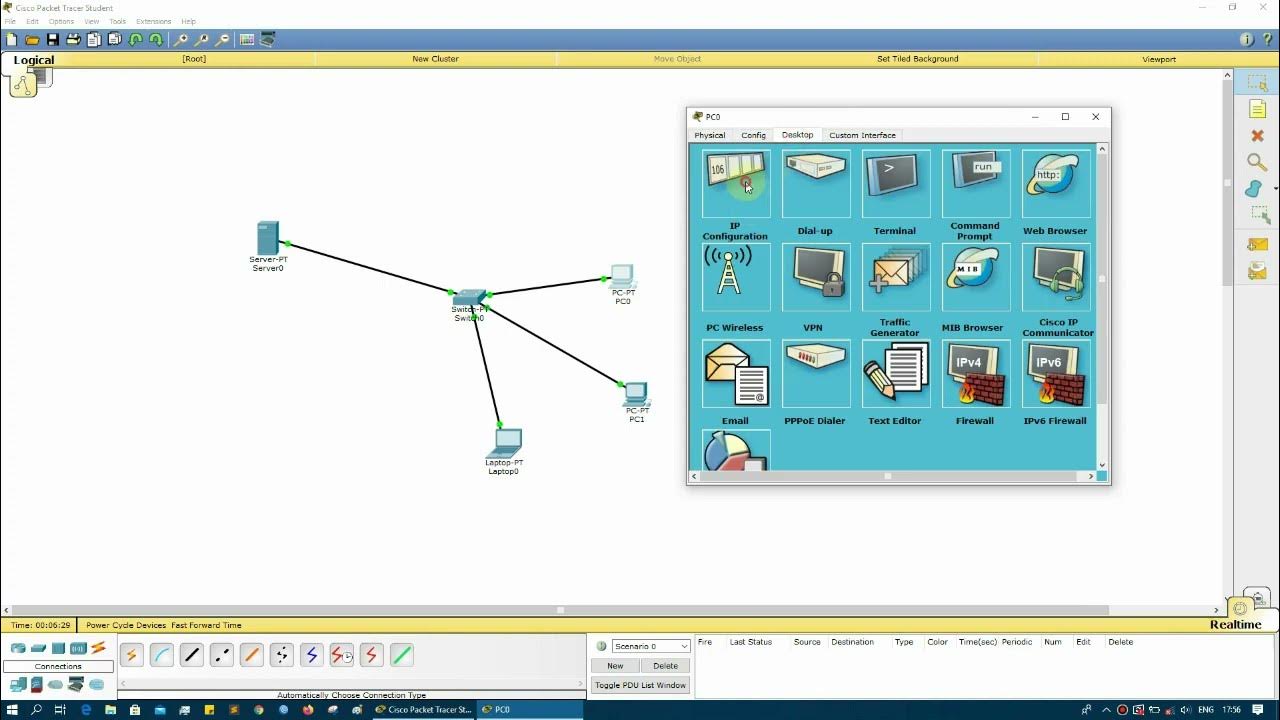
Konfigurasi Mudah DHCP SERVER di Cisco Packet Tracert dengan 1 Server 1 Switch 3 Client
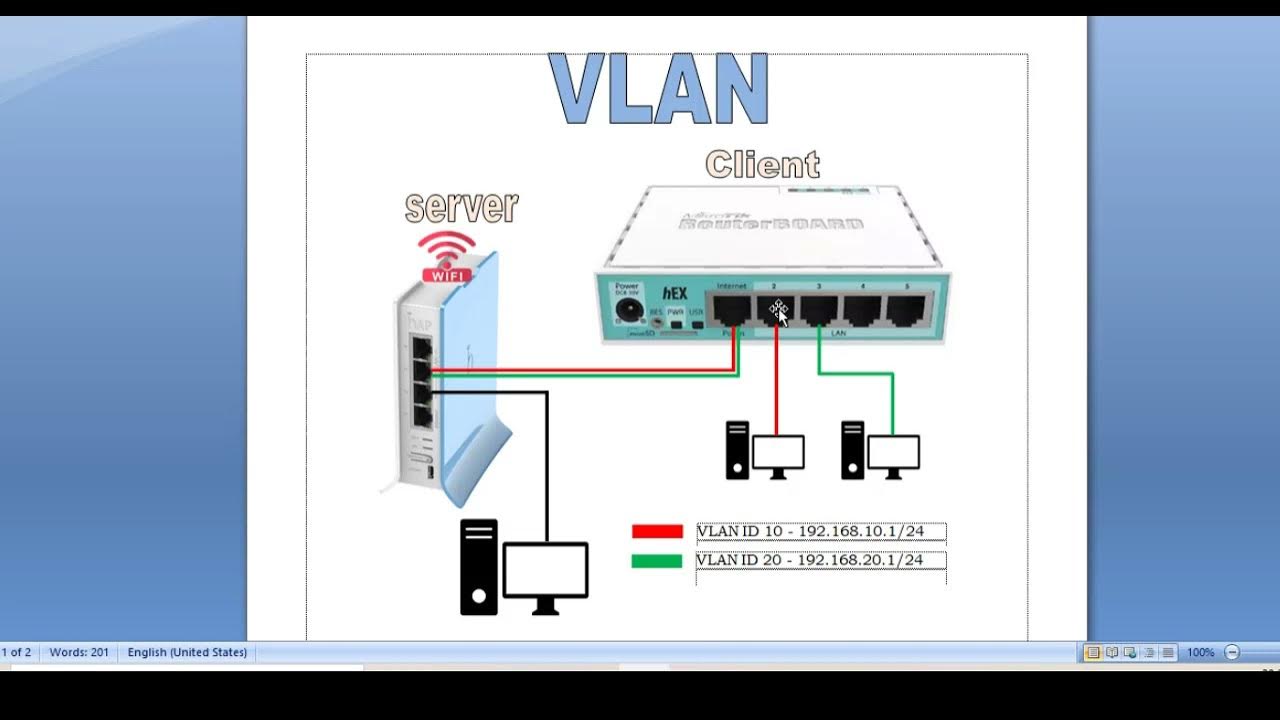
KONFIGURASI VLAN PADA ROUTERBOARD RB 941 - RB 750 - MIKROTIK TUTORIAL
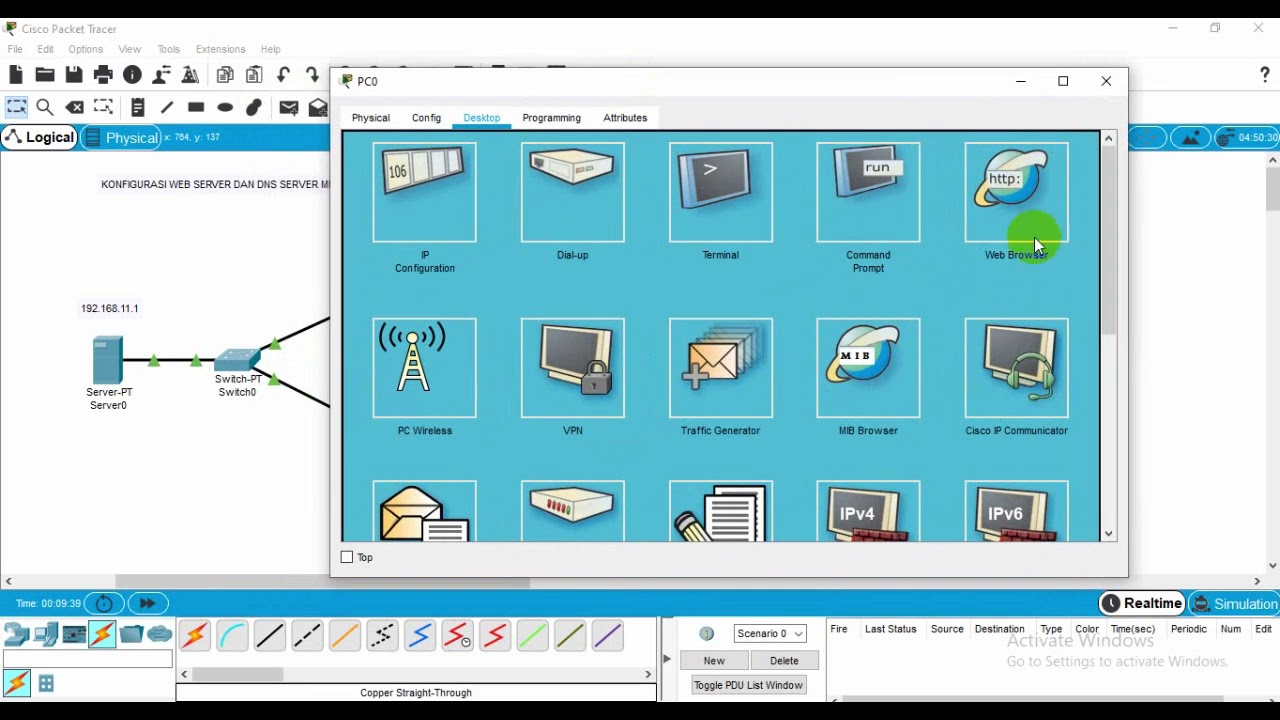
Administrasi Sistem Jaringan
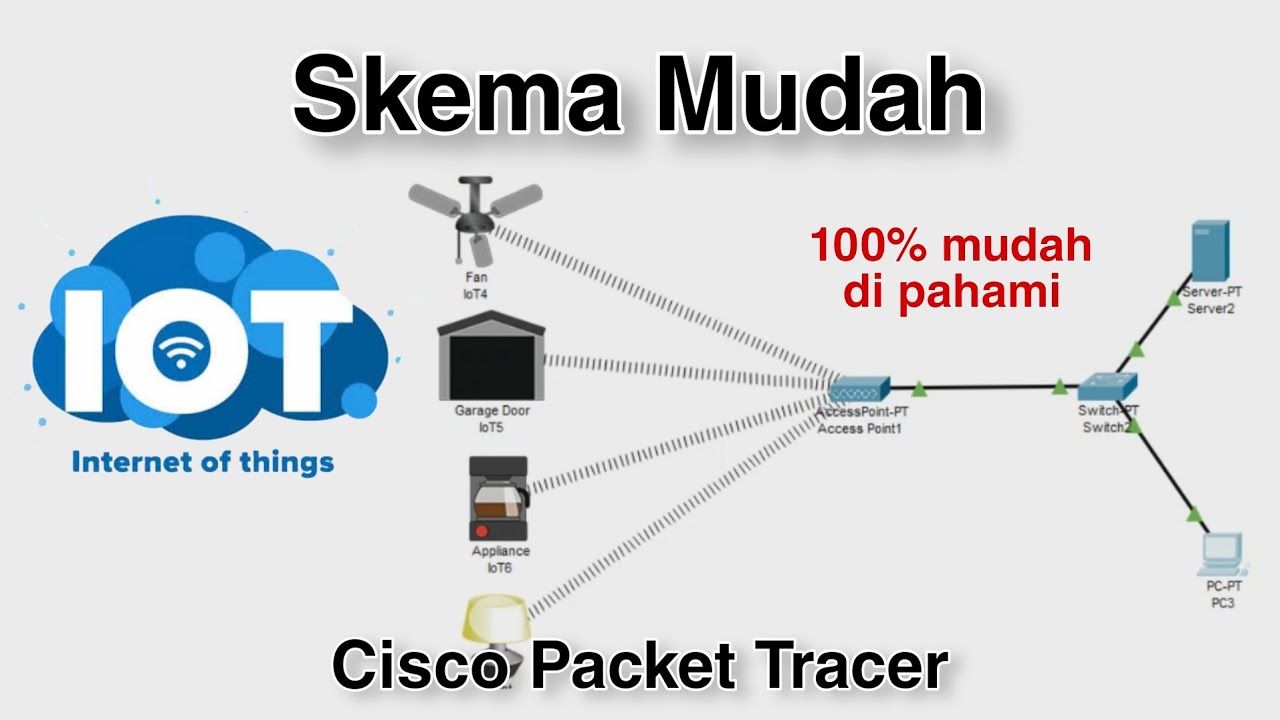
Konfigurasi IoT Perangkat Smart Home - Internet of Things | Cisco Packet Tracer
Konfigurasi DIAL UP dengan 2 ROUTER Cisco Packet Tracer
Setting up HTTP, DNS, FTP and DHCP Server Services in Packet Tracer
5.0 / 5 (0 votes)

