Presentations: designing effective visual aids
Summary
TLDRThis video offers practical tips for designing effective PowerPoint presentations. It emphasizes choosing the right background and font, avoiding overwhelming text, and using bullet points to highlight key information. The video also recommends incorporating images, charts, and graphs sparingly to enhance understanding while avoiding excessive special effects. Furthermore, it stresses the importance of proper referencing, proofreading for errors, and maintaining a consistent design throughout. By focusing on clarity and simplicity, the presentation should guide the speaker, not replace them.
Takeaways
- 😀 Choose the right software for your presentation, such as PowerPoint or Prezi.
- 😀 Use a light background with dark, simple fonts, or a dark background with light fonts for better readability.
- 😀 Ensure the font size is at least 28 to make the text visible from the back of the room.
- 😀 Maintain a consistent design throughout your presentation to keep it professional.
- 😀 Avoid overloading slides with too much information—use key points and bullet points instead.
- 😀 Use 3-5 bullet points per slide and focus on noun phrases and parallel structures to make your points clearer.
- 😀 Include relevant images, charts, and graphs to enhance understanding, but don't overdo it.
- 😀 Use images sparingly and ensure they are appropriate and have permission for use. Always cite the source.
- 😀 Limit the use of special effects and graphics to avoid distractions. The focus should be on your message.
- 😀 Provide in-text references on slides when citing sources, and include a reference list on the final slide.
- 😀 Proofread your slides for any spelling or grammatical errors before finalizing your presentation.
Q & A
Why is it important to choose the right software for creating visual aids?
-Choosing the right software, such as PowerPoint or Prezi, ensures that you can effectively implement your design ideas and make the presentation visually appealing and professional.
What are the recommended background and font choices for slides?
-Use a light background with dark, simple fonts or a dark background with light fonts. Avoid bright colors as they can be distracting and hard to read from a distance.
Why should font size be at least 28 points?
-A font size of at least 28 ensures that all audience members, even those at the back, can clearly read the text on the slides.
How should text be presented on slides?
-Slides should contain 3–5 bullet points highlighting key information using noun phrases and parallel structures, rather than full sentences or paragraphs.
What is the purpose of using visuals like images, charts, and graphs?
-Visuals help explain complex concepts, illustrate data, and make information more memorable and understandable for the audience.
Why is it important to use visuals sparingly?
-Overusing images or charts can distract the audience. Visuals should support your message, not overwhelm it.
What is the guideline for including sources on slides?
-Every image or data source should be cited on the slide. Additionally, provide a full reference list on the final slide and use the appropriate referencing style for your subject.
Why should special effects and flashy graphics be limited?
-Excessive animations or graphics can divert attention from the speaker and the main content of the presentation.
How should slides function in relation to the spoken presentation?
-Slides should guide the speaker’s talk, highlighting key points, rather than serving as a full transcript that the audience reads.
What are the key considerations for group presentations?
-Maintain a consistent slide design across all presenters to ensure a cohesive and professional appearance.
How can a QR code be used in a presentation?
-A QR code can provide the audience with quick access to the reference list or additional resources without overcrowding the slides.
Why is proofreading important before presenting?
-Proofreading ensures that there are no spelling or grammatical errors, which helps maintain professionalism and clarity in the presentation.
Outlines

Dieser Bereich ist nur für Premium-Benutzer verfügbar. Bitte führen Sie ein Upgrade durch, um auf diesen Abschnitt zuzugreifen.
Upgrade durchführenMindmap

Dieser Bereich ist nur für Premium-Benutzer verfügbar. Bitte führen Sie ein Upgrade durch, um auf diesen Abschnitt zuzugreifen.
Upgrade durchführenKeywords

Dieser Bereich ist nur für Premium-Benutzer verfügbar. Bitte führen Sie ein Upgrade durch, um auf diesen Abschnitt zuzugreifen.
Upgrade durchführenHighlights

Dieser Bereich ist nur für Premium-Benutzer verfügbar. Bitte führen Sie ein Upgrade durch, um auf diesen Abschnitt zuzugreifen.
Upgrade durchführenTranscripts

Dieser Bereich ist nur für Premium-Benutzer verfügbar. Bitte führen Sie ein Upgrade durch, um auf diesen Abschnitt zuzugreifen.
Upgrade durchführenWeitere ähnliche Videos ansehen

Microsoft PowerPoint Tutorial - Beginners Level 1

PowerPoints Do's and Don'ts
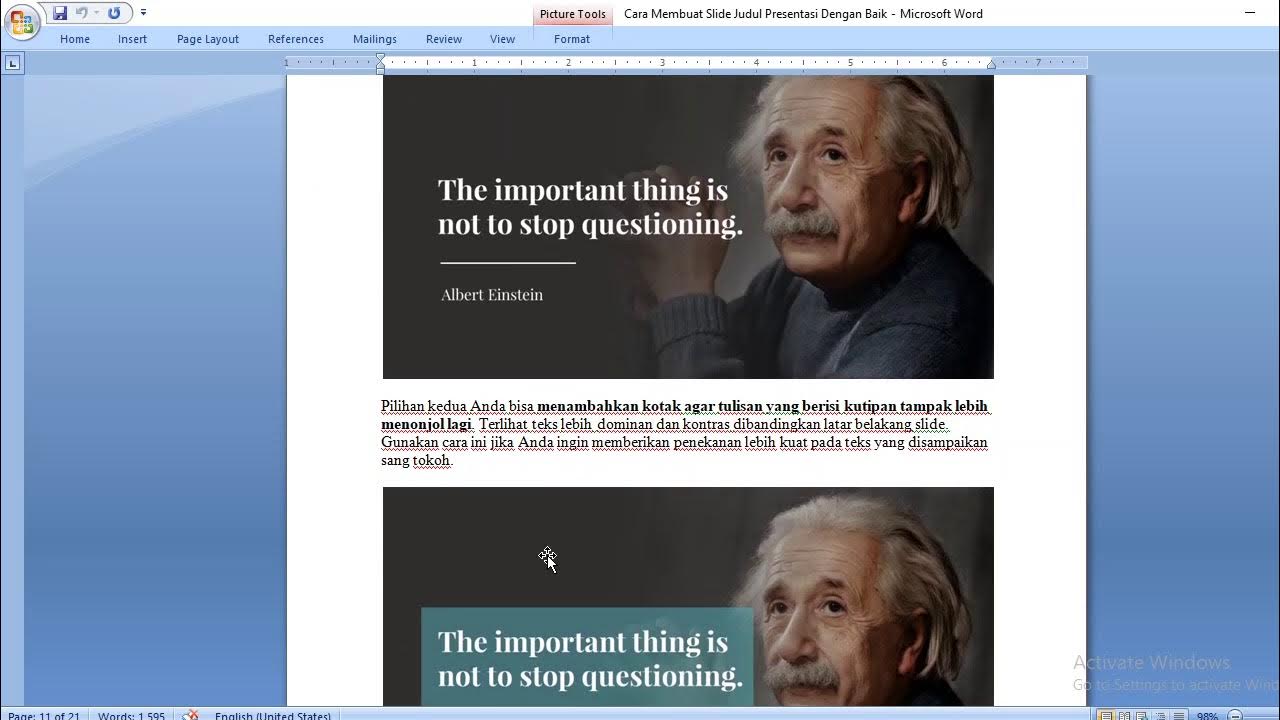
Tips membuat slide powerpoint yang menarik

How to make a PechaKucha presentation for class [for students]

🎤 How to Add Voice in PowerPoint Presentation

PENGENALAN MICROSOFT OFFICE (WORD, EXCELL, POWER POINT) | VIDEO PEMBELAJARAN MATERI TIK
5.0 / 5 (0 votes)

