Video tutorial on how to fix No Paper error on Canon LBP 251dw printer when printing 2 sides
Summary
TLDRThis instructional guide provides a step-by-step solution for fixing a double-sided printing error on the 251 DW printer. The process includes clearing the print queue, adjusting paper settings to select the lower tray, and configuring the printer settings through the menu. Users are advised to select the correct paper size and output focus options to avoid further issues. After completing these adjustments, the printer should work without errors when printing on both sides. The video aims to help users resolve the problem and restore proper printing functionality.
Takeaways
- 🖨️ The video demonstrates how to handle printing issues on the Brother 251DW printer when printing double-sided.
- ❌ The common problem occurs when the printer reports an error during duplex printing.
- 🗑️ The first step to fix the issue is to clear all pending print jobs from the computer.
- 📄 Access the 'Paper Setting' menu to configure the printer's paper source.
- ⬇️ It is recommended to always select the lower paper tray for printing.
- 🔒 Enable the 'Freeze' option to lock the paper settings and prevent errors.
- ⚙️ Navigate to 'Menu' → 'Printer Setting' to adjust additional printer configurations.
- 🔧 In the printer settings, select 'Ex When Free' and configure the appropriate paper size.
- 💻 Choose the correct printer driver, referred to as 'Focus' in the video, to ensure proper printing.
- ✅ After applying all settings, perform a test print to confirm the error has been resolved.
- 📌 Following these steps helps prevent duplex printing errors and ensures smooth operation of the printer.
Q & A
What is the first step when troubleshooting the 251 DW printer for a double-sided printing error?
-The first step is to cancel any existing print job to clear the print queue.
What should you do after canceling the print job?
-After canceling the print job, press the 'Paper Setting' button on the printer.
Which paper tray should be selected to fix the error?
-Select the lower paper tray as the preferred tray.
What option should you always choose in the Paper Setting menu?
-Always choose the 'Freeze' option in the Paper Setting menu.
How do you access the printer settings after adjusting the paper tray?
-Press the 'Menu' button on the printer, then select 'Printer Settings.'
What should be selected under the Printer Settings?
-Under Printer Settings, select 'Ex When Free.'
What paper size should be selected during the process?
-Choose the paper size that matches your print job requirements.
Which driver option should be selected when troubleshooting?
-Select the 'Driver' option and choose 'Focus.'
What should you do after completing all the printer settings adjustments?
-After adjusting the settings, proceed to print a test job to check if the error is resolved.
What happens after following these troubleshooting steps?
-After following these steps, the printer should no longer show an error when printing double-sided.
Outlines

此内容仅限付费用户访问。 请升级后访问。
立即升级Mindmap

此内容仅限付费用户访问。 请升级后访问。
立即升级Keywords

此内容仅限付费用户访问。 请升级后访问。
立即升级Highlights

此内容仅限付费用户访问。 请升级后访问。
立即升级Transcripts

此内容仅限付费用户访问。 请升级后访问。
立即升级浏览更多相关视频

How to fix printer ip2770 error code B200 blinking orange light

How To Make Bookmarks | Double Sided 📚✨ procreate tutorial for double sided bookmarks

Cara cetak bolak balik dengan printer epson (Epson L Series)

Heidelberg Printmaster GTO, Training Video 2 of 9
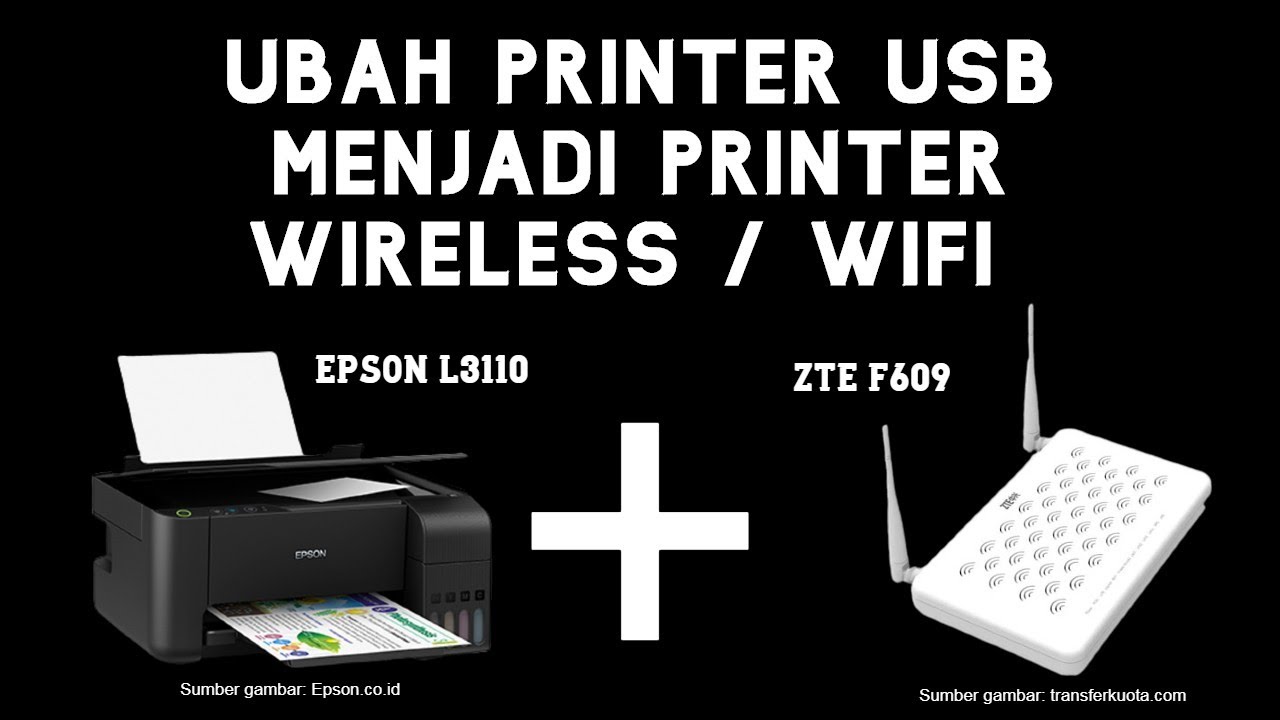
Cara Merubah Printer Biasa USB Menjadi Printer Wifi Tanpa Kabel (Epson L3110 ZTE F609 Indihome)

Zebra ZT610 Printer Calibration Tutorial
5.0 / 5 (0 votes)

