Tutorial Penggunaan Google Docs
Summary
TLDRThis video provides a practical introduction to using Google Docs for educational purposes. It explains how to access the platform through Google Workspace, utilize ready-made templates like proposals and letters, and create documents from scratch. The speaker demonstrates essential features such as naming files, automatic saving to Google Drive, and formatting text using alignment, indentation, and line spacing. A step-by-step example of writing and formatting a formal letter is also shown. The tutorial concludes by highlighting Google Docs as a user-friendly tool that becomes easier to master with regular use, encouraging viewers to explore its features independently.
Takeaways
- 😀 Google Docs is an easy-to-use application for creating text-based documents like letters, CVs, proposals, and more.
- 😀 To access Google Docs, click on the Google apps menu (9 dots) at the top-right corner of the screen.
- 😀 Google Docs offers a variety of templates that can be customized quickly for different document types (e.g., CV, proposal).
- 😀 If you prefer to create a document from scratch, you can start with a blank document and customize it according to your needs.
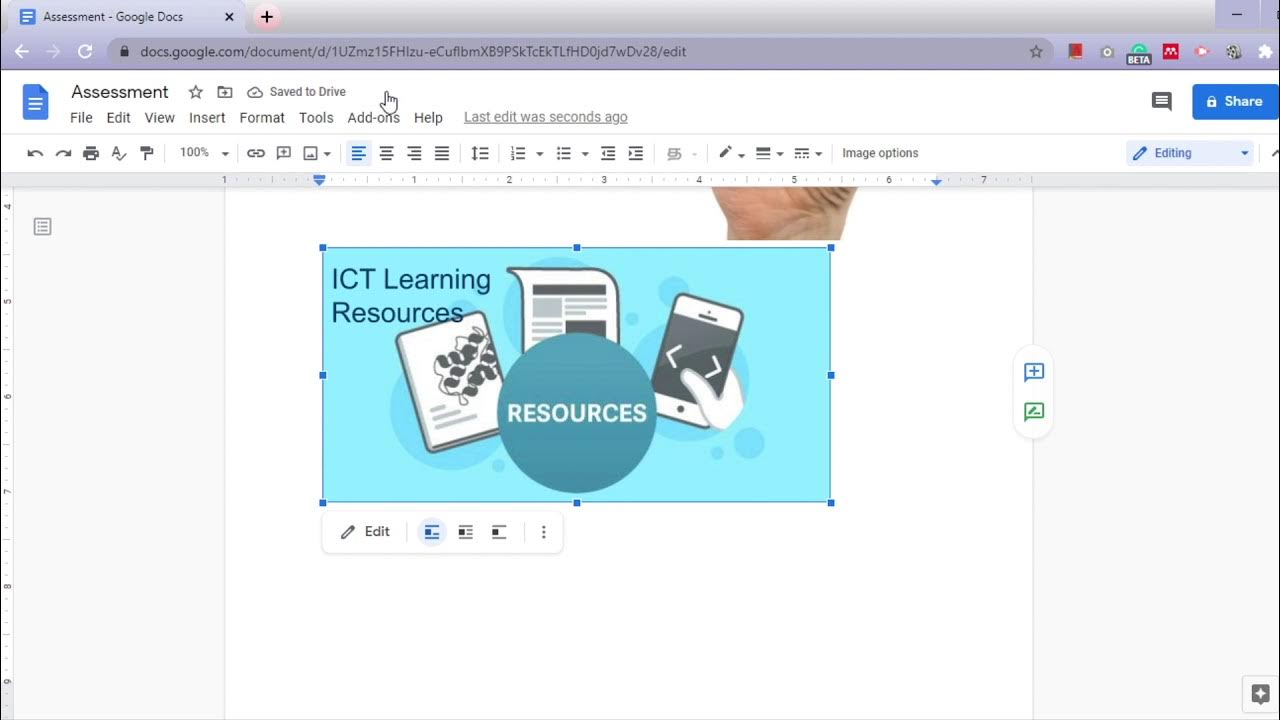
- 😀 The user interface of Google Docs is similar to other office software, with menus like File, Edit, View, Insert, Format, Tools, and Help.
- 😀 To format a document, you can adjust the left indent, line spacing, and text alignment (Justify).
- 😀 You can use the 'Tab' key to align text or create indentations in your document.
- 😀 Google Docs automatically saves your document to Google Drive, so you don't have to worry about losing your progress.
- 😀 To print your document, use the print icon or the shortcut Ctrl + P to access your printer settings.
- 😀 Google Docs is designed to be user-friendly, making it easy for beginners to get started without extensive training.
- 😀 The more you use Google Docs, the more proficient you will become at navigating its features and customizing your documents.
Q & A
What is Google Docs and what is its primary function?
-Google Docs is a part of Google Workspace that allows users to create and edit text-based documents online. Its primary function is to provide a user-friendly platform for word processing and document management, with automatic saving to Google Drive.
How can users access Google Docs from their Google account?
-Users can access Google Docs by clicking the grid icon (nine dots) on the top-right corner of their Google account, then selecting 'Docs' from the menu.
What are templates in Google Docs and how are they used?
-Templates in Google Docs are pre-designed document formats like CVs, letters, proposals, and brochures. Users can select a template and simply replace the placeholder text with their own information, making document creation faster and easier.
What is the advantage of using Google Docs templates over starting from a blank document?
-Using templates saves time and effort because the design and structure are already prepared. Users only need to modify text, whereas a blank document requires manual formatting and layout adjustments.
How can users format the header of a letter in Google Docs?
-Users can format the header by selecting the text and adjusting the left indent to position it correctly on the page, ensuring it does not overlap with other content.
What line spacing is recommended for the body of a letter and how is it applied?
-A line spacing of 1.5 is recommended for the body of a letter. It can be applied using the 'Line spacing' menu in Google Docs, which allows users to select single, 1.15, 1.5, or double spacing.
How can text alignment be set in Google Docs?
-Text alignment can be set using the alignment options in the toolbar, such as left, center, right, or justify. For quick access, users can use the shortcut 'Ctrl + Shift + J' to justify text.
What is the purpose of using the Tab key in document formatting?
-The Tab key is used to align text, such as before colons or for right-aligned names and positions in letters, ensuring a consistent and professional layout.
How can users print documents directly from Google Docs?
-Users can print documents by selecting File → Print, using the shortcut 'Ctrl + P', or clicking the print icon in the toolbar, which will open the printer menu for their connected devices.
What makes Google Docs user-friendly compared to traditional office software?
-Google Docs is user-friendly because it is intuitive, automatically saves documents to the cloud, and allows users to experiment with features without risk. Its interface is straightforward, making it easy to learn and use without extensive training.
What additional feature does Google Docs provide for navigating long documents?
-Google Docs provides bookmarks, which act like a table of contents, allowing users to quickly navigate through different sections of a long document.
Outlines

This section is available to paid users only. Please upgrade to access this part.
Upgrade NowMindmap

This section is available to paid users only. Please upgrade to access this part.
Upgrade NowKeywords

This section is available to paid users only. Please upgrade to access this part.
Upgrade NowHighlights

This section is available to paid users only. Please upgrade to access this part.
Upgrade NowTranscripts

This section is available to paid users only. Please upgrade to access this part.
Upgrade Now


5.0 / 5 (0 votes)
