UV Unwrap Fast with Auto Seams in Maya Tutorial
Summary
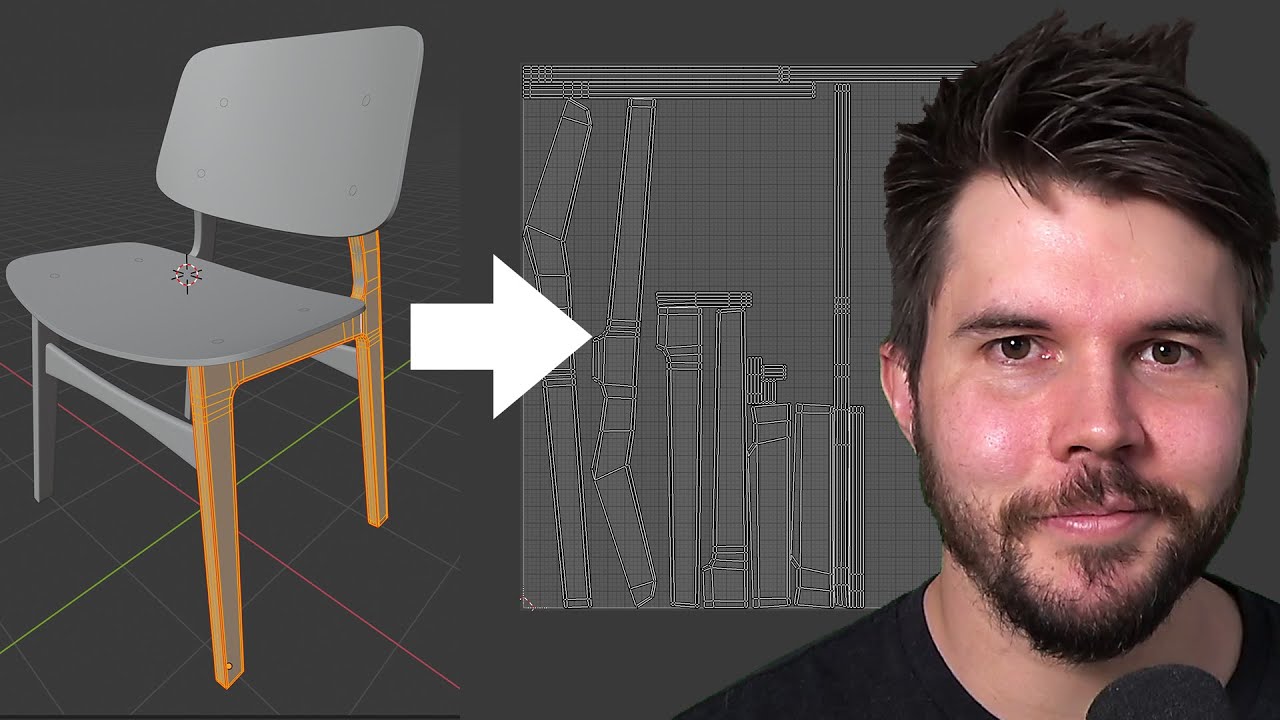
TLDRIn this Autodesk Maya tutorial, learn how to quickly UV unwrap an object using auto seams for efficient texture painting. The process involves creating camera-based UVs, applying auto seams, unfolding the UVs, and optimizing the layout for better texture space. After adjusting the shells, you'll export the object as an OBJ file, ready for use in Substance Painter or Maya's 3D paint tool. This method allows for fast texturing, though manual adjustments can improve precision if needed.
Takeaways
- 😀 Quickly UV unwrap an object in Autodesk Maya using auto seams for faster texture painting.
- 😀 Start by selecting the object in object mode and opening the UV Editor.
- 😀 Use 'Create Camera Based' to generate camera-based UVs for your object.
- 😀 Apply 'Cut and Sew Auto Seams' to the object to automatically set seams for unwrapping.
- 😀 Right-click in the UV editor, select 'UV Shell,' and use the marquee selection to select all UV shells.
- 😀 Unfold the UV shells using the 'Unfold' button in the UV Toolkit for better layout and efficiency.
- 😀 Use the 'Arrange and Layout' function to maximize texture space and prepare for export.
- 😀 Export the UV-unwrapped object as an OBJ file to use in Substance Painter or Maya's 3D Paint tool.
- 😀 For further refinement, use the 'Orient Shell' tool to straighten the UV shells for better alignment.
- 😀 Move, rotate, and scale the UV shells manually to optimize the layout before export.
- 😀 After adjusting the UV shells, right-click to return to object mode and export the selection as an OBJ file.
Q & A
What is the purpose of auto seams in UV unwrapping?
-Auto seams help to quickly define the boundaries where the UVs will be cut and unfolded. This simplifies the UV unwrapping process, especially when you're preparing models for texturing in tools like Substance Painter.
Why is using 'Camera Based' UVs helpful in this tutorial?
-Using 'Camera Based' UVs is helpful because it quickly creates UVs based on the object's perspective relative to the camera, which is often good enough for starting the texturing process, especially when aiming for efficiency.
What happens when you use 'Auto Seams' in Maya's UV Editor?
-When you use 'Auto Seams', Maya automatically places seams along the geometry of your object, making it ready for UV unfolding. This saves time by eliminating the need for manual seam placement.
What is the purpose of the 'Unfold' tool in Maya?
-The 'Unfold' tool in Maya rearranges the UV shells to minimize distortion, giving a better layout of the UVs. It’s essential for creating proper UV maps that can be used for painting textures.
How does 'Layout' help in the UV unwrapping process?
-'Layout' automatically arranges the UV shells in the UV space to maximize the texture area. This step helps to ensure that the UVs are organized efficiently, so you can fit the most detail into the texture maps.
What does 'Orient Shell' do to the UV shells in Maya?
-'Orient Shell' straightens out UV shells, making them align in a uniform direction. This can help when you need more precise control over how your UVs are positioned for texture painting.
Can you adjust the UV shells manually after using 'Auto Layout'?
-Yes, after using 'Auto Layout', you can still manually adjust the UV shells. You can rotate, scale, and move the shells to better fit your texturing needs.
Is this UV unwrapping method perfect for all types of models?
-No, this method is designed for quick UV unwrapping, so it works well for simpler models or when you want to quickly start texturing. For more complex models, more detailed manual unwrapping may be required.
How can you export your object with UVs from Maya to another application?
-You can export your object with UVs by selecting your object, going to 'File' > 'Export Selection', and choosing 'OBJ' format. This ensures your object, along with the UVs, is ready for use in applications like Substance Painter.
What is the difference between using 'OBJ Export' and other file formats for texturing?
-'OBJ Export' is a widely used format for 3D models and supports UV maps. Other formats like FBX may also include UVs but can sometimes complicate texture workflows. OBJ is straightforward and often preferred for texturing tasks.
Outlines

This section is available to paid users only. Please upgrade to access this part.
Upgrade NowMindmap

This section is available to paid users only. Please upgrade to access this part.
Upgrade NowKeywords

This section is available to paid users only. Please upgrade to access this part.
Upgrade NowHighlights

This section is available to paid users only. Please upgrade to access this part.
Upgrade NowTranscripts

This section is available to paid users only. Please upgrade to access this part.
Upgrade NowBrowse More Related Video



5.0 / 5 (0 votes)
