Excel Sorting and Filtering Data
Summary
TLDRThis video tutorial covers essential Excel skills for sorting and filtering data. It demonstrates how to sort names alphabetically, numbers in ascending or descending order, and how to sort data both vertically and horizontally. The tutorial also explains how to keep multiple columns synchronized during sorting. Additionally, it shows how to filter data based on text or numbers, using simple right-click filters and table-based filters. The video helps viewers efficiently organize and analyze data in Excel, ensuring that they can handle both basic and advanced sorting and filtering tasks with ease.
Takeaways
- 😀 Sorting names in alphabetical order can be done by highlighting the column, right-clicking, and choosing 'Sort A to Z' or 'Sort Z to A'.
- 😀 Sorting numbers can be done similarly to names, using the 'Sort Smallest to Largest' or 'Sort Largest to Smallest' options.
- 😀 For horizontal sorting, select 'Sort Left to Right' after clicking the 'Sort' button in the 'Data' tab.
- 😀 When sorting data with adjacent columns, be sure to expand the selection to keep rows together (e.g., first names and last names).
- 😀 If you sort without expanding the selection, data in adjacent columns will be misaligned, leading to errors like mixing first and last names.
- 😀 Filtering data by specific values can be done by right-clicking a cell and choosing 'Filter by Selected Cell's Value' to display only that value.
- 😀 When data is organized into a table, filtering becomes even easier, as you can quickly select multiple items from a drop-down list.
- 😀 Filtering by numbers can be customized with filters like 'Greater Than', 'Less Than', or 'Between' to show only values that match specific criteria.
- 😀 Converting data into a table allows for advanced filtering and sorting options, including date filtering for time-based data.
- 😀 To filter dates, choose the 'Date' filter option, and you can select ranges such as 'Between' specific start and end dates.
- 😀 You can combine multiple filters (e.g., by type and number) to refine your data view, displaying only the relevant information at a time.
Q & A
What is the first step to sorting names alphabetically in Excel?
-The first step is to highlight the column containing the names, right-click, go to 'Sort', and then select 'Sort A to Z' to sort the names in alphabetical order.
How can you sort numbers in Excel from smallest to largest?
-You can highlight the column of numbers, right-click, go to 'Sort', and then choose 'Sort Smallest to Largest'. Alternatively, you can use the 'Data' tab and click the 'A to Z' button to sort in ascending order.
How do you sort data horizontally in Excel?
-To sort data horizontally, go to the 'Data' tab, click 'Sort', then select 'Options'. From there, choose 'Sort left to right', and highlight the row you want to sort. This will sort the data in increasing order horizontally.
What happens if you try to sort data with adjacent columns in Excel without expanding the selection?
-If you do not expand the selection, the data in the adjacent column will remain unsorted, leading to mismatched rows. For example, if you're sorting first names and last names, sorting without expanding the selection will mix up the last names.
How can you avoid data mismatch when sorting multiple columns in Excel?
-To avoid mismatched data, when sorting multiple columns, make sure to expand the selection. This ensures that all related data in adjacent columns stays properly aligned after sorting.
What is the purpose of the 'Filter' option in Excel?
-The 'Filter' option in Excel allows you to display only specific data based on criteria, such as showing only rows with a certain word or number. You can filter data by selecting a cell and using the 'Filter' function to show matching results.
How do you filter data by a specific value in Excel?
-To filter by a specific value, highlight the column, right-click, select 'Filter', and then choose 'Filter by Selected Cell's Value'. This will display only rows containing that specific value.
What is the advantage of turning data into a table in Excel when filtering?
-Converting data into a table in Excel allows you to use built-in filtering tools, making it easier to filter by values in different columns. The table format enables quicker and more organized filtering by type, number range, or dates.
How can you filter data based on a range of numbers in Excel?
-To filter by a range of numbers, first convert your data into a table. Then, click the drop-down arrow in the column header, choose 'Number Filters', and select options like 'Between'. You can then specify the range you want to display.
Can Excel filter by dates as well as numbers?
-Yes, Excel can filter by dates. After converting the data into a table, you can filter by date ranges. For example, you can filter for dates between specific start and end dates by selecting 'Date Filters' from the drop-down menu in the column header.
Outlines

This section is available to paid users only. Please upgrade to access this part.
Upgrade NowMindmap

This section is available to paid users only. Please upgrade to access this part.
Upgrade NowKeywords

This section is available to paid users only. Please upgrade to access this part.
Upgrade NowHighlights

This section is available to paid users only. Please upgrade to access this part.
Upgrade NowTranscripts

This section is available to paid users only. Please upgrade to access this part.
Upgrade NowBrowse More Related Video

Kurikulum Merdeka Materi Informatika Kelas 7 Bab 6 Analisis Data Bagian 3

Filtering Columns and Rows in Pandas | Python Pandas Tutorials

Excel Pivot Table EXPLAINED in 10 Minutes (Productivity tips included!)

How To Use Excel FILTER Function With Multiple Criteria & Return Only the Columns You Need
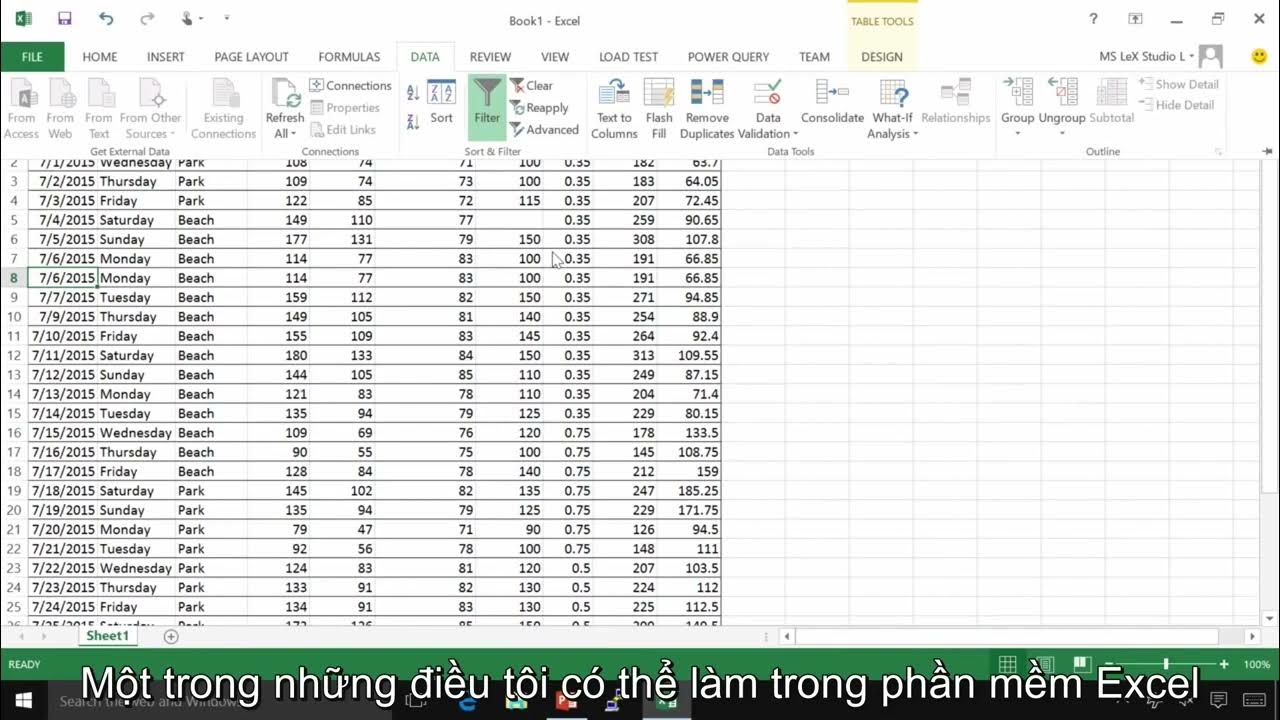
07 Demo Làm việc với dữ liệu trong Excel
How Business Analysts Use Excel - Business Analysis Software Tutorial
5.0 / 5 (0 votes)
