Cómo insertamos imágenes
Summary
Please replace the link and try again.
Please replace the link and try again.
Q & A
What is the main topic of the video?
-The video teaches how to insert images in PowerPoint, either from an online source or from a file on the computer.
How do you begin inserting an image in PowerPoint?
-You start by clicking on the 'Insert' tab and then selecting 'Pictures'.
What is the first method of inserting an image mentioned in the script?
-The first method is inserting an image from an online source by searching for an image using keywords.
What example is used for an online image search in the video?
-The example used is searching for the word 'computadora' (computer).
How do you select a pre-designed image in PowerPoint?
-After searching, you can choose the 'Clip Art' option under 'Type', which contains pre-designed images included in PowerPoint.
What is the final step after selecting an image?
-The final step is to click the 'Insert' button to add the image to the PowerPoint slide.
How do you add a new slide to the presentation?
-You add a new slide by clicking on the left panel and selecting 'New Slide'.
How can you insert an image from your computer?
-To insert an image from your computer, click on the 'Insert' tab, then click 'Picture', browse to the desired file, and select it by double-clicking or clicking 'Insert'.
What types of images can you insert into a PowerPoint presentation?
-You can insert pre-designed images from PowerPoint's image library or images from any folder on your computer.
What does the video suggest doing after learning the steps?
-The video suggests trying out what you've learned by clicking the 'Activities' button to practice.
Outlines

This section is available to paid users only. Please upgrade to access this part.
Upgrade NowMindmap

This section is available to paid users only. Please upgrade to access this part.
Upgrade NowKeywords

This section is available to paid users only. Please upgrade to access this part.
Upgrade NowHighlights

This section is available to paid users only. Please upgrade to access this part.
Upgrade NowTranscripts

This section is available to paid users only. Please upgrade to access this part.
Upgrade NowBrowse More Related Video

🧡 Cómo poner IMÁGENES en HTML [FÁCIL y RÁPIDO!!] [Curso de HTML desde cero]
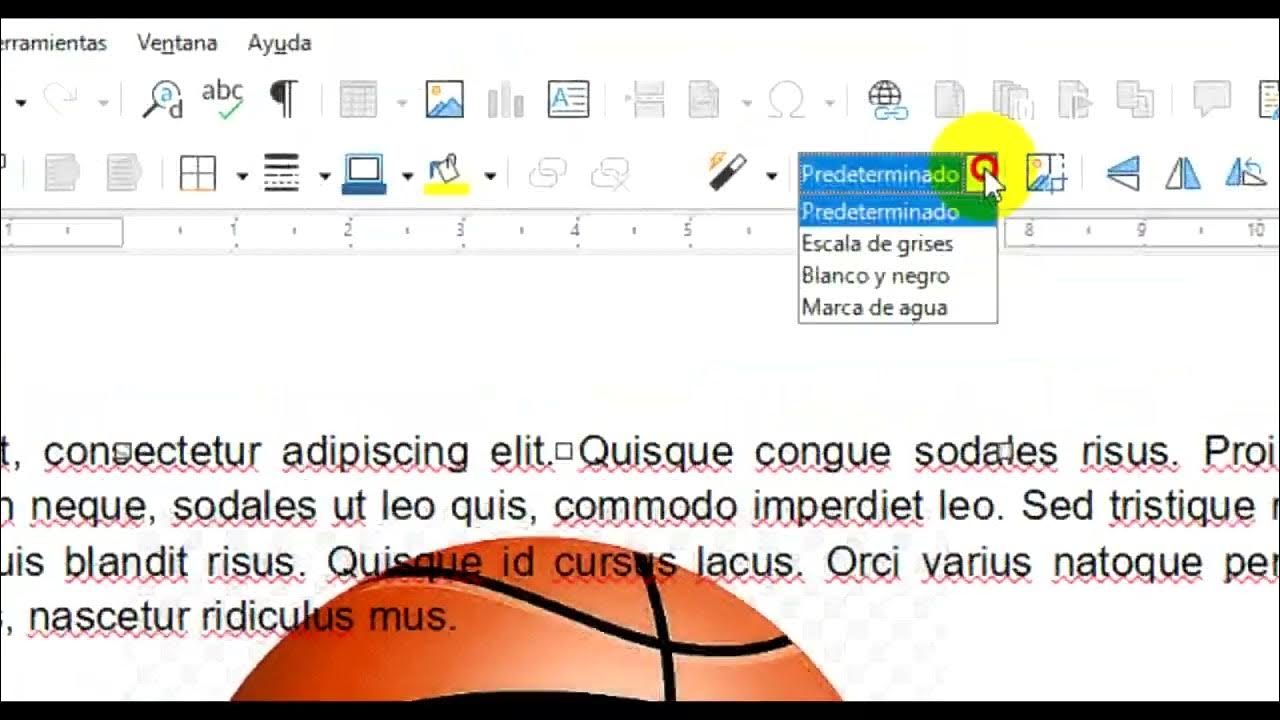
Insertar y ajustar imégenes. WRITER

Imágenes ⭐ Etiqueta img

Procesamiento de imagen python-OpenCv Lectura de imagen capas BGR

Imágenes en Microsoft Word | 12

Fisica - ESPEJOS Y LENTES
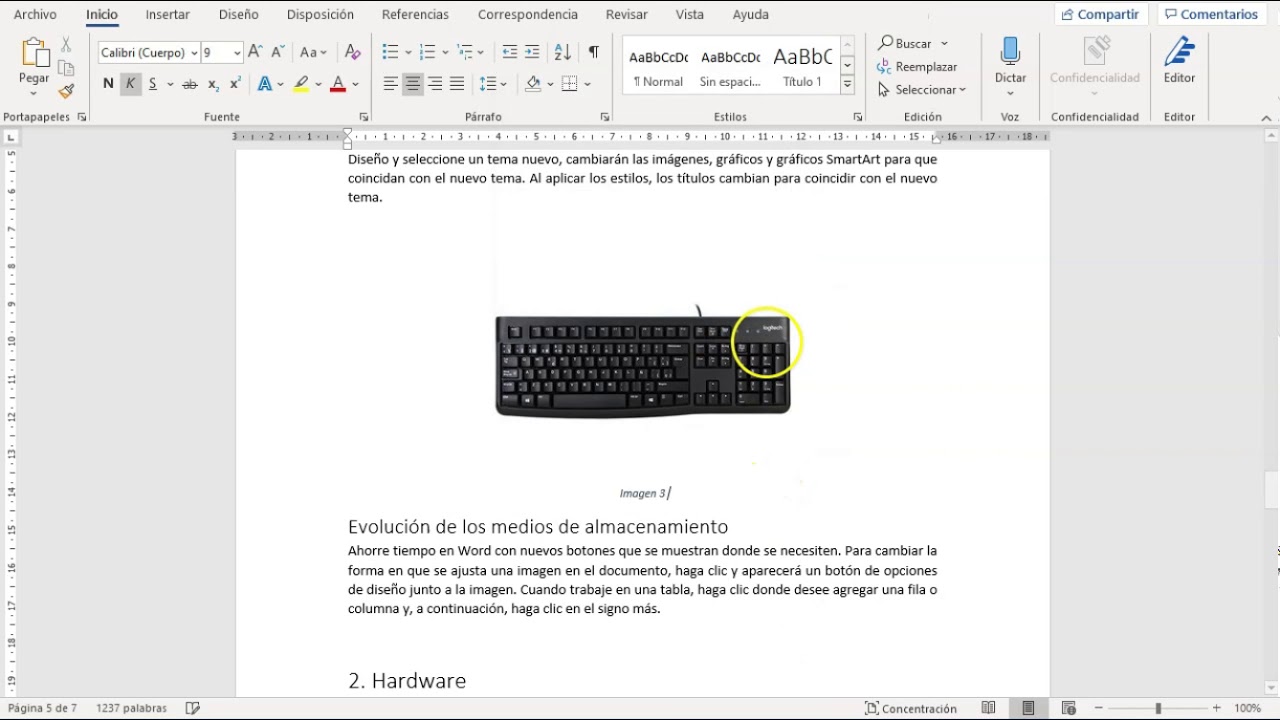
3/3 Tabla de ilustraciones Word, insertar título de imágenes
5.0 / 5 (0 votes)
