Cara Integrasi Word dan Excel | Integrasi Data
Summary
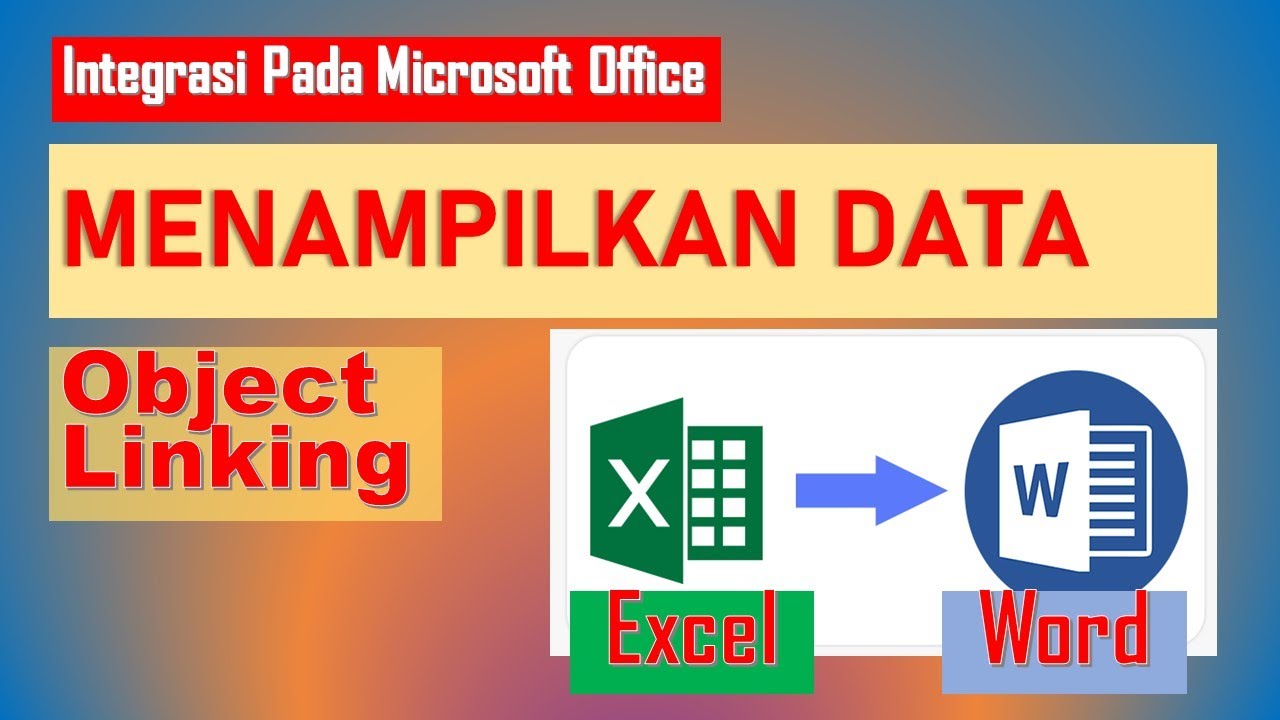
TLDRIn this tutorial, the speaker demonstrates how to integrate data between Word and Excel using the Canyon integration method. The focus is on integrating Excel data into Word documents. The process involves selecting and copying the desired Excel data, then pasting it into Word using specific formatting options. The tutorial shows how changes made in the Excel file are automatically reflected in the Word document, providing an efficient way to keep data synchronized. The video concludes with tips for further development and encourages viewers to apply the technique for practical use in their work.
Takeaways
- 😀 The video is about integrating data between Word and Excel using four main methods: data integration, graphs, hyperlinks, and minimarkets.
- 😀 The tutorial focuses specifically on the data integration process between Word and Excel.
- 😀 To integrate data, start by preparing the Excel file with the data you want to use.
- 😀 After preparing the Excel file, copy the selected data and open a Word document to paste it.
- 😀 In Word, use the 'Insert' tab to paste the data, ensuring the 'Screen Capture' option is selected for proper formatting.
- 😀 Once the data is inserted into Word, changes made in the Excel file will be reflected in the Word document.
- 😀 The example in the video uses a table from Excel with a name field and other details to demonstrate integration.
- 😀 To test the integration, changes made in the Excel file (such as renaming fields) will automatically update in Word.
- 😀 The integration ensures that any updates in the Excel source are automatically applied to the Word document.
- 😀 The tutorial suggests that viewers can apply this integration technique for various practical purposes in their own work.
- 😀 At the end of the video, the speaker encourages viewers to read the article for more details and to try out the technique themselves.
Q & A
What is the main topic of the video tutorial?
-The main topic of the video tutorial is how to integrate data between Microsoft Word and Excel, focusing specifically on data integration.
What are the four types of integrations between Word and Excel mentioned in the tutorial?
-The four types of integrations mentioned are data integration, graphics, hyperlinks, and mini-market integration.
What is the first step in integrating Excel data into a Word document?
-The first step is to prepare the Excel file with the data you want to integrate.
How do you copy data from Excel to Word for integration?
-To copy data, you select the data in Excel, right-click and choose 'Copy', then paste it into the Word document using a specific pasting option.
What should you do in Word to apply the integration from Excel?
-In Word, after pasting the data, you click the drop-down triangle icon in the paste options and choose the appropriate format.
What is demonstrated with the example of changing the 'Nama' column in Excel?
-The example shows that when you change the 'Nama' column in Excel, it automatically updates in the Word document, demonstrating the integration between the two.
How can you prove that the integration works?
-You can prove the integration works by editing the data in Excel (e.g., changing a name) and seeing that the changes are reflected in the Word document.
What other types of integration between Word and Excel are suggested to be explored?
-The tutorial suggests that viewers can explore other types of integration, such as integrating graphics, hyperlinks, and mini-markets.
Is there a way to customize the integration for specific needs?
-Yes, the tutorial encourages users to further develop and customize the integration techniques to suit their specific needs in their work.
Where can viewers find more detailed information about the integration process?
-Viewers can refer to the article mentioned in the video for a more detailed explanation of the integration process and its usage.
Outlines

Этот раздел доступен только подписчикам платных тарифов. Пожалуйста, перейдите на платный тариф для доступа.
Перейти на платный тарифMindmap

Этот раздел доступен только подписчикам платных тарифов. Пожалуйста, перейдите на платный тариф для доступа.
Перейти на платный тарифKeywords

Этот раздел доступен только подписчикам платных тарифов. Пожалуйста, перейдите на платный тариф для доступа.
Перейти на платный тарифHighlights

Этот раздел доступен только подписчикам платных тарифов. Пожалуйста, перейдите на платный тариф для доступа.
Перейти на платный тарифTranscripts

Этот раздел доступен только подписчикам платных тарифов. Пожалуйста, перейдите на платный тариф для доступа.
Перейти на платный тарифПосмотреть больше похожих видео
cara object linking and embedding | integrasi office

Integrasi Antar Aplikasi Office : Embedding, Object Linking, dan Mail Merge

06. New Integrasi Konten Aplikasi Perkantoran - Informatika Kelas X

Object Linking and Embedding pada Word - TIK-K10-04

How to Mail Merge in Word, Excel & Outlook
Cara Membuat Mail Merge untuk Surat Undangan
5.0 / 5 (0 votes)

