DevOps Lab Program 7 Execution | VTU 22 Scheme | Ansible Basics & Playbook Automation
Summary
TLDRThis video tutorial guides viewers through Ops Lab 7, focusing on configuration management using Ansible. It covers the installation of Windows Subsystem for Linux (WSL) and Ubuntu, setting up Ansible, creating a workspace, and configuring an inventory file. Users learn to run basic Ansible commands, test connectivity with a ping module, and write a simple playbook to install Nginx. The tutorial demonstrates executing the playbook and verifying the installation via a browser. With step-by-step instructions, it provides hands-on experience in automating server configurations, making it an accessible introduction to Ansible for beginners.
Takeaways
- 😀 The video demonstrates setting up a lab environment for Ansible on Windows using WSL (Windows Subsystem for Linux).
- 😀 WSL allows running a full Linux terminal inside Windows without using a heavy virtual machine.
- 😀 Ubuntu is installed on WSL to provide a Linux environment for executing Ansible commands.
- 😀 Essential dependencies and packages like Ansible and build tools are installed via `sudo apt update` and `sudo apt install`.
- 😀 A working directory (`ansible-lab`) is created to organize files for Ansible playbooks and inventory.
- 😀 An Ansible inventory file (`hosts`) is created to define local connections for managing servers.
- 😀 A simple ping module command is used to verify the Ansible setup and ensure successful communication with the host.
- 😀 A basic Ansible playbook (`install_nginx.yml`) is written to automate the installation of the Nginx web server.
- 😀 The playbook is executed using `ansible-playbook -i hosts install_nginx.yml` and expected to show tasks completed without errors.
- 😀 Successful installation of Nginx is verified by accessing `http://localhost` in a browser, displaying the default HTML page.
- 😀 The lab emphasizes hands-on experience with Ansible inventory, modules, and playbooks to automate server configuration.
- 😀 Proper command syntax and editor usage (Nano: Ctrl+O to save, Ctrl+X to exit) are highlighted as part of the workflow.
Q & A
What is the purpose of WSL in the context of this lab?
-WSL (Windows Subsystem for Linux) allows running a full Linux terminal within Windows without needing a virtual machine. It is lightweight and ideal for executing Ansible labs and Linux commands directly on a Windows system.
Which command is used to install WSL on Windows?
-Open PowerShell as an administrator and run the command `wsl --install`. This will download and install WSL and a Linux distribution, typically Ubuntu.
After installing Ubuntu via WSL, what is the first command to run, and why?
-The first command is `sudo apt update`. This updates the package lists for Ubuntu to ensure that all software installations are using the latest available versions.
Which package is installed after updating dependencies, and what is it used for?
-The package installed is `ansible`. Ansible is used for configuration management, automating server configurations, and running playbooks to manage systems.
How do you verify the installed version of Ansible?
-By running the command `ansible --version`. This displays the current Ansible version installed on the system.
What is the purpose of creating a `hosts` file in this lab?
-The `hosts` file, created using `nano hosts`, defines the inventory of servers or machines that Ansible will manage. In this lab, it specifies `localhost` as the target for automation commands.
How can you test if Ansible is successfully communicating with the local machine?
-By running a simple ping module with the command `ansible -i hosts localhost -m ping`. A successful response confirms that Ansible can communicate with the target host.
What is the purpose of creating the `install_nginx.yml` playbook?
-The `install_nginx.yml` playbook is used to automate the installation of the Nginx web server on the target machine. It defines the tasks, hosts, and modules required for the installation.
How do you run the Nginx installation playbook?
-By executing the command `ansible-playbook -i hosts install_nginx.yml`. This runs the playbook against the inventory defined in the `hosts` file, performing the automated installation.
How can you verify that Nginx was installed successfully?
-After running the playbook, open a web browser and navigate to `http://localhost`. If Nginx is installed correctly, the default HTML page served by Nginx will be displayed.
What does it mean when the Ansible playbook output shows 'changed=0, unreachable=0, failed=0, skipped=0, rescued=0, ignored=0'?
-This indicates that Ansible executed the playbook, found no tasks to change, all hosts were reachable, no tasks failed, and no tasks were skipped, rescued, or ignored. Essentially, it ran successfully without making changes.
Outlines

Dieser Bereich ist nur für Premium-Benutzer verfügbar. Bitte führen Sie ein Upgrade durch, um auf diesen Abschnitt zuzugreifen.
Upgrade durchführenMindmap

Dieser Bereich ist nur für Premium-Benutzer verfügbar. Bitte führen Sie ein Upgrade durch, um auf diesen Abschnitt zuzugreifen.
Upgrade durchführenKeywords

Dieser Bereich ist nur für Premium-Benutzer verfügbar. Bitte führen Sie ein Upgrade durch, um auf diesen Abschnitt zuzugreifen.
Upgrade durchführenHighlights

Dieser Bereich ist nur für Premium-Benutzer verfügbar. Bitte führen Sie ein Upgrade durch, um auf diesen Abschnitt zuzugreifen.
Upgrade durchführenTranscripts

Dieser Bereich ist nur für Premium-Benutzer verfügbar. Bitte führen Sie ein Upgrade durch, um auf diesen Abschnitt zuzugreifen.
Upgrade durchführenWeitere ähnliche Videos ansehen

Shohibul Imami_2201020028 (UTS) Pemrograman Sistem Jaringan Course 10.2

Ansible Home Server Pt. 2 – Roles, Handlers, Ansible Galaxy, Filters & Loops

What is DevOps? Understanding DevOps terms and Tools
Ansible vs. Terraform: What's the difference?

Ansible in 100 Seconds
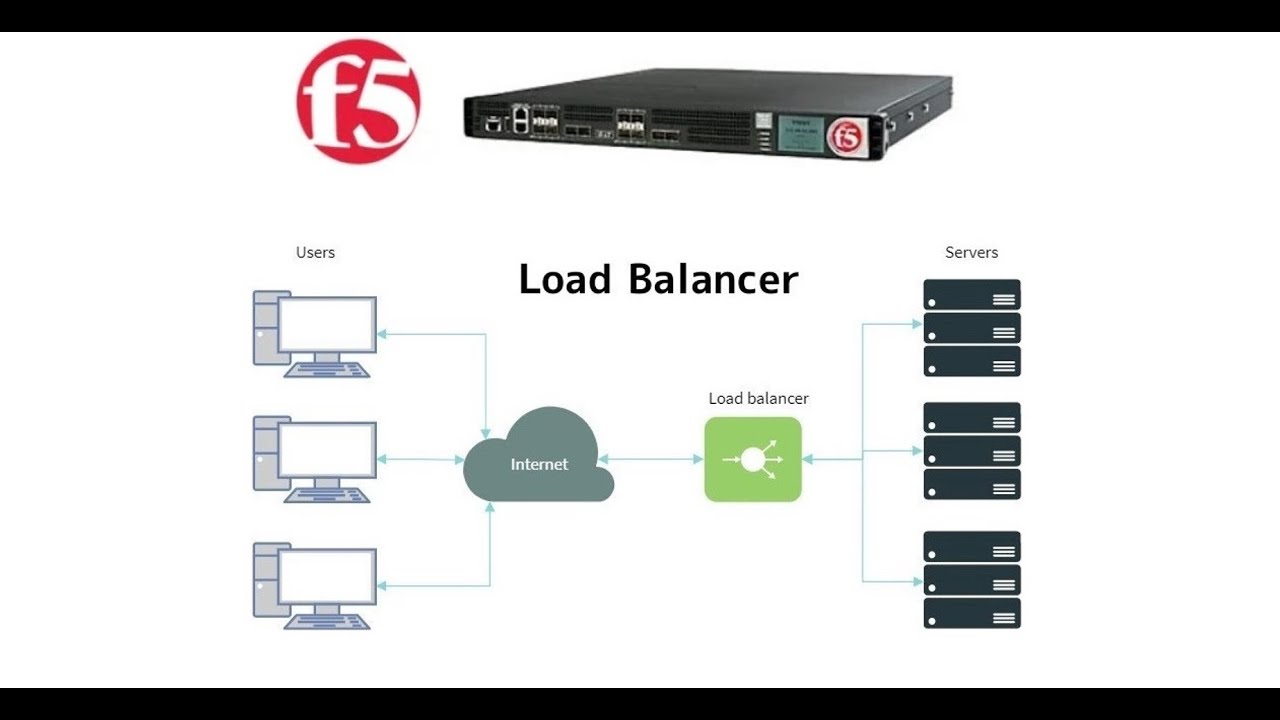
3. Prerequisites to setup F5 lab || How to install Webserver on windows 10 machine || F5 Big-IP LTM
5.0 / 5 (0 votes)

