DASAR WORD, MENGUASAI PENGETIKAN DASAR
Summary
TLDRIn this tutorial, Alexa Junika walks viewers through the basics of typing in Microsoft Word, covering essential functions like setting up page layout, adjusting margins, selecting paper size, and changing font styles. She demonstrates how to center text, adjust spacing, insert lines, and format paragraphs with bullet points and numbered lists. The tutorial also covers inserting images and logos, formatting text with underlines, bold, and italics, and aligning text. Viewers will learn how to customize their documents for professional use, with practical tips on using Word’s key tools to streamline their typing process.
Takeaways
- 😀 Set up your page layout first by adjusting margins, orientation, and paper size before starting to type in Microsoft Word.
- 😀 Use **Page Layout** > **Margins** > **Custom Margins** to set top, left, right, and bottom margins, typically around 2 cm for official documents.
- 😀 Select **Portrait** for vertical paper orientation and **A4** paper size for most official documents.
- 😀 Change the font type to **Times New Roman** and font size to 12 (or use a trick to get size 13).
- 😀 Center text on the page by selecting the desired text and clicking the **Center** alignment option in the Paragraph section.
- 😀 Adjust line spacing between text by choosing **1.5** or **2** spacing from the **Line Spacing** options in the Paragraph section.
- 😀 Add a line in the header or other sections by inserting a **Shape**, selecting **Line**, and adjusting its size using **Format** > **Weight**.
- 😀 Use the **Tab** key to align text like names, titles, and NIP numbers in a neat, professional way instead of using the spacebar.
- 😀 Highlight and click **Underline** to add an underline effect, or use **Strikethrough** for a line through text.
- 😀 Add superscripts and subscripts by selecting the appropriate icon for **X²** to type degrees or exponents in your document.
- 😀 Insert images or logos by selecting **Insert** > **Pictures**, and resize or move them around the page by adjusting the **Wrap Text** settings.
Q & A
How do you set up the page layout in Microsoft Word?
-To set up the page layout, go to the 'Page Layout' menu in the toolbar. Select 'Margins' and then choose 'Custom Margins' at the bottom. You can adjust the top, left, right, and bottom margins to your preference. Also, choose the page orientation (Portrait or Landscape) and set the paper size (A4 is typically used).
What is the importance of setting custom margins in Word?
-Custom margins are important for controlling the amount of space between the text and the edges of the paper. This is particularly useful for professional documents like letters, where specific margin sizes are often required.
How can you center text on a page in Microsoft Word?
-To center text on a page, first select the text you want to center. Then, go to the 'Paragraph' section in the 'Home' tab and click on the 'Center' alignment button. This will place the text in the middle of the page.
How do you adjust the line spacing between paragraphs?
-To adjust the line spacing, highlight the text and go to the 'Paragraph' section in the 'Home' tab. Click the 'Line and Paragraph Spacing' button and choose your desired spacing, such as 1.0, 1.5, or 2.0.
What is the process to insert a line in the document?
-To insert a line, go to the 'Insert' menu, select 'Shapes', and then choose the 'Line' option. Click and drag to draw the line where you want it on the document. You can also adjust the thickness of the line through the 'Format' tab.
How can you add a logo or image to a Word document?
-To add a logo or image, click where you want the image to appear, then go to the 'Insert' menu and select 'Pictures'. Choose the image file and click 'Insert'. You can resize and reposition the image by clicking and dragging the corners.
How do you use the 'Tab' key to align text in Word?
-To align text such as colons (:) in a neat column, use the 'Tab' key. Place the cursor between the text and the colon, then press 'Tab' on your keyboard. This will align the colons in a straight line.
What is the difference between using 'Spacebar' and 'Tab' for alignment?
-The 'Spacebar' creates inconsistent spacing, which can make text alignment uneven. The 'Tab' key, on the other hand, allows for consistent and precise alignment of text or symbols, ensuring everything lines up properly.
How can you change the font style and size in Word?
-To change the font style and size, first select the text you want to modify. Then, in the 'Home' tab, choose your desired font from the 'Font' dropdown and adjust the font size to your preference.
How do you create a numbered or bulleted list in Word?
-To create a numbered or bulleted list, select the text you want to turn into a list. Then, go to the 'Paragraph' section in the 'Home' tab and click either the 'Bullets' or 'Numbering' button, depending on your preference.
Outlines

هذا القسم متوفر فقط للمشتركين. يرجى الترقية للوصول إلى هذه الميزة.
قم بالترقية الآنMindmap

هذا القسم متوفر فقط للمشتركين. يرجى الترقية للوصول إلى هذه الميزة.
قم بالترقية الآنKeywords

هذا القسم متوفر فقط للمشتركين. يرجى الترقية للوصول إلى هذه الميزة.
قم بالترقية الآنHighlights

هذا القسم متوفر فقط للمشتركين. يرجى الترقية للوصول إلى هذه الميزة.
قم بالترقية الآنTranscripts

هذا القسم متوفر فقط للمشتركين. يرجى الترقية للوصول إلى هذه الميزة.
قم بالترقية الآنتصفح المزيد من مقاطع الفيديو ذات الصلة

Mengenal Fungsi Menu di Microsoft Word
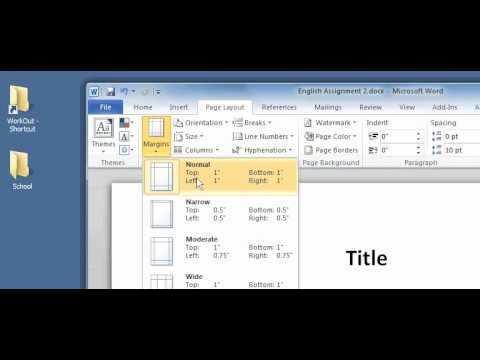
Intro to Computers: Microsoft Office Word 01: Basic Functions
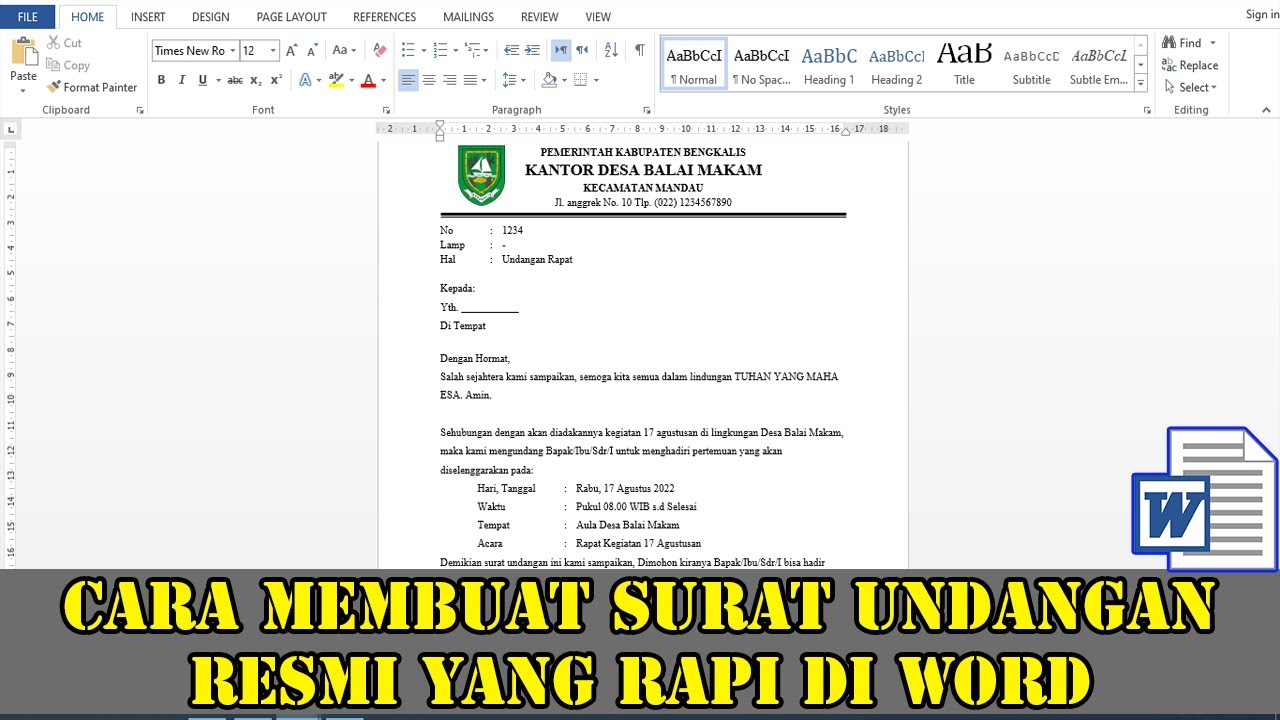
CARA MEMBUAT SURAT UNDANGAN RESMI YANG BAIK DAN BENAR DI WORD
MUDAH BANGET ! CARA MEMBUAT MAKALAH DENGAN BAIK DAN CEPAT
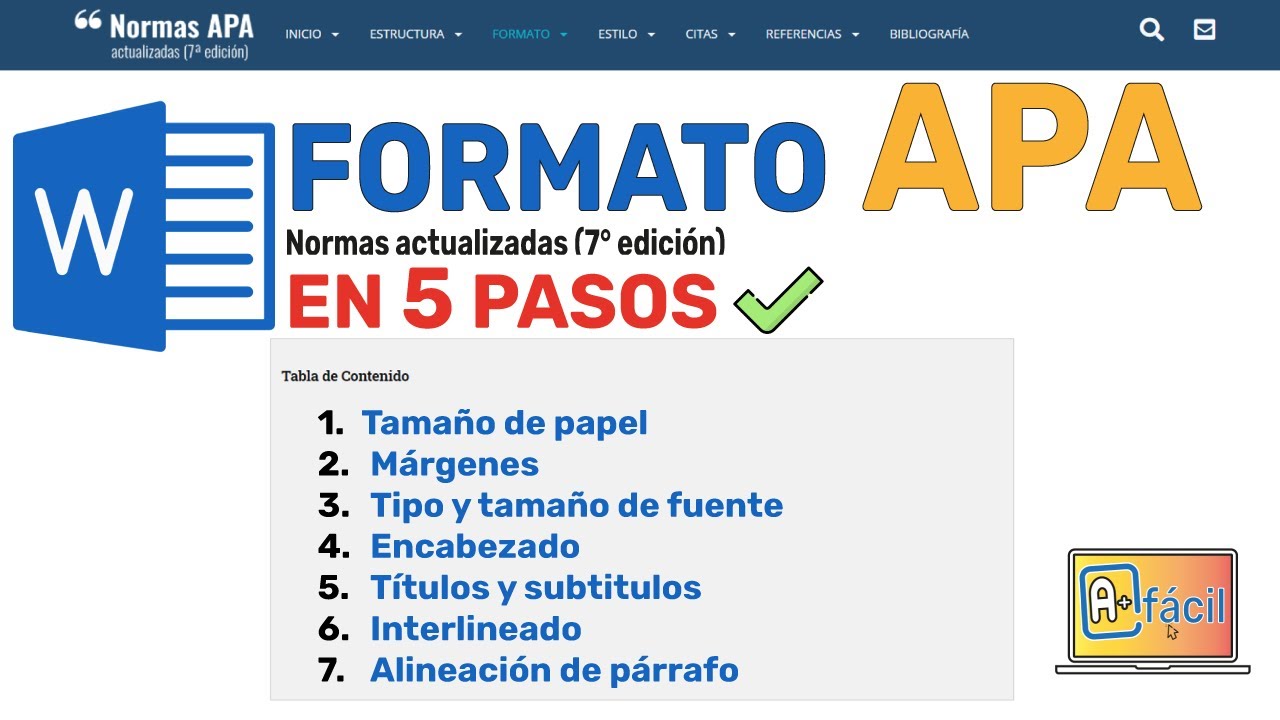
FORMATO APA 7ma edición ✅(NORMAS APA ÚLTIMA EDICIÓN 2024)✌️

17. Literasi Digital - Pengaturan Halaman pada Word - Informatika Kelas X
5.0 / 5 (0 votes)

