Samsung Galaxy S25 Ultra BEST CAMERA SETTINGS In Depth Tutorial
Summary
TLDRThis in-depth tutorial covers the best camera settings for the newly released Samsung Galaxy S25 Ultra. It walks through key features like the Camera Assistant app, intelligent optimization, and motion photo capture. The tutorial provides expert tips on settings for photography, including high-efficiency formats, Pro Mode, and customization options for video settings like HDR and log profiles. Additional advice is offered for specific features such as autofocus, video stabilization, and advanced resolution. Users will also learn about new options like 360 audio, video recording in photo mode, and various customization settings, all aimed at enhancing the camera experience.
Takeaways
- 😀 Install the Camera Assistant app to unlock additional features and settings for your Samsung Galaxy S25 Ultra camera.
- 😀 Enable Intelligent Features like document and QR code scanning for quick access to useful tools.
- 😀 Disable Shutter Suggestions and use the Rule of Thirds for more creative photo compositions.
- 😀 Experiment with different quality optimizations (maximum, medium, and minimum) to find the best balance for your photos.
- 😀 Use the RAW format for higher quality photos with more flexibility in post-editing, but be mindful of larger file sizes.
- 😀 Turn on Motion Photo Capture for unique photos that capture moments before and after the shutter press.
- 😀 Enable Selfie Settings to prevent background flipping when mixing front and rear camera shots.
- 😀 Enable Auto FPS for smoother video in low light conditions, but be aware of possible jitter in some cases.
- 😀 Use Log Mode for a flat video look, giving you more flexibility in color grading during post-production.
- 😀 Enable zoom shortcuts, HDR control, and picture softening via the Camera Assistant app for a more natural and flexible shooting experience.
Q & A
What is the Camera Assistant app, and why is it important for the Samsung Galaxy S25 Ultra?
-The Camera Assistant app is a free app available in the Galaxy Store, not the Play Store. It enhances the native camera app by adding additional features and settings, allowing users to have more control over their camera settings for better results.
What are Intelligent Features, and should they be enabled?
-Intelligent Features such as document and text scanning, and QR code scanning are enabled by default. These features are helpful for quick scanning and can be kept enabled unless you find them unnecessary.
What is the Scene Optimizer, and when should it be turned on or off?
-The Scene Optimizer automatically adjusts colors and contrast for more vivid photos. It’s great for users who prefer contrasty and colorful photos. However, if you're a photographer and want to edit your photos yourself, it's better to turn it off.
How does the 'Swipe Shutter Button' feature improve photography?
-The 'Swipe Shutter Button' feature allows you to take burst shots or create GIFs by swiping down on the shutter button. This is especially useful for action or sports photography, where you need to capture a series of rapid shots.
What is the difference between JPEG, HEIF, and RAW formats?
-JPEG is the standard image format, while HEIF is a newer format that takes up less storage space. RAW format captures uncompressed images with no color adjustments, ideal for post-editing in software like Adobe Lightroom, but requires more storage space.
What is 'Motion Photo Capture,' and how does it work?
-Motion Photo Capture allows you to save a photo with a 'motion' effect, either as a boomerang or slow-motion clip. It captures video frames before and after the photo is taken, giving you more creative control over the photo's movement.
What is the benefit of enabling 'Auto FPS' for video recordings?
-Enabling 'Auto FPS' automatically adjusts the frame rate for 30 and 60 FPS video in low-light conditions, which helps to brighten the video but may result in a slight jitteriness in the footage.
What is the 'Log' video setting, and when should you use it?
-The 'Log' setting records a wider dynamic range, providing more flexibility for color correction in post-production. It's perfect for advanced video editing, but the footage will look flat and gray until it is color-graded.
How do you correct color in a Log video after recording?
-Once you record in Log mode, you can correct the color by simply swiping up on your clip and applying color correction through the native camera app. Alternatively, you can use 1D or 3D LUTs in professional video editing software.
What is the purpose of the 'Tracking Autofocus' feature?
-Tracking Autofocus keeps the focus on a moving subject, such as a person, as it moves around the frame. This ensures that the subject stays sharp and in focus, especially useful for filming dynamic scenes.
Outlines

This section is available to paid users only. Please upgrade to access this part.
Upgrade NowMindmap

This section is available to paid users only. Please upgrade to access this part.
Upgrade NowKeywords

This section is available to paid users only. Please upgrade to access this part.
Upgrade NowHighlights

This section is available to paid users only. Please upgrade to access this part.
Upgrade NowTranscripts

This section is available to paid users only. Please upgrade to access this part.
Upgrade NowBrowse More Related Video
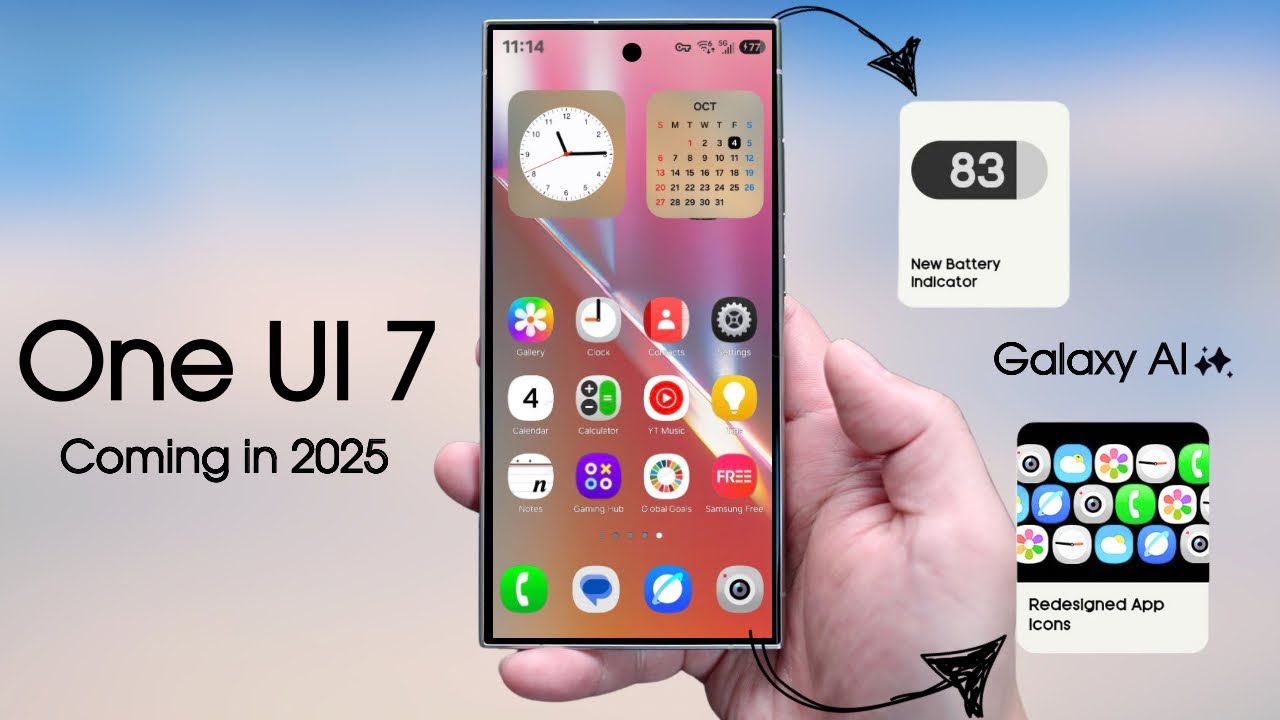
Samsung’s One UI 7 - OFFICIAL HANDS ON FIRST LOOK & Release Date.

Samsung Galaxy S25 Ultra - 2 Weeks Later...

5 Best Camera Phones of 2025 – Top Smartphone Cameras Ranked!

Samsung Galaxy S25 Ultra vs S24 Ultra - A COMPLETE WINNER!

Seminggu Pake Samsung Galaxy S25 Ultra! Bagus kah?

Galaxy S25 Edge, Modal Tampang Doang ?
5.0 / 5 (0 votes)
