Cara Download Dan Install Aplikasi Visual Studio Code Terbaru Dengan Benar Di Laptop/Pc Windows 11
Summary
TLDRThis video tutorial provides a clear, step-by-step guide on how to download and install Visual Studio Code on Windows 11. It walks viewers through accessing the official website, determining their system type (32-bit or 64-bit), downloading the correct installer, and navigating the installation process with helpful tips on optional settings like desktop shortcuts. By the end of the tutorial, users will have Visual Studio Code successfully installed and ready to use, with guidance on launching the application and exploring its interface. The tutorial is designed to be straightforward, beginner-friendly, and applicable to all Windows 11 and Windows 10 users.
Takeaways
- 😀 The tutorial is about downloading and installing Visual Studio Code on Windows 11.
- 😀 The first step is to open a web browser (e.g., Google Chrome or Mozilla) and search for 'download Visual Studio Code official website'.
- 😀 The download should be done from the official Visual Studio Code website to ensure authenticity and safety.
- 😀 Visual Studio Code is compatible with Windows 11, 10, Debian Ubuntu, and macOS, with separate download links for each OS.
- 😀 When downloading for Windows, users should choose between 64-bit or 32-bit versions based on their system specifications.
- 😀 To determine whether your system is 64-bit or 32-bit, you can check the system type by going to File Explorer > This PC > Right-click > Properties.
- 😀 The file size of the Visual Studio Code installer is around 90MB, so download time depends on internet speed.
- 😀 After the download finishes, users can find the installer in their browser's download folder or the specified folder.
- 😀 Double-click or right-click on the installer and select 'Open' to begin the installation process.
- 😀 During installation, users can choose the destination folder and other installation options, such as creating desktop shortcuts.
- 😀 Once the installation is complete, users can directly launch Visual Studio Code from the desktop shortcut or by selecting 'Finish' in the setup process.
Q & A
What is the main purpose of the Visual Studio Code application?
-Visual Studio Code is a code editor used to create websites and other types of software applications.
How do you start the process of downloading Visual Studio Code on Windows 11?
-First, open a web browser, go to Google, and search for 'Download Visual Studio Code official website'. Then, click on the official website link to proceed with the download.
What should you do once you access the official Visual Studio Code website?
-On the website, you will see options to download Visual Studio Code for different operating systems. Choose the version for Windows 11 or Windows 10 and select either 64-bit or 32-bit based on your system.
How can you check if your Windows 11 system is 32-bit or 64-bit?
-To check, open File Explorer, right-click 'This PC', and select 'Properties'. In the 'Device specifications' section, you will see the 'System type', which will indicate whether your system is 64-bit or 32-bit.
What should you do after downloading the Visual Studio Code installer?
-Once the download is complete, open the file from your browser’s download section or file explorer to start the installation process.
How do you begin the installation of Visual Studio Code?
-Double-click on the downloaded file or right-click it and select 'Open' to launch the installer. Then, follow the prompts to begin the installation process.
What steps should you follow during the Visual Studio Code installation?
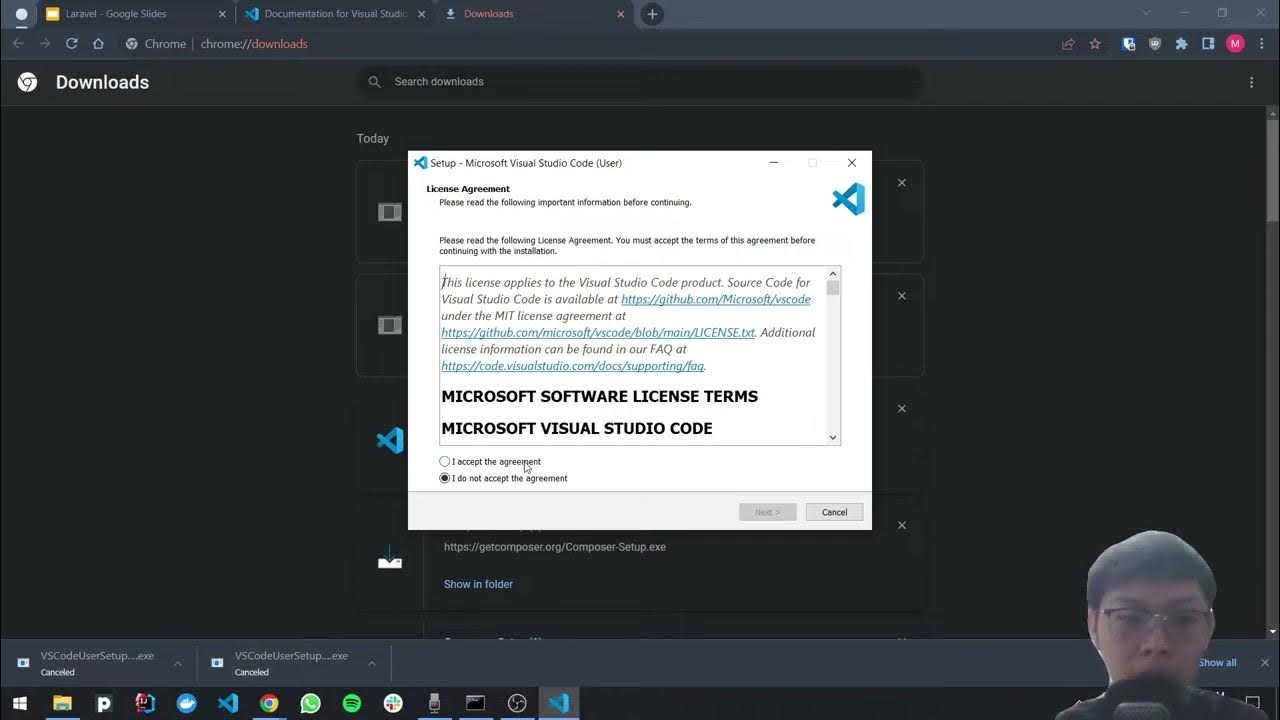
-During installation, ensure the 'Accept the agreement' box is checked. Then, choose the installation location and other preferences, such as creating a desktop icon, before clicking 'Install' to proceed.
Can you customize the installation location of Visual Studio Code?
-Yes, you can choose a specific location for installation. By default, it will install to drive C, but you can change the location during the setup process.
What happens once the Visual Studio Code installation is complete?
-After installation, you can choose to launch Visual Studio Code immediately or finish the setup by clicking 'Finish'. If you selected 'Launch Visual Studio Code', the application will open automatically.
Is this installation process applicable to other versions of Windows?
-Yes, the installation process described is not limited to Windows 11 but is applicable to all Windows versions, including Windows 10.
Outlines

Этот раздел доступен только подписчикам платных тарифов. Пожалуйста, перейдите на платный тариф для доступа.
Перейти на платный тарифMindmap

Этот раздел доступен только подписчикам платных тарифов. Пожалуйста, перейдите на платный тариф для доступа.
Перейти на платный тарифKeywords

Этот раздел доступен только подписчикам платных тарифов. Пожалуйста, перейдите на платный тариф для доступа.
Перейти на платный тарифHighlights

Этот раздел доступен только подписчикам платных тарифов. Пожалуйста, перейдите на платный тариф для доступа.
Перейти на платный тарифTranscripts

Этот раздел доступен только подписчикам платных тарифов. Пожалуйста, перейдите на платный тариф для доступа.
Перейти на платный тарифПосмотреть больше похожих видео
Install PostgreSQL & Connect Using Visual Studio Code | PostgreSQL in Visual Studio
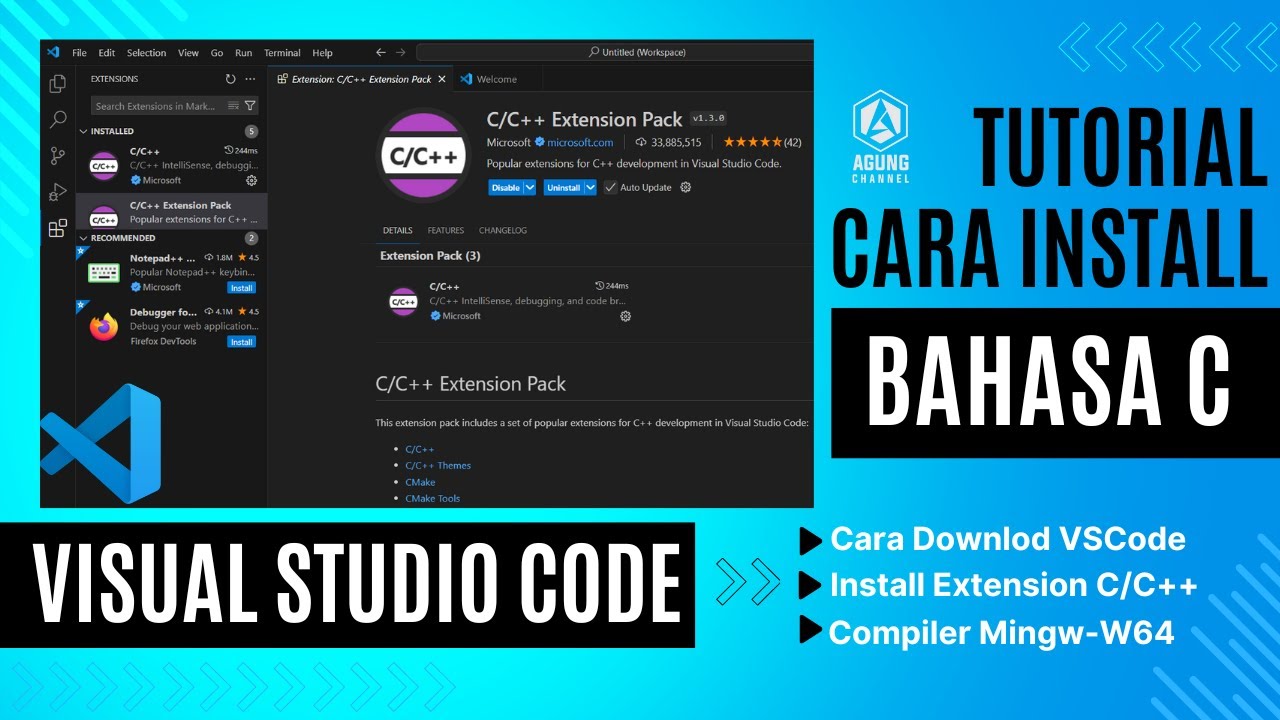
CARA DOWNLOAD VISUAL STUDIO CODE WINDOWS 11 DAN INSTALL EXTENSION BAHASA C DAN C++ BESERTA COMPILER
Belajar Python [Dasar] - 02a - Installasi Python dan VS Code di Windows

How To Install Windows 11 On VirtualBox
How To Reset Windows 10/11 | How To Format Laptop (2022)
4 VSC
5.0 / 5 (0 votes)

